
Try these first, in this order
1. Unplug every extra device. Remove USB drives, hubs, and docks. A faulty device can force a restart.
2. Feel the heat. If the base is very hot or the fan is loud, let the laptop cool down and clean the vents.
3. Note when it restarts. Does it restart at startup, or after some time? The timing points to the cause.
4. Save your work often. Until the fault is fixed, back up your files so a sudden restart costs you nothing.
Restart loop or random restart? Tell them apart
There are two kinds of restart problem. Each one points to a different cause. Knowing which one you have saves you a lot of time.
Restart loop. The laptop shows the maker logo, then restarts before Windows loads. It repeats this again and again. You never reach the desktop. A loop like this often points to damaged boot files, a failing drive, or a BIOS problem.
Random restart. The laptop works fine for a while, then restarts out of nowhere. It often happens during heavy work, like video editing or gaming. It can also happen when you open a certain app. A random restart often points to heat, faulty RAM, a bad driver, or a power problem.
Also note any blue screen. If a blue screen flashes before the restart, write down the stop code if you can. The code tells a technician a lot. If the screen goes black with no message, the cause is more often heat or power. Either way, do not keep forcing the laptop to run. Repeated restarts can damage your files. Back up first, then work through the fixes below.
Overheating is the most common cause
A laptop that gets too hot will restart itself to protect its parts. This is built in. When the processor crosses a safe heat limit, the laptop cuts power. It restarts to stop damage. This is the most common cause we see, and it is worse in the UAE heat.
The signs are easy to spot. The base feels very hot to touch. The fan runs loud all the time. The laptop restarts when you run heavy apps. It works fine for light use but fails under load. Dust in the vents is the usual reason. Old thermal paste is another. A dead fan is the third.
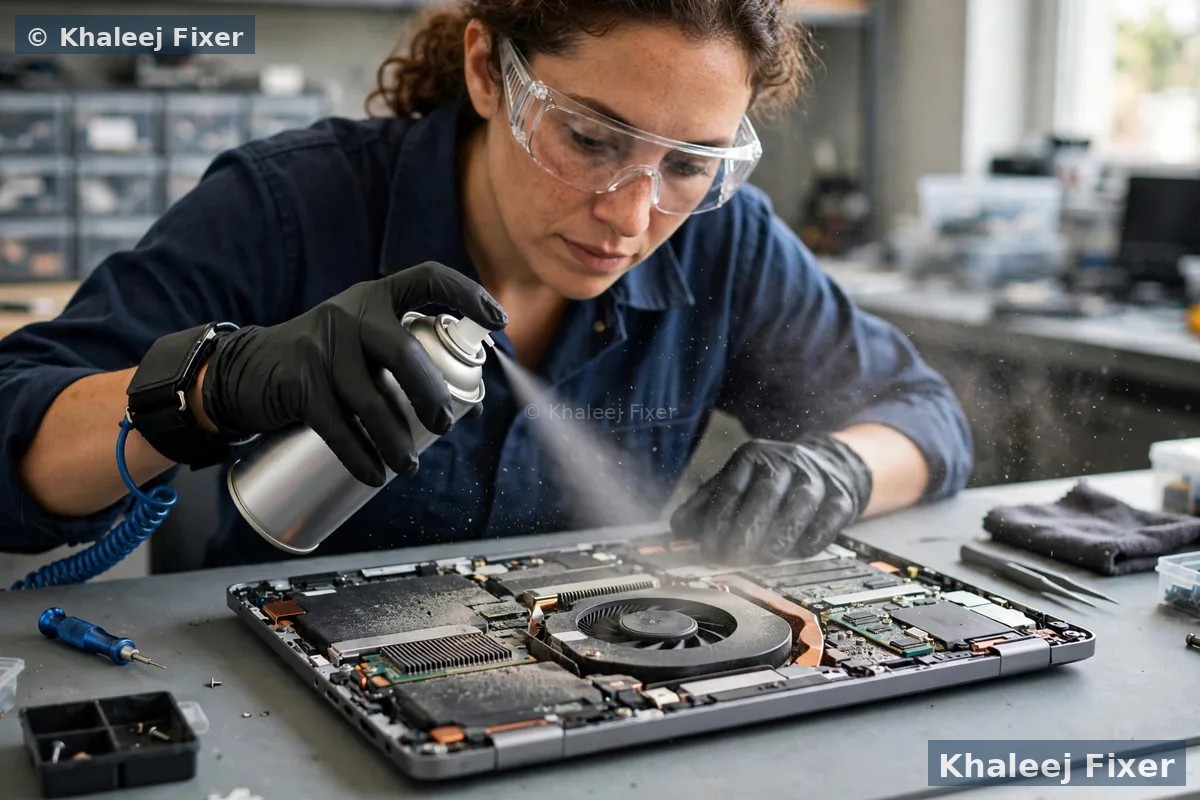
Use the laptop on a hard flat surface, not on a bed or a sofa. Soft surfaces block the vents. Blow dust out of the vents with short bursts of compressed air. If the fan is noisy or the laptop still runs hot after cleaning, the fan or the thermal paste may need a bench service. Our guide on laptop overheating in Dubai covers the full heat check in detail.
Faulty RAM can restart your laptop
RAM is the short term memory of your laptop. It holds what you are working on right now. When a RAM stick starts to fail, it feeds bad data to the system. Windows cannot trust that data, so it crashes and restarts. This is one of the top causes of random restarts.
The signs point to RAM when the restarts come with blue screens, when apps crash for no clear reason, or when the laptop fails the memory test below. A RAM fault can also show up after you add a new RAM stick that does not match the old one. Mixed sticks are a common cause. They may work for a while, then start to fail under load.
Windows has a free memory test built in. Search for Windows Memory Diagnostic in the Start menu and run it. Let it finish. It will tell you if it found a hardware problem. If it finds one, the faulty stick needs to be replaced. If your laptop is also slow, our guide on SSD or RAM upgrade for a slow laptop explains when a RAM upgrade is the right move.
A bad Windows update or a bad driver
Did the restarts start right after a Windows update? That timing is a strong clue. An update can bring a driver that does not fit your laptop. It can also leave system files in a bad state. The laptop then restarts again and again as Windows tries to finish the update and fails each time.
Drivers are the small programs that let Windows talk to your parts. A graphics driver is the most common culprit. If the restarts happen when you open a game or a video app, the graphics driver is a prime suspect. The fix is to roll the driver back or to install a fresh copy from your laptop maker, not from a random driver site.
Open Settings, then Windows Update, then Update history, and check the date of the last update. If it matches the day the restarts began, uninstall that update and restart. If the restarts stop, you found the cause. Then check for a newer update that fixes it. The step by step section below shows how to use safe mode to do this when the laptop will not stay on long enough.
A failing hard drive or SSD
Your drive holds Windows and all your files. When a drive starts to fail, Windows cannot read the files it needs. It crashes and restarts. This fault gets worse over time. It will not fix itself. And it puts your files at risk, so back up first before you try anything else.
The warning signs are clear. The laptop takes very long to start. Files open slowly or not at all. You hear clicking or grinding sounds from an old hard drive. You see errors like no boot device or disk read error. Any of these means the drive is in trouble. Stop using the laptop for heavy work and back up your files at once.
You can check the drive health with a simple tool. Open Command Prompt as an administrator and type wmic diskdrive get status, then press Enter. If it says OK, the drive reports no fault yet. If it says anything else, the drive needs to be replaced. A new SSD also makes an old laptop feel fast again. Our guide on SSD or RAM upgrade for a slow laptop covers the upgrade in full.
Power and battery problems
A laptop needs steady power. If the power cuts for even a second, the laptop restarts. A loose charger plug is a common cause. So is a charger that no longer gives enough power. A swollen or worn battery can also cut power without warning. The laptop restarts when the battery drops out, even while the charger is plugged in.
Test this the easy way. Run the laptop on the charger alone with the battery removed, if your model allows it. If the restarts stop, the battery is the likely fault. Then try a different charger of the same model. If the restarts stop, the old charger is the fault. Also check the charger pin and the charging port for damage or looseness.
Never use a swollen battery. If the base of the laptop bulges or the trackpad lifts, switch the laptop off and do not charge it. A swollen battery is a safety risk. Bring it to us and we fit a new battery. Our guide on laptop not charging covers the safe power checks, and our laptop battery replacement in Dubai page covers battery faults in full.
Malware can force restarts too
Some malware restarts a laptop on purpose. It may do this to finish installing itself. It may also run hidden jobs that push the processor to full load, which causes heat, which causes a restart. If the restarts came with pop ups, strange new apps, or a sudden slowdown, malware is worth checking.
Run a full scan with Windows Security or a trusted antivirus you already have. Let the scan finish. Remove what it finds. Then restart and watch. If the restarts stop, the malware was the cause. If they continue, move on to the hardware checks below. Do not download random cleaner tools from ads. Many of them are malware themselves.
Try these fixes at home, step by step
Work through these steps in order. Test after each one. Stop when the restarts stop. Back up your files first, before you start.
1. Start in safe mode. Safe mode loads Windows with only the basic drivers. Hold Shift while you click Restart, then choose Troubleshoot, Advanced options, Startup Settings, and Restart. Press 4 for safe mode. If the laptop stays on in safe mode, a driver or an app is the cause. If it restarts even in safe mode, the fault is more likely hardware.
2. Check for updates and roll back the bad one. In safe mode, open Settings and Windows Update. Install any pending updates. If the restarts began after an update, uninstall that update from Update history and restart.
3. Run the memory test. Search for Windows Memory Diagnostic and run it. Let it finish. If it reports a hardware problem, the RAM needs to be replaced.
4. Do a clean boot. A clean boot starts Windows with no extra apps. Search for msconfig, open System Configuration, and choose Selective startup with only system services ticked. Restart. If the restarts stop, turn the apps back on one by one until the restarts return. The last app you turned on is the cause.
5. Check the drive and the system files. Open Command Prompt as an administrator. Type sfc /scannow and press Enter. Let it finish. Then type chkdsk /f /r and press Enter. It may ask to run on the next restart. Say yes. These two checks repair damaged Windows files and bad drive sectors.
6. Update the graphics driver. Go to your laptop maker website and download the graphics driver for your exact model. Install it. Do not use random driver updater tools. They often install the wrong driver and make things worse.
When to stop and get a free diagnosis
Stop trying home fixes when you see any of these signs. They point to a hardware fault that needs a bench check.
The laptop restarts in safe mode too. Safe mode rules out drivers and apps. A restart there means hardware, heat, or power.
The memory test reports a hardware problem. A failed RAM stick needs to be replaced on the bench.
The drive check reports bad sectors. A failing drive can die at any time. Your files are at risk. Let a technician clone the drive before it fails.
The laptop is very hot or the battery is swollen. Both are safety risks. Switch the laptop off and bring it in.
A restart fault is usually found fast on the bench. We test the RAM, the drive, the heat, and the power one by one until we find the cause. The diagnosis is free, so you know the real fault before you agree to anything. See our laptop repair in Dubai page for the full range of laptop repairs, or check starting prices on our price list page.
Frequently Asked Questions
Why does my laptop keep restarting on its own?
The most common causes are overheating, faulty RAM, a bad Windows update or driver, a failing hard drive, and a power or battery problem. Start by checking the heat and unplugging extra devices. Then note when the restarts happen. The timing points to the cause. If the laptop restarts even in safe mode, the fault is more likely hardware.
Can overheating make my laptop restart?
Yes. A laptop that gets too hot restarts itself to protect its parts. The signs are a very hot base, a loud fan, and restarts during heavy work. Use the laptop on a hard flat surface, clean the vents, and check the fan. If it still runs hot, the fan or the thermal paste may need a bench service.
How do I stop my laptop from restarting in a loop?
First, back up your files if you can. Then try safe mode to see if Windows loads with basic drivers only. In safe mode, uninstall the last Windows update and run the memory test. If the loop continues even in safe mode, the cause may be a failing drive or damaged boot files. That needs a bench check, and the diagnosis is free.
Can a Windows update cause my laptop to keep restarting?
Yes. An update can bring a driver that does not fit your laptop, or leave system files in a bad state. If the restarts began right after an update, check the update date in Update history. Uninstall that update and restart. If the restarts stop, you found the cause. Then look for a newer update that fixes it.
How much does it cost to fix a laptop that keeps restarting in Dubai?
The cost depends on the cause. A driver or update fix is simple. A RAM or drive replacement costs more. See our price list page for starting prices. The final quote always comes after the free diagnosis, and no work starts without your yes.
Laptop still restarting after the fixes? Get a free diagnosis today.
Message us on WhatsApp or call. Free pickup, free diagnosis, final quote before any work, 2-month warranty.
Free Diagnosis • Free Pickup & Delivery • 2-Month Warranty • Open 7 Days 11AM to 11PM