
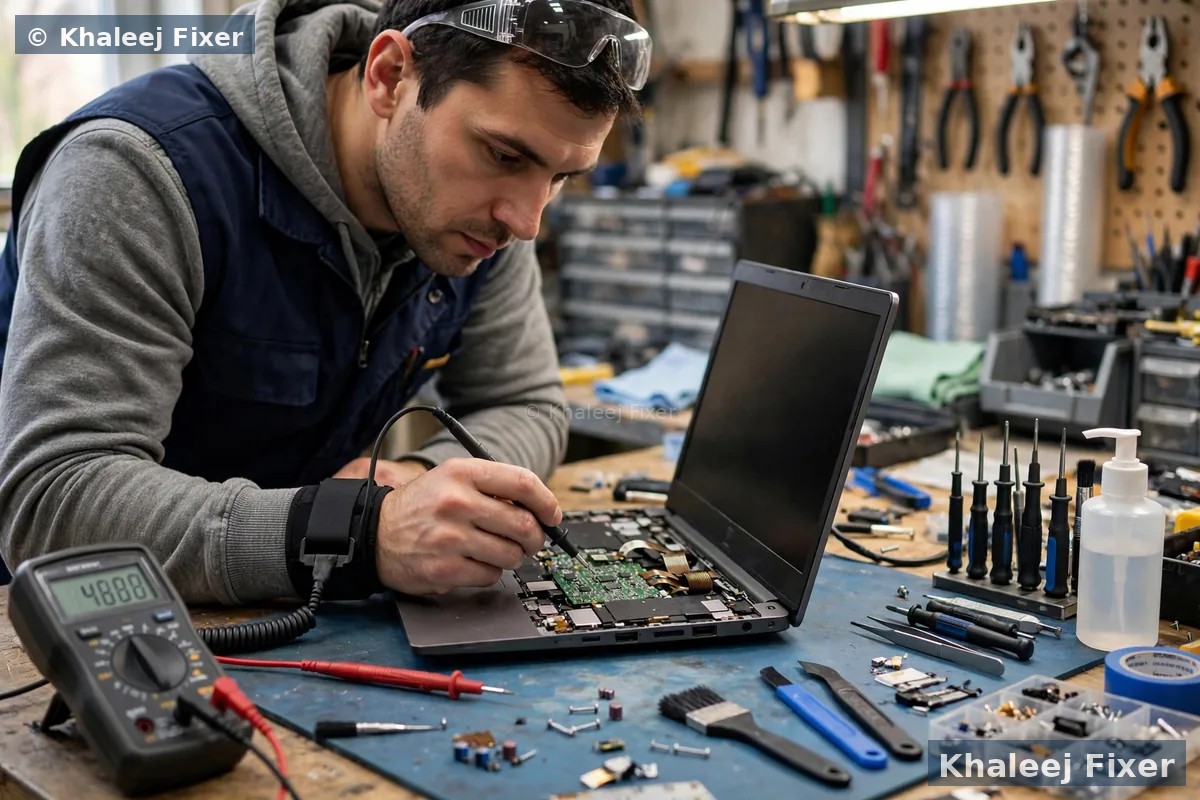
Short answer: what a slow startup usually means
A laptop that is slow to start up is almost never slow for one single reason. It is usually a pile of small delays that add up. Too many programs set to launch at startup. A drive that is nearly full. A hard drive that is old and tired. A driver that loads wrong. Or a battery that is so worn the laptop throttles itself from the first second. The fix is to find which part of the startup is slow, then fix that part first.
A healthy laptop with a fast SSD should reach a usable desktop in 15 to 30 seconds. A laptop with an old hard drive takes 45 to 90 seconds even when it is healthy. If your laptop takes two minutes or more, something is wrong, and at least one fix in this guide will help. Work through the steps in order. The first few fixes solve the problem for most people, and they cost nothing.
One warning before you start: do not install registry cleaners or so called PC booster programs. They rarely help, and they can damage Windows. Every fix in this guide uses tools already built into Windows, or a hardware change that a repair shop can do safely.
First, measure how slow it really is
Guessing wastes time. Before you change anything, find out where the time goes. A startup has three parts. First the firmware starts the hardware. Then Windows loads. Last, your sign-in, startup apps, and background tasks load. Each part has its own usual cause, so knowing which part is slow tells you where to start.
Check Last BIOS time in Task Manager. Press Ctrl, Shift, and Esc together to open Task Manager. On Windows 11, open Startup apps in the left list. On Windows 10, open the Startup tab. Look at Last BIOS time in the top right corner. That is how long the firmware took before Windows began. A long figure, more than 20 or 30 seconds, points to a firmware problem, a USB drive left plugged in, or a failing drive.
Check Event Viewer for the real boot time. Press the Windows key and R together, type eventvwr.msc, and press Enter. In the left panel, open Applications and Services Logs, then Microsoft, then Windows, then Diagnostics-Performance, then Operational. Look for Event ID 100. It records the total boot time in milliseconds. If the number is over 120,000, your boot takes more than two minutes, and you have real work to do.
Watch what happens on screen. A long wait on the maker logo, before Windows appears, points to firmware checks or a connected device. Spinning dots for a long time point to a slow or full drive, or damaged system files. A desktop that shows up but stays sluggish for minutes points to too many startup apps or updates still finishing. Slow only after a full shutdown, but fine after a restart, points to Fast Startup or a driver problem.
Write the numbers down before you start fixing. Then check again after each fix. That way you know which fix helped, and you stop when the startup feels right.
The most common cause: too many startup apps
This is the most common cause of a slow startup, by far. Many programs add themselves to the startup list when you install them. Chat apps, cloud storage, music apps, printer tools, and game launchers all want to run the moment Windows starts. Each one adds a few seconds. Ten of them add a minute.
Turn off startup apps in Task Manager. Press Ctrl, Shift, and Esc together. On Windows 11, open Startup apps. On Windows 10, open the Startup tab. Look at the Startup impact column. Right-click any app you do not need at boot and choose Disable. Disabling does not uninstall the app. It only stops it from launching on its own. You can still open it by hand whenever you want.
Safe to disable: chat apps, cloud storage sync, music and video apps, game launchers, printer tools, and anything you only use once in a while. Leave alone: your antivirus, audio drivers, and anything from your laptop maker that handles the keyboard, touchpad, or fingerprint reader. If you are not sure about an item, leave it on and ask us on WhatsApp.
Also check Settings. Open Settings, then Apps, then Startup. The same list shows up here, with simple on and off switches. Turn off anything you do not need at boot. Then restart the laptop and feel the difference. Most people see the biggest gain from this one step alone.
If the laptop is still slow after this, move on. The next fixes deal with settings, the drive, and the hardware.
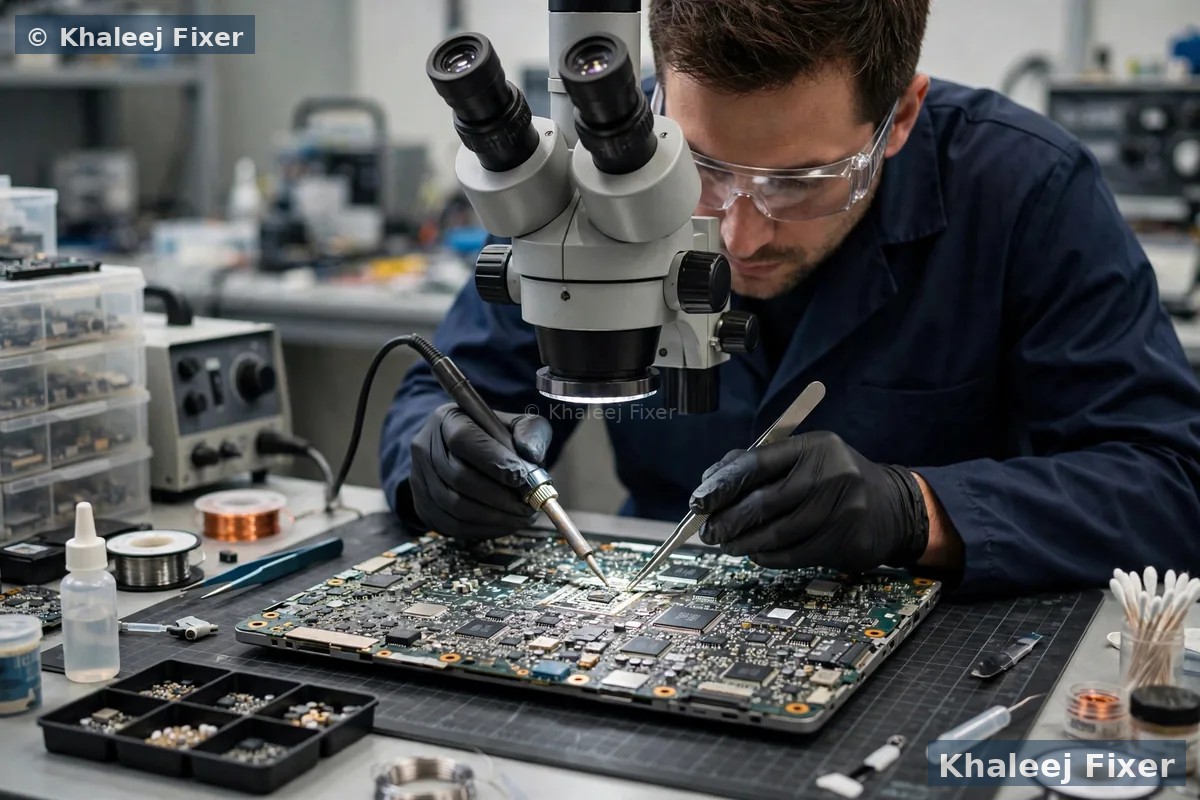
Fast Startup: the setting that helps some laptops and hurts others
Fast Startup is a Windows setting that saves part of the system state when you shut down, so the next start is quicker. It sounds helpful, and on many laptops it is. But on some laptops it causes slow boots, black screens, and driver trouble. If your laptop is slow only after a full shutdown, but fine after a restart, Fast Startup is the first suspect. Restart does a full reboot, so it is not affected by this setting.
To change it, open the Control Panel, then Power Options, then Choose what the power buttons do. Click Change settings that are currently unavailable, then untick Turn on fast startup, and save. Restart the laptop and check the boot time. If it is faster, leave Fast Startup off. If it is slower, turn it back on. There is no right answer for every laptop, so test it on yours.
If you do not see the Fast Startup option at all, hibernation is off on your laptop. That is fine. Move on to the next fix.
A full or failing drive slows every boot
Windows needs free space on the system drive to work. When the C drive is nearly full, Windows has no room to write temp files, update files, and the paging file, and the boot drags. As a rule, keep at least 15 to 20 percent of the drive free. On a 256 GB drive, that means roughly 40 to 50 GB free.
Free up space first. Open Settings, then System, then Storage. Turn on Storage Sense, and use the cleanup suggestions to remove temp files, old update files, and the recycle bin. Uninstall programs you no longer use. Move large videos and photos to an external drive or cloud storage. Then restart and check the boot time again.
A failing drive is a different problem. If the laptop is slow to start up and also makes clicking sounds, freezes at random, or shows disk errors, the drive itself may be failing. Back up your files at once, before you do anything else. Then bring the laptop in for a free diagnosis. We test the drive health on the bench and tell you if it needs replacing. Our data recovery in Dubai page covers what happens when a drive fails, and our guide on how to get data from a dead laptop shows the safe order for saving your files.
Old hard drives are slow by design. If your laptop still has a traditional hard disk drive, no setting will make it boot like a modern SSD laptop. A hard drive laptop takes 45 to 90 seconds even when healthy. An SSD upgrade is the single biggest speed gain for an old laptop, and it also makes the whole laptop feel new, not just the boot. We fit fast SSDs and move your files to the new drive, and most upgrades finish the same day.
Do not run a defrag tool on an SSD. It does not help, and it wears the drive. Windows handles SSDs on its own.
Too little memory makes the boot drag
Memory, or RAM, is the short-term workspace Windows uses while it starts. A laptop with only 4 GB of RAM has to swap data to the drive again and again during startup, and that is slow. A laptop with 8 GB or more starts far more smoothly. If your laptop has 4 GB and a hard drive, the two problems stack, and the boot can take minutes.
Check your memory. Open Task Manager, then Performance, then Memory. If the memory usage sits above 80 percent right after startup, you are short of RAM. The fix is a memory upgrade, where the model allows it. Most older laptops take more RAM. Some slim modern laptops have the memory soldered to the board, so it cannot be upgraded, and we tell you that straight in the free diagnosis.
A memory upgrade is a same-day job in most cases when the part is in stock. It also helps the whole laptop, not just the boot, because apps open faster and the laptop stops freezing when you have many tabs open.
Drivers and Windows updates: the quiet cause
Outdated or faulty drivers can slow the boot, most often storage, chipset, and graphics drivers. A driver that loads wrong makes Windows wait, retry, and wait again. The same is true of Windows updates that are stuck halfway. If the laptop became slow right after an update, the update is the first suspect.
Install updates and restart properly. Open Settings, then Windows Update, and check for updates. Install what is offered, then restart the laptop using Restart, not Shut down. Restart does a full reboot and lets the update finish. Shutting down with Fast Startup on can leave the update half done.
Update the drivers. In Windows Update, open Advanced options, then Optional updates, and install the driver updates offered there. For the graphics driver, use the maker site for your laptop brand, or the graphics chip maker site. Do not use driver updater tools from random sites. They often install the wrong driver and make things worse.
If the laptop became slow right after a driver update, roll the driver back. Open Device Manager, right-click the device, open Properties, then the Driver tab, and choose Roll Back Driver. If the button is greyed out, the old driver is gone, and a repair shop can help.
Malware and unwanted software load before you do
Malicious and unwanted software often loads at startup, before you even reach the desktop. It eats CPU and disk time, and it can make a healthy laptop feel broken. If the laptop is slow to start up and also shows pop-ups, strange toolbars, or a home page you did not set, unwanted software is likely.
Open Windows Security, then Virus and threat protection, then Scan options, and choose Full scan. Let it run to the end. It takes time, but it is worth it. Remove anything it finds. Then check the startup list again, because unwanted programs often add themselves back to startup.
Do not turn off Windows Security to save time. It is not the usual cause of a slow boot, and turning it off leaves the laptop open to real harm. If the scan finds nothing but the laptop is still slow, move on to the next fix.
Corrupted system files: repair them safely
Corrupted system files can cause long boots, because Windows retries failed steps again and again. A bad update, a power cut during an update, or a failing drive can damage these files. Windows has two built-in tools that fix them, and both are safe to run.
Run System File Checker. Right-click Start and choose Terminal (Admin) or Command Prompt (Admin). Type sfc /scannow and press Enter. Wait for it to finish. It checks the system files and repairs what it can. Restart the laptop after it finishes.
Run DISM if SFC finds damage it cannot fix. In the same admin window, type DISM /Online /Cleanup-Image /RestoreHealth and press Enter. This downloads clean copies of damaged files from Windows Update. It takes longer, so let it finish. Then run sfc /scannow once more.
If both tools report damage they cannot fix, the drive may be failing, or the Windows install may need a repair. Back up your files first, then bring the laptop in for a free diagnosis. Do not keep running repair tools over and over. They will not fix a dying drive.
Firmware settings and connected devices add hidden delays
The firmware, often called BIOS or UEFI, starts the hardware before Windows loads. If the Last BIOS time is long, the delay lives here. The most common cause is simple: a USB drive, an external hard drive, or a memory card left plugged in. The laptop tries to boot from it, waits, gives up, and then boots from the real drive. Unplug every USB device and try again.
Check the boot order. If the laptop still waits on the logo, the boot order in the firmware may list a USB drive or a network boot before the real drive. Changing firmware settings is safe if you only change the boot order, but do not change other settings you do not understand. If you are not sure, bring the laptop in and we check it free.
A clean boot finds the culprit. If nothing above helped, try a clean boot. Press the Windows key and R, type msconfig, and press Enter. On the Services tab, tick Hide all Microsoft services, then Disable all. On the Startup tab, open Task Manager and disable all startup items. Restart. If the laptop starts fast now, one of the disabled items is the cause. Turn them back on a few at a time until the slow boot returns, and you have found it. Then leave that one off, or uninstall it.
In Dubai and Sharjah heat, one more cause is worth checking: dust and heat. A laptop full of dust runs hot, and a hot laptop slows itself down from the first second. If the fan is loud all the time, a clean and fresh thermal paste can cut the boot time and the heat together. Our guide on why your laptop keeps freezing covers heat faults in full.
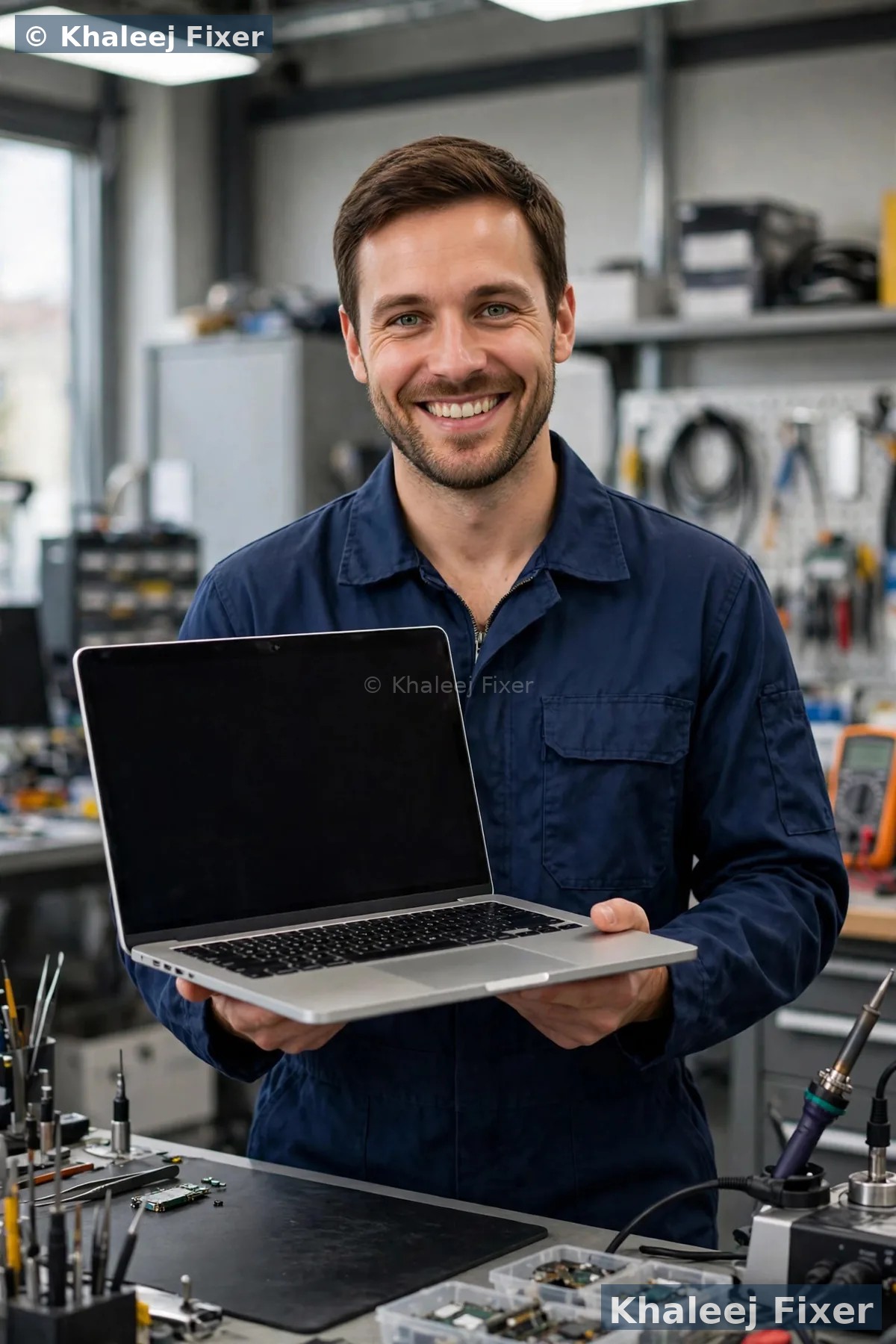
When the fix is hardware: SSD and RAM upgrades
Some laptops are slow to start up because the hardware itself is the limit, not the settings. An old hard drive, 4 GB of RAM, or a failing battery can each add a minute to the boot. No setting fixes a tired hard drive. The honest fix is an upgrade, and it is often cheaper than a new laptop.
An SSD upgrade is the single biggest speed gain. A laptop that took two minutes to boot on a hard drive often reaches a usable desktop in under 30 seconds on an SSD. We fit a fast SSD, move your files and your Windows install to the new drive, and test the boot before handover. Most upgrades finish the same day.
A RAM upgrade helps when the laptop has 4 GB and you use many tabs, or heavy apps. We fit the right memory for your exact model, and we tell you straight if your model has soldered memory that cannot be upgraded. A worn battery can also slow a boot, because a laptop on a dying battery may throttle itself. Our laptop battery replacement in Dubai page covers the signs, and a battery swap is a same-day job in most cases when the part is in stock.
If the board itself is at fault, a slow boot can be the first sign. A board that fails to power the drive, or a charging circuit that cannot feed the laptop, will show up as a slow or stuck boot. That is a bench job, and our laptop motherboard repair in Dubai page covers it in full. For the full range of repair, see our laptop repair in Dubai page, or our laptop repair in Sharjah page if you are based in Sharjah.
When to stop trying fixes and get a free diagnosis
Most slow startups are fixed by the steps above. But some need a bench, and trying more fixes at home can waste time or risk your files. Stop and bring the laptop in if you see any of these signs.
The laptop clicks, beeps, or shows disk errors. That points to a failing drive. Back up your files at once, then bring it in. Do not keep restarting a failing drive. Every start can be the last one.
The laptop will not boot at all after a fix. A wrong driver, a bad update, or a changed firmware setting can stop the boot. Do not keep guessing. Bring it in and we find the fault free.
The laptop is slow and also very hot, or it shuts down on its own. That points to dust, a worn fan, or a board fault. A clean may fix it, or the board may need work. We test it on the bench and tell you straight.
You tried the steps and the boot is still over two minutes. That points to hardware: a tired drive, too little RAM, or a board fault. A free diagnosis finds the true cause, and the final quote always comes before any work. No work starts without your yes.
Frequently Asked Questions
Why is my laptop so slow to start up all of a sudden?
A sudden slow startup usually comes from a new startup app, a Windows update still finishing, a driver that updated badly, or a drive that started to fail. Check the startup apps first, then install updates and restart properly. If the laptop also clicks, freezes, or shows disk errors, back up your files at once and bring it in for a free diagnosis.
How do I make my laptop start up faster?
Turn off startup apps you do not need, free up space on the C drive, install Windows and driver updates, and test the Fast Startup setting on and off. If the laptop still has a hard drive, an SSD upgrade makes the biggest difference of all, and a RAM upgrade helps if you only have 4 GB of memory.
Does Fast Startup make a laptop slow to start up?
It can. Fast Startup helps many laptops, but on some it causes slow boots, black screens, and driver trouble. If your laptop is slow only after a full shutdown, but fine after a restart, Fast Startup is the first suspect. Turn it off in Power Options, restart, and compare the boot time.
Can a failing hard drive cause a slow startup?
Yes. A failing drive is one of the main causes of a laptop slow to start up. Clicking sounds, random freezes, disk errors, and a boot that gets slower every week all point to a drive fault. Back up your files at once, then bring the laptop in. We test the drive health free on the bench.
Should I upgrade to an SSD if my laptop is slow to start up?
If your laptop still has a traditional hard drive, yes. An SSD upgrade is the single biggest speed gain for an old laptop. A laptop that took two minutes to boot often reaches a usable desktop in under 30 seconds on an SSD. We fit fast SSDs and move your files to the new drive, and most upgrades finish the same day. See our price list page for starting prices.
Laptop still slow to start up? Get a free diagnosis today.
Message us on WhatsApp or call. Free pickup across Dubai and Sharjah, free diagnosis, final quote before any work, 2-month warranty.
Free Diagnosis • Free Pickup & Delivery • 2-Month Warranty • Open 7 Days 11AM to 11PM