
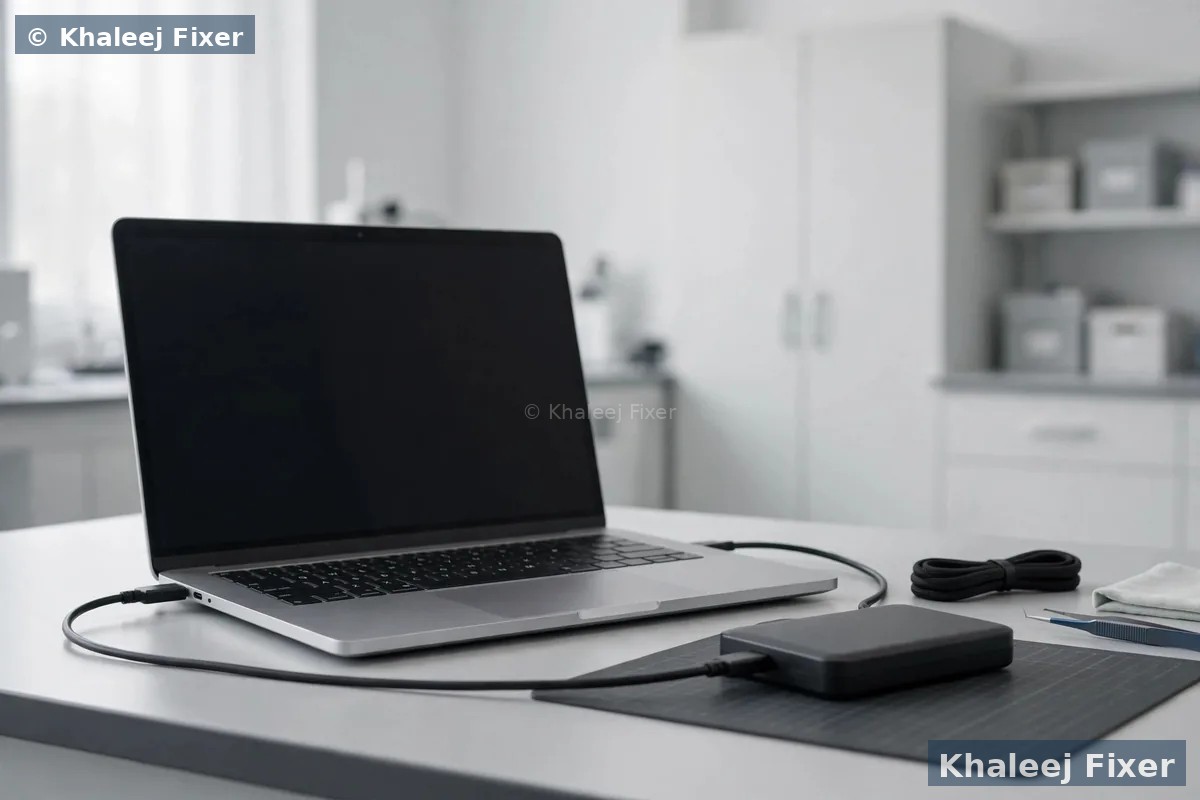
Short answer: your files are probably still there
1. Stop forcing it to start. Do not keep pressing the power button again and again. Each failed start can stress a weak drive. Put the laptop down and work through the steps below.
2. Check your cloud copies first. Look on another device for OneDrive, Google Drive, Dropbox, or iCloud. Your files may already be safe in the cloud. That check takes two minutes and saves all the rest.
3. Run the quick checks. Try a known good charger. Try the external monitor test. These checks tell you what kind of dead you are dealing with.
4. Read the drive on another computer. If the laptop will not start at all, remove the drive and plug it into a working computer with a USB enclosure or adapter. Then copy your files off.
5. Stop if the drive clicks or smells burnt. A clicking drive, a grinding sound, or a burnt smell means the drive itself is hurt. Switch everything off and call a pro. Do not try recovery software on a drive that clicks.
What “dead laptop” really means
People say “dead laptop” for many different faults. The right fix depends on which one you have. So work out your type first. It only takes a minute, and it stops you from doing the wrong thing.
No power at all. No lights, no fan sound, no charging light, nothing. The charger may be dead. The battery may be dead. Or the board may have a power fault. In this case your drive is very often fine. The laptop cannot reach it. But the data is still on it.
Powers on but will not boot. Lights come on. The fan spins. Then Windows or macOS will not load. You may see a black screen with an error. Or the laptop may loop back to the start again and again. This is often a software fault or a boot fault. Your files are still on the drive. And recovery is often simple.
Dead screen only. The laptop sounds alive. The fan spins. The keyboard lights up. But the screen stays black. This may be only a screen fault. The laptop itself may be working fine. Test it with an external monitor before you do anything else.
Dead drive. The laptop may start, or it may not. But the drive clicks, grinds, or does not show up at all. This is the serious type. The storage itself is hurt. Stop here and read the stop section later in this guide. Do not keep trying to read a drive that clicks.
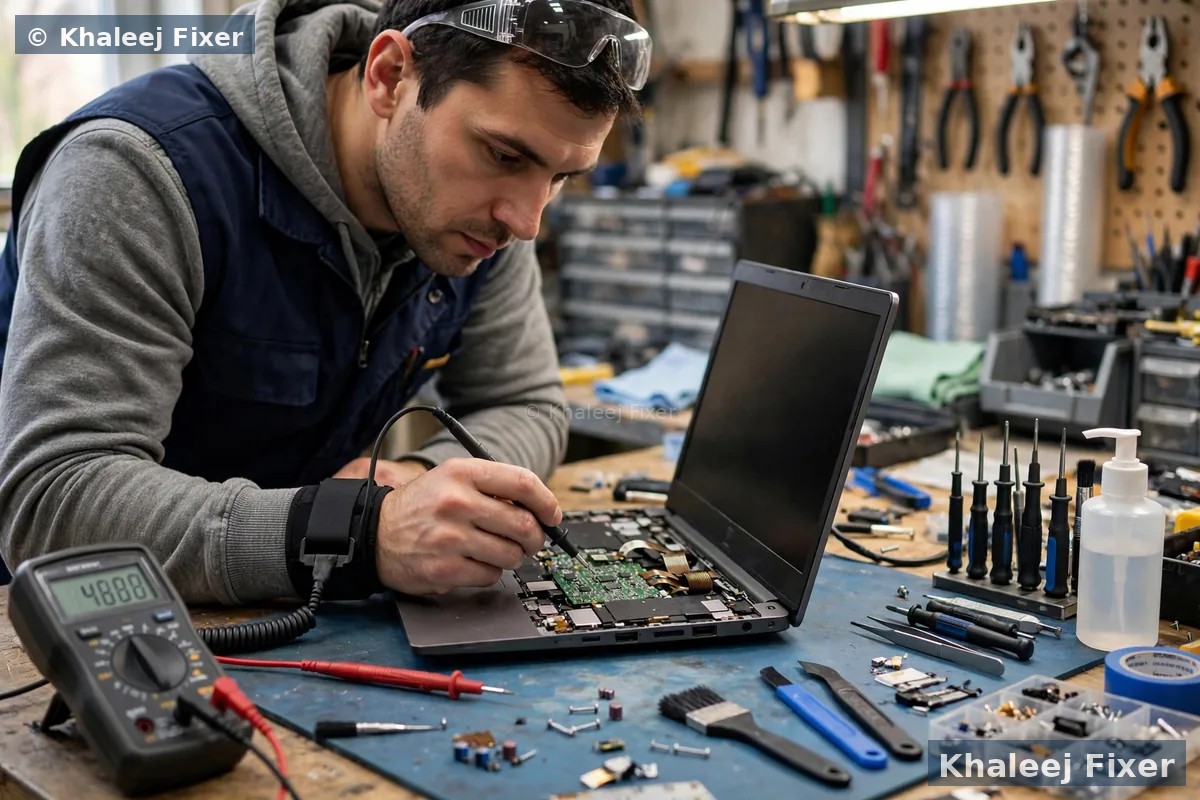
First checks: do these before you open anything
Try these in order. Each one takes a minute or two. If any of them works, you may not need to open the laptop at all.
Check your cloud copies. Open OneDrive, Google Drive, Dropbox, or iCloud on another computer or a family member’s laptop. Many laptops sync documents and photos without you noticing. If your files are there, copy them to a safe place right away. Then you can relax and fix the laptop calmly.
Try a known good charger. Borrow a charger that fits your laptop and that you know works. Plug it in and wait two minutes. Watch for the charging light. A dead charger is a common cause of a laptop that will not turn on. Also try a different wall socket. And check the charger tip for damage or bent pins.
Remove the battery if you can. Some laptops have a removable battery. Take it out. Hold the power button down for 30 seconds. This drains leftover power from the board. Then put the battery back, plug in the charger, and try to start. If your laptop has a sealed battery, skip this step and do not force the back panel open.
Test with an external monitor. Plug the laptop into a TV or a monitor with an HDMI cable. Switch the laptop on. If you see your desktop on the TV, the laptop is alive and only the screen is dead. Copy your files to a USB drive right away. Then read our guide on laptop not turning on to work out why the screen stays dark. If nothing shows on the TV either, move on to the recovery methods below.
Method 1: use a bootable USB when the laptop powers on but will not boot
This method works when the laptop still gets power but Windows or macOS will not load. You boot the laptop from a USB stick instead of from its own drive. That lets you reach your files without depending on the broken system.
Step 1: make a bootable USB on another computer. You need a USB stick with at least 16 GB of free space and a working computer. Download the Windows install media from Microsoft, or a Linux live USB such as Ubuntu. Follow the tool on the site to make the stick bootable. This takes about 20 minutes.
Step 2: boot the dead laptop from the USB. Plug the USB stick into the dead laptop. Switch it on and press the boot key for your brand. Common keys are F12, F9, F2, or Esc. Pick the USB stick from the boot menu. The laptop should load the live system from the stick.
Step 3: copy your files to an external drive. Once the live system loads, open the file manager. Your laptop drive should show up as a storage device. Plug in a second USB drive or an external hard drive. Copy your documents, photos, and folders to it. Start with the most important files first. Do not copy files back onto the same laptop drive.
Step 4: check the copies. Open a few copied files on the other computer to make sure they open cleanly. Photos should show. Documents should open. If some files will not open, copy them again. If the drive does not show up at all in the live system, the drive itself may be hurt. Stop and read the stop section below.
Method 2: remove the drive and read it on another computer
This is the most reliable way to recover data from a dead laptop that gets no power at all. You take the drive out and plug it into a working computer. The drive then works like any external drive. You copy your files off and you are done.
Step 1: find out what drive you have. Most laptops use one of two types. A 2.5 inch SATA hard drive or SATA SSD. Or a small M.2 NVMe stick that looks like a piece of chewing gum. Check your exact model on the maker support site before you open anything. The support page shows the drive type and where it sits.
Step 2: get the right adapter. For a SATA drive you need a SATA to USB adapter or a USB hard drive enclosure. For an M.2 NVMe drive you need an NVMe USB enclosure. These are cheap and easy to find in computer shops in Dubai and Sharjah. Make sure the adapter matches your drive type.
Step 3: remove the drive carefully. Shut the laptop down and unplug it. Take out the back panel screws and keep them in a small bowl. Take a photo of the inside before you touch anything. Unplug the drive cable or unscrew the drive. Lift it out gently. Do not force it. If a screw will not turn, stop. If you are not sure, bring the laptop to a workshop and let a technician remove the drive for you.
Step 4: plug it in and copy your files. Put the drive in the enclosure or adapter. Plug it into a working computer with a USB cable. The drive should show up in File Explorer or Finder like any external drive. Open it. Copy your files to the working computer or to a second external drive. Copy the important files first. If the drive asks for a BitLocker recovery key, you need the 48 digit key from your Microsoft account. Without that key, the files cannot be read.
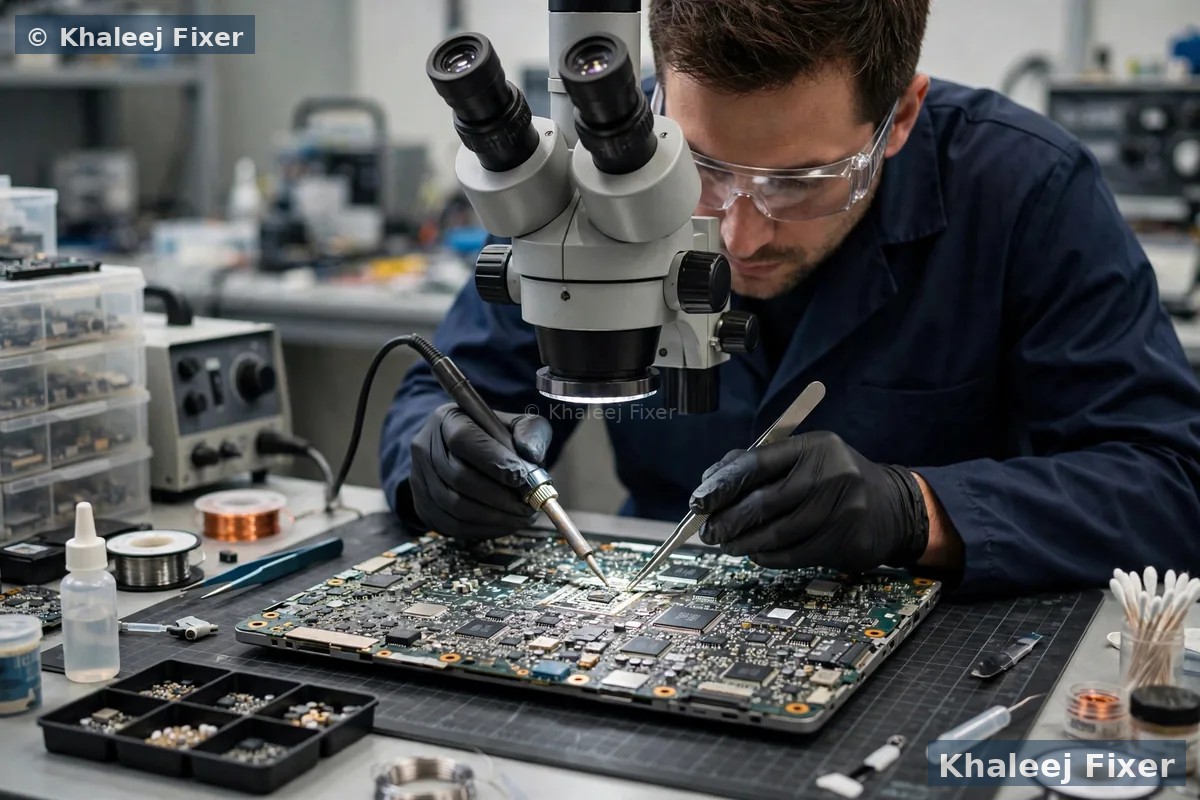
A warning about newer laptops: soldered storage
Many newer laptops do not have a removable drive at all. Thin ultrabooks and all recent MacBooks have storage chips soldered straight onto the board. You cannot pull the drive out. There is nothing to put in an enclosure.
If your laptop has soldered storage, Method 2 will not work. The laptop itself must be brought back to life far enough to read its own chips. That is board level work. It needs bench tools and a trained technician. Do not try to heat the board or pry chips off at home. You will destroy the very data you are trying to save.
Check your model first. Search your exact model name plus “soldered storage” or “removable SSD”. If the storage is soldered, skip the DIY drive removal and go straight to a free diagnosis. The same applies if your laptop is still under warranty. Opening it can void the warranty. A free diagnosis at our workshop is the safe route in both cases.
Method 3: recovery software, only if the drive is detected
Recovery software can help in one narrow case. The drive shows up on another computer, but some files are missing, deleted, or will not open. The drive itself is healthy. Only the file system is hurt. Then software can scan the drive and pull files back.
Only scan a drive that is detected and quiet. If the computer can see the drive and it makes no strange sounds, software is worth a try. Pick a known tool. Install it on the working computer, not on the dead drive. Scan the drive. Save the recovered files to a different drive, never back onto the same drive. Saving onto the same drive can overwrite the very files you are trying to get back.
Do not use software on a clicking or grinding drive. Every scan reads the drive again and again. A hurt drive gets worse with each read. If the drive clicks, grinds, or disappears during the scan, stop at once. That is a job for a lab, not for software.
Know the limits. Software cannot fix a physically broken drive. It cannot read a drive the computer cannot see. And on modern SSDs, deleted files are often gone for good. SSDs clear unused blocks in the background. So if files were deleted long ago, software may find nothing. That is normal. It does not mean the tool is broken.
When to stop and call a professional
DIY recovery works for healthy drives in dead laptops. It does not work for hurt drives. Knowing when to stop is the most important skill in this whole guide. Stop at once if you see any of these signs.
The drive clicks, grinds, or beeps. Clicking means the read head inside a hard drive is failing. Grinding means metal is touching metal. Every second of power makes it worse. Switch the drive off. Do not plug it in again. Do not run software on it.
Liquid damage. If water, tea, or coffee went into the laptop, do not switch it on. Do not charge it. Power and liquid together cause short circuits. The board and the drive can both get worse. Dry the outside only. Bring the laptop in as it is.
Burnt smell or visible damage. A burnt smell, a swollen battery, or a scorched mark on the board means something failed hard. Do not power the laptop on again. A swollen battery is also a safety risk. Keep it away from heat and bring it to a workshop.
Encryption without a key. If the drive is BitLocker or FileVault encrypted and you do not have the recovery key or the password, no one can read it. Not you. Not a lab. Find the key first. Check your Microsoft account, your Apple ID, or any place you saved the key when you set up the laptop. If the laptop keeps restarting instead of staying dead, our guide on laptop keeps restarting explains the common causes and fixes.

What professional data recovery can and cannot do
A good workshop starts with a free diagnosis. The technician checks the laptop, the board, and the drive. Then they tell you what is wrong and what can be done. You get a final quote before any work starts. That is how it should work. No one can promise your files back before they see the drive.
What a pro can do. Read a healthy drive from a dead laptop and copy the files to a new drive. Repair a board fault so the laptop can read its own soldered storage. Swap parts on a failed hard drive in a clean room. Work with drives that a home computer cannot see. And fix the laptop itself, so you get a working machine back as well as your files. Our data recovery in Dubai service covers all of this, with free pickup across Dubai and Sharjah.
What no one can do. Read an encrypted drive without the key. Bring back files that were overwritten. Undo damage from a drive that was run for hours while it clicked. Or promise a result before the diagnosis. Be wary of any service that guarantees your files back without seeing the laptop. Honest recovery starts with an honest check.
How long does it take? A simple drive read often takes a day or less. Board level work takes longer. A clean room job on a badly damaged drive can take days. Ask for a time frame at diagnosis. And ask for the files on a new external drive or a USB stick, so you keep a copy you can use right away. If your laptop is a Sony Vaio, our Sony Vaio data recovery in Dubai page covers the Vaio specific steps and checks.
After recovery: fix the laptop and stop this happening again
Once your files are safe, decide what to do with the laptop. If the fault was only the charger or the battery, a repair is quick and the laptop goes back to work. If the board is dead, compare the repair cost with the age of the laptop. An old laptop with a dead board may not be worth a big repair. Ask for the final quote first. Then decide with clear facts.
Set up a backup that runs itself. The real lesson of a dead laptop is not the repair. It is the backup. A backup that needs you to remember will fail one day. Set up cloud sync for your documents and photos. Or plug in an external drive once a week and copy your work folder. Or both. Two copies in two places is the simple rule. One copy on the laptop and one copy somewhere else.
Keep the drive healthy. Do not fill the drive to the last gigabyte. Leave some free space. Shut the laptop down properly instead of forcing it off. Keep it cool and dry. And listen to it. A drive that starts to click or slow down is warning you. Back up that same day. A five minute backup is the cheapest recovery you will ever do. You can see what a repair or a recovery costs on our price list page, and you can book free pickup from anywhere in Dubai or Sharjah, including Al Nahda, Al Majaz, Muwaileh, Al Qasimia, Rolla, University City, Al Taawun, and Al Khan. Our shop sits in Industrial Area 2 in Sharjah, and we are open 7 days, 11 AM to 11 PM.
Frequently Asked Questions
Can I get data off a laptop that will not turn on?
Yes, in most cases you can get data off a laptop that will not turn on. A laptop that will not turn on has usually failed at the power, battery, or board level, and the storage drive often survives. If the drive is removable, take it out and read it on another computer with a USB enclosure or adapter. If the laptop powers on but will not boot, use a bootable USB to copy your files off. Stop at once if the drive clicks or smells burnt, and call a professional instead.
How do I recover data from a dead laptop hard drive?
Remove the hard drive or SSD from the dead laptop, put it in a USB enclosure or connect it with a SATA to USB adapter, then plug it into a working computer. The drive should show up like any external drive, and you can copy your files to the working computer or to a second external drive. Copy the most important files first. If the drive is BitLocker encrypted, you need the 48 digit recovery key from your Microsoft account to read it.
Can I recover data from a dead laptop without removing the hard drive?
Yes, if the laptop still gets power but will not boot into Windows or macOS. Make a bootable USB on another computer, boot the dead laptop from it, and copy your files to an external drive. You can also test the laptop with an external monitor first, because a dead screen can look like a dead laptop. If the laptop gets no power at all, the drive must come out to be read, unless the storage is soldered to the board, in which case a technician must revive the board first.
What should I do if my dead laptop drive is making a clicking sound?
Switch it off at once and do not plug it in again. A clicking sound means the read head inside the hard drive is failing, and every second of power makes the damage worse. Do not run recovery software on a clicking drive, because each scan reads the drive again and can destroy more data. Take the laptop to a professional data recovery service. A lab can open the drive in a clean room and may still be able to save your files.
Can data be recovered from a laptop with a dead screen?
Yes. A dead screen is often the easiest case, because the laptop itself may be working fine. Plug the laptop into a TV or a monitor with an HDMI cable and switch it on. If your desktop shows on the external screen, copy your files to a USB drive right away. If nothing shows on the external screen either, the fault is deeper, and you should try the bootable USB method or remove the drive and read it on another computer.
Laptop dead and files stuck inside? Get a free diagnosis today.
Message us on WhatsApp or call. Free pickup, free diagnosis, final quote before any work, 2-month warranty.
Free Diagnosis • Free Pickup & Delivery • 2-Month Warranty • Open 7 Days 11AM to 11PM