
Try these first, in this order
1. Toggle Bluetooth off and on again. Wait ten seconds between off and on.
2. Restart the laptop fully. A full restart reloads the Bluetooth driver.
3. Restart the Bluetooth device too. Switch your headphones or mouse off and on, and charge them.
4. Forget the device and pair it again. This fixes most pairing problems on its own.
Start with the quick checks
Restart the laptop first. A full restart clears a stuck Bluetooth service and reloads the driver. Save your work, then restart fully. Do not just close the lid. Sleep mode does not reload the driver. Test Bluetooth after the restart. If it works, you are done.
Next, check the device itself. Put your headphones or speaker in pairing mode. The steps differ by brand, but most devices need you to hold the power button or a small pairing button until a light flashes. Check the battery too. A device with a low battery may show up in the list and then fail to connect. Charge it fully and try again.
Also check the distance. Bluetooth works best within a few metres with a clear path. A wall, a metal desk, or a bag between the laptop and the device can break the link. Move the device close to the laptop for the first pairing. You can move it further away after it connects.
Bluetooth is missing from Settings
A missing Bluetooth option is one of the most common laptop Bluetooth problems. There is no Bluetooth toggle in Settings. There is no Bluetooth icon in the taskbar. The laptop acts as if Bluetooth never existed. In most cases the Bluetooth adapter is disabled or its driver failed.
Open Device Manager. Expand the Bluetooth list. Look for your adapter entry, often named Intel Wireless Bluetooth, Realtek Bluetooth, or Qualcomm. If it has a small down arrow, it is disabled. Right click it and choose Enable device. If it has a yellow warning mark, the driver is the likely fault. Right click it and choose Update driver. Let Windows search for a new driver.
If there is no Bluetooth entry in the list at all, click View at the top of Device Manager and choose Show hidden devices. If the adapter appears greyed out, the laptop is not seeing the hardware. Try a full shutdown, wait thirty seconds, then switch on again. A cold start can bring back an adapter that a warm restart misses. If it is still missing, the Bluetooth adapter or its slot may be faulty. That is covered in the hardware section below. Also check your laptop model specs. A few older laptops have no Bluetooth hardware at all, so there is nothing to switch on.
Bluetooth toggle will not switch on
The toggle is there, but it will not move. Or it switches on and flips straight back off. This often happens after a Windows update, or after airplane mode was switched on by mistake.
Check airplane mode first. Open Settings, then Network and internet, then Airplane mode. Switch it off there. Airplane mode switches off all wireless connections at once, including Bluetooth. Also check the function key for airplane mode or wireless on your keyboard. Press it once with the Fn key, wait a few seconds, then check the Bluetooth toggle.
If the toggle still will not move, restart the Bluetooth Support Service. Press the Windows key and R together, type services.msc, and press Enter. Find Bluetooth Support Service in the list. Right click it and choose Restart. If it shows as stopped, choose Start instead. Then set its startup type to Automatic so it starts with Windows. Test Bluetooth again after the restart.
Device shows up but will not pair
This is the most common Bluetooth complaint we hear. The headphones appear in the list. You click Connect. Then it fails, or it pairs and drops at once. The cause is usually a stale pairing record on one side or the other.
Forget the device on the laptop first. Open Settings, then Bluetooth and devices, then Devices. Find the device and choose Remove device. Then forget the laptop on the device side too, if the device keeps a list of paired hosts. Put the device back into pairing mode and pair it fresh. Type the pairing code slowly if one appears. A single wrong digit will fail the pairing and look like a Bluetooth fault.
Also check the device limit. Many headphones and speakers pair with only one or two hosts at a time. If your headphones are still paired to your phone, they may refuse the laptop. Switch Bluetooth off on the phone and try the laptop pairing again. If the device pairs fine with your phone but never with the laptop, the fault sits in the laptop, not the device.
Connected but no sound, or sound keeps cutting out
The headphones connect, but no sound comes through. Or the sound cuts out every few seconds. This is usually a sound output problem, not a Bluetooth problem. The laptop is sending sound to the wrong place.
Click the speaker icon in the taskbar. Check which output device is selected. It should show your headphones. If it shows the laptop speakers, click it and switch the output to the headphones. Then open Sound settings and test the headphones there. If the headphones appear as two devices, one for calls and one for music, pick the music one for normal listening. The call one sounds worse by design.
For sound that keeps cutting out, check interference. WiFi and Bluetooth share the same radio band. A busy 2.4 GHz WiFi network can disturb Bluetooth audio. Move closer to the laptop. Keep the laptop away from a microwave or a thick wall. If the cutting out started after you connected a second Bluetooth device, disconnect the second device and test again. Two active Bluetooth audio links can fight for the same bandwidth.
Bluetooth keeps disconnecting
Bluetooth that keeps dropping is different from Bluetooth that never works. The connection works, then drops, then comes back on its own. Music stops. The mouse freezes. This pattern usually means weak signal, interference, or a power setting that switches the adapter off.
First, check the power setting. In Device Manager, right click the Bluetooth adapter and open Properties. Go to the Power Management tab. Untick the box that allows Windows to turn off the device to save power. This setting switches the adapter off when the laptop runs on battery. Many dropping problems end right here.
Next, test the distance and the surroundings. Sit close to the laptop and test again. If Bluetooth is stable close up but drops at your usual spot, the signal is the problem, not the laptop. A USB hub, a dock, or a metal desk between the laptop and the device can weaken the signal. Move the device to the same side of the desk as the laptop. Our guide on laptop WiFi not working covers the shared wireless card, since WiFi and Bluetooth often sit on the same card.
Driver problems after a Windows update
A driver is the small program that lets Windows talk to the Bluetooth adapter. After a Windows update, the old driver can stop working. Bluetooth worked yesterday and broke today, with nothing else changed. That is the classic sign of a driver problem. It is the most common cause of Bluetooth breaking suddenly.
Open Device Manager, expand Bluetooth, and find your adapter. Right click it and choose Update driver. Let Windows search for a new driver. If Windows says the best driver is already installed, try the maker website instead. Download the Bluetooth driver for your exact laptop model from the HP, Dell, Lenovo, or Asus support site. Install it and restart.
If updating does not help, try reinstalling. Right click the Bluetooth adapter and choose Uninstall device. Tick the box to delete the driver software if it appears. Then restart the laptop. Windows will install a fresh driver on its own during the restart. Test Bluetooth after the restart. Do not use third party driver updater tools. They often install the wrong driver and make the problem worse. If Device Manager shows an error code on the adapter, note it down. That code helps a technician a lot if you later book a repair.
Bluetooth not working on a Mac
Mac Bluetooth problems follow the same pattern, but the steps differ. Start by switching Bluetooth off and on in System Settings, then Bluetooth. Then remove the device from the list and pair it again. Make sure the device is in pairing mode and charged.
If Bluetooth itself is stuck, restart the Mac. A full restart clears the Bluetooth module. On newer macOS versions you can also restart the Bluetooth service from Terminal. Open Terminal from Applications, then Utilities. Type sudo pkill bluetoothd and press Enter. This restarts the Bluetooth background process without restarting the whole Mac. You will need your admin password.
Check for interference too. A Mac sitting next to a USB 3 hub or a wireless router can suffer the same signal problems as a Windows laptop. Move the device closer and test again. If Bluetooth fails on a Mac right after a macOS update, check for a newer update. Apple often ships a fix fast for Bluetooth regressions.
When it is a hardware fault
Book a repair when the Bluetooth adapter is missing from Device Manager after a cold start, when Bluetooth works only if you hold the laptop at a certain angle, when the signal is very weak even next to the laptop, or when Bluetooth failed right after a drop or a spill. These are hardware signs, and no setting will fix them.
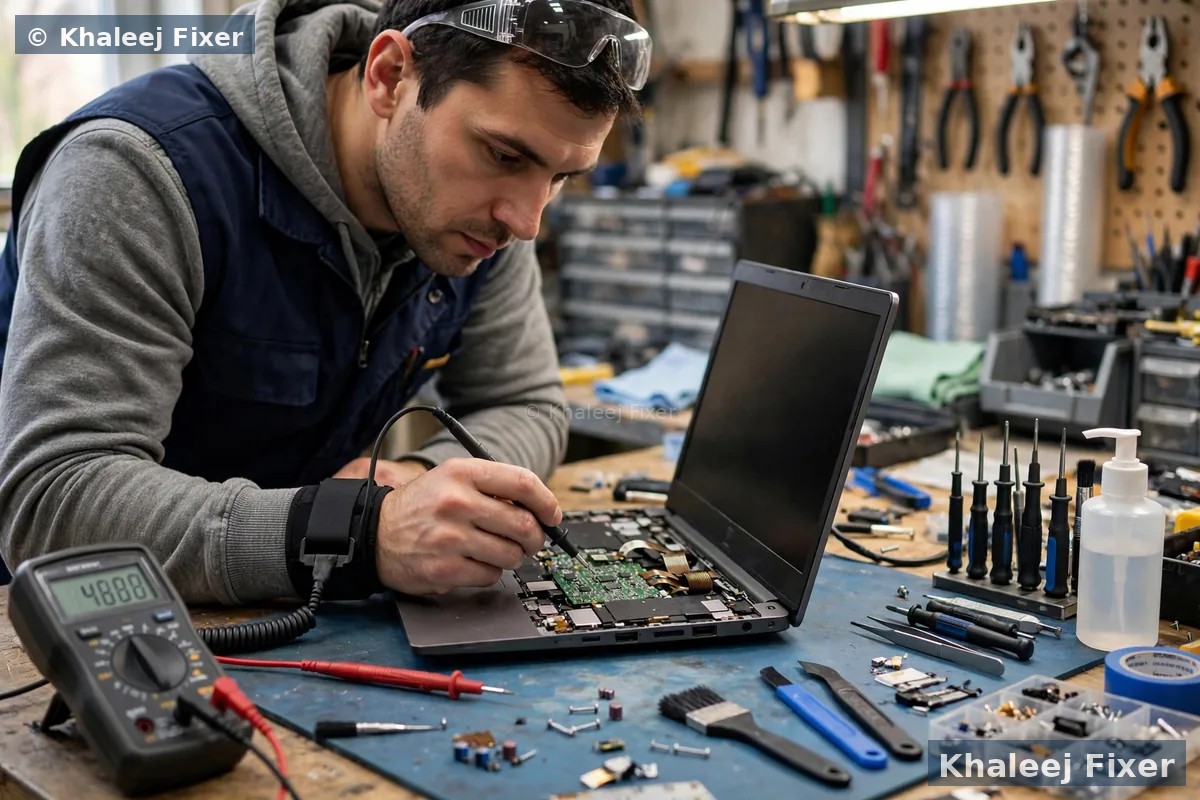
Inside the laptop, Bluetooth usually shares a small wireless card with WiFi. Two thin antenna wires run from it up through the hinge and into the screen lid. A drop can loosen the card. Opening and closing the lid thousands of times can wear the antenna wires. A spill can corrode the card slot. If Bluetooth and WiFi failed together, the shared wireless card is the prime suspect, not Bluetooth alone.
In the workshop, we test the wireless card first. A loose card or a loose antenna wire is a cheaper fix than a full card replacement. If the card is dead, we fit a matching replacement and test Bluetooth at different distances before we hand the laptop back. We also check the motherboard, because a damaged card slot sits on the board. Our laptop motherboard repair in Dubai service covers board level faults. The final quote always comes after the free diagnosis. Starting prices are on our price list page. For full repair help, visit our laptop repair in Dubai page. If your laptop has other problems too, our laptop not turning on guide covers power checks.
Frequently Asked Questions
Why did my laptop Bluetooth stop working suddenly?
The most common reason is a Windows update that replaced or reset the Bluetooth driver. Try the toggle and restart first, then restart the Bluetooth Support Service, then update or reinstall the driver in Device Manager. Hardware faults are less common but do happen after drops or spills.
Why does my laptop see the Bluetooth device but fail to pair?
A stale pairing record is the usual cause. Forget the device on the laptop, forget the laptop on the device if it keeps a list, then put the device back into pairing mode and pair it fresh. Also switch Bluetooth off on your phone, since many devices pair with only one host at a time.
Why is Bluetooth missing from Settings on my laptop?
The Bluetooth adapter is usually disabled or its driver has failed. Open Device Manager, expand Bluetooth, and enable the adapter or update its driver. If the adapter is still missing after a full shutdown and cold start, the card or its slot may be faulty, and that is a repair job.
Can a Windows update break laptop Bluetooth?
Yes. An update can break the old Bluetooth driver or change the settings. Update the driver in Device Manager, or download the driver for your exact laptop model from the maker website. If updating does not help, uninstall the adapter and restart so Windows installs a fresh driver.
Do you repair laptop Bluetooth problems in Dubai and Sharjah?
Yes. Diagnosis is free, pickup and delivery are free across Dubai and Sharjah, and the final quote comes before any work. Message us on WhatsApp or call, and we will arrange a pickup. Bluetooth adapter and wireless card repairs come with a 2-month warranty.
Bluetooth still not working? Get a free diagnosis today.
Message us on WhatsApp or call. Free pickup, free diagnosis, final quote before any work, 2-month warranty.
Free Diagnosis • Free Pickup & Delivery • 2-Month Warranty • Open 7 Days 11AM to 11PM