

Try these first, in this order
1. Try a different cable and a different port. This proves whether the fault is the port, the cable, or the device.
2. Restart the laptop fully. A full restart reloads the USB drivers. Do not just close the lid.
3. Remove hubs and docks. Plug the device straight into the laptop, with no hub in between.
4. Look inside the port. Shine a light in and check for dust, bent pins, or a loose connector.
Start with the quick checks
First, prove which part is at fault. Plug a device you know works, like a mouse or a flash drive, into the port that looks dead. Then plug the original device into a different port on the same laptop. If the known good device works in the dead port, the port is fine and your device or cable is the problem. If the known good device fails in every port, the laptop is the problem. If only one port fails and the rest work, that single port is the problem.
Next, restart the laptop fully. Save your work, then restart. A full restart clears USB errors that a sleep and wake cycle hides. On Windows, hold Shift while you click Shut Down. This skips fast startup and gives you a real cold boot. Switch the laptop on again and test the port. If it works, you are done.
Also remove any hub, dock, or adapter chain. Plug the device straight into the laptop. Hubs fail often. A cheap hub can starve a device of power. If the device works when plugged in direct, the hub was the fault, not the laptop. Our guide on laptop not charging covers the same kind of power checks for the charging port.
Read the error message before you change anything
Windows usually tells you what kind of USB failure it sees. The message points to the fix.
USB device not recognized. The laptop sees something, but cannot talk to it. The driver is the likely fault. The Device Manager steps below cover this.
Power surge on the USB port. The device tried to draw more power than the port can give. Unplug it at once. Plug the laptop into its charger. Then plug the device into its own power source if it has one.
Device descriptor request failed. This is often a hardware or cable fault. Try a different cable first. Try the device on another laptop. If it fails everywhere, the device is faulty, not the port.
This device cannot start, Code 10. The driver is not installed right, or it does not match the device. Reinstall the driver from the steps below.
If there is no message at all and the device simply does nothing, check the power settings section below. Windows may have switched the port off to save power and never switched it back on.
Fix it in Device Manager
Device Manager is where Windows keeps its USB drivers. Press Windows and X together, then choose Device Manager. Expand the list called Universal Serial Bus controllers. Look for any entry with a yellow warning mark. Right click it and choose Update driver, then let Windows search for a new driver.
If there is no yellow mark but the port is still dead, the driver may be corrupt. Right click each USB controller entry, starting with USB Root Hub and Generic USB Hub, and choose Uninstall device. Do not worry. Restart the laptop after you uninstall them. Windows will find the ports again and install fresh drivers on its own during the restart. Test the port after the restart.
If an entry shows a small black down arrow or a red cross, it is disabled. Right click it and choose Enable device. Also check for Windows updates and your laptop maker update tool. A bad driver often arrives with a Windows update, and the fix arrives the same way. If your laptop is a Mac, open System Information and check the USB list there. A device that shows in System Information but does not work is usually a cable or device fault, not a Mac fault.
Stop Windows from switching your ports off
Windows has a power saving feature called USB selective suspend. It cuts power to USB ports when it thinks they are idle. Sometimes it gets stuck and never wakes the port back up. The port looks dead, but the hardware is fine.
Search for Power Plan in the Start menu and open Edit power plan. Click Change advanced power settings. Expand USB settings, then USB selective suspend setting. Set it to Disabled for both On battery and Plugged in. Click OK and restart the laptop. Test the port again. This one fix brings back more dead ports than any other single step.
There is one more power setting worth checking. In Device Manager, right click each USB Root Hub, choose Properties, then the Power Management tab. Untick the box that says Allow the computer to turn off this device to save power. Click OK. This stops Windows from cutting power to the port on its own. If your laptop also has charging trouble, our guide on laptop not charging explains the safe power checks in full.
Check the port itself
Shine a light into the port and look closely. Dust and lint collect inside a port over years of use. A small brush or a short burst of compressed air can clear it. Do not push a metal pin or a needle into the port. You can bend the pins or short the port, and a short can damage the board behind it.
Look for bent pins. A pin that leans to one side may still work if the plug pushes it back, but it will fail again. Look for a loose connector. If the plug wobbles in the port, or the device only works when you hold the cable at an angle, the port is worn. The metal tongue inside the port may also be cracked. These are all hardware faults. No driver update will fix them.
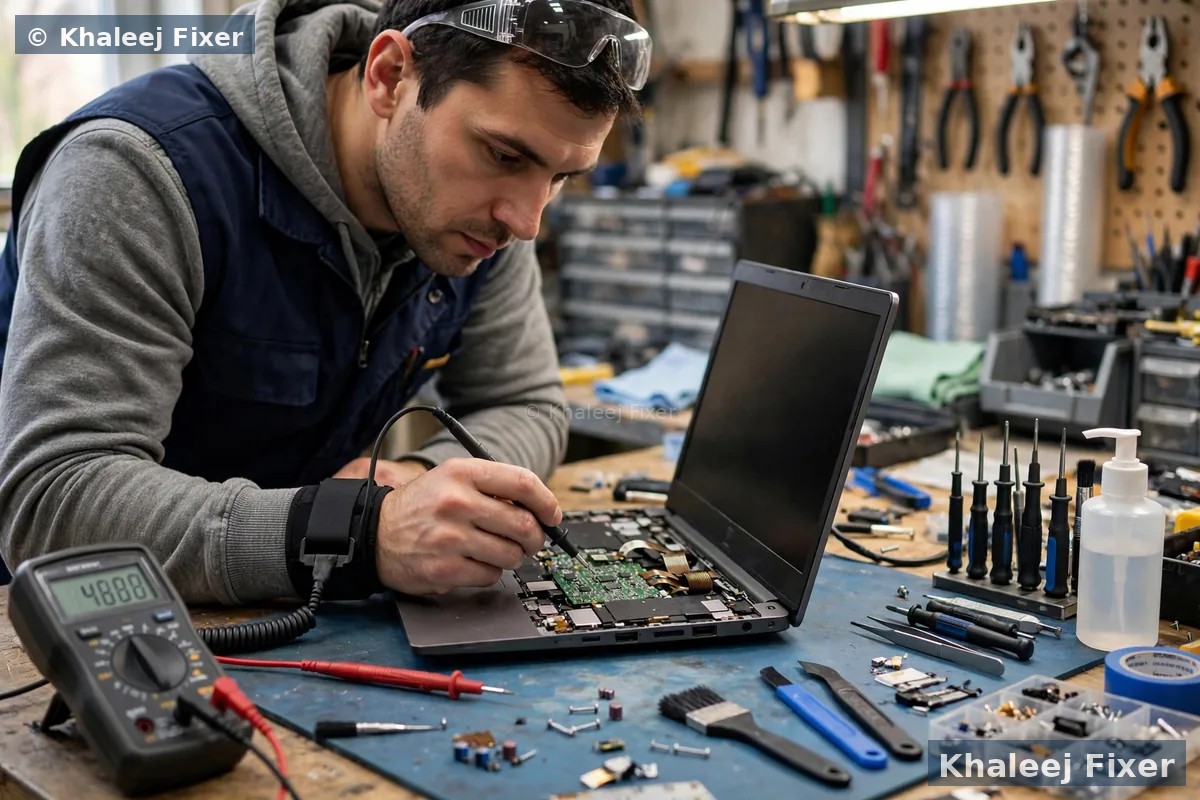
A loose or bent port needs a bench repair. The port is soldered to the board. We remove the old port and fit a new one. That is a board job, and it is one we do often. Our laptop motherboard repair in Dubai page covers board level port work in full.
USB-C ports have their own rules
USB-C looks simple, but it hides a lot of variety. Not every USB-C cable does every job. A cable that charges a phone may not carry video. A cable that carries data may not carry enough power for a hard drive. If your USB-C device fails, try a different cable first, and check what the cable is rated for. A Thunderbolt cable, a USB4 cable, or a SuperSpeed cable each does a different job.
On Windows, open USB settings and switch Connection notifications on. Windows will then tell you when a device needs more power, or when a cable is too slow for the job. If Windows says the device might need more power, plug the laptop into its charger and give the device its own power source too. Then unplug the devices you do not need.
There is also a BIOS setting that can limit USB ports. It is called xHCI, and it controls USB 3.0 on the board. If xHCI is switched off in the BIOS, the fast ports run at slow speed no matter what driver you install. Do not change BIOS settings unless you are sure what they do. A wrong BIOS change can stop the laptop from starting. Bring it to us and we check it free. If your laptop has wireless trouble too, our guide on laptop Bluetooth not working covers the adapter checks that often sit next to USB faults.
When it is a hardware fault
Stop trying software fixes when the signs point to hardware. Bring the laptop in when you see any of these:
The port is loose or wobbly. The plug moves inside the port. The device works only at one angle. The port needs a new socket soldered on.
Bent or broken pins. You can see a pin out of place, or the plastic tongue inside the port is cracked. Do not keep plugging in. A bent pin can short and damage the board.
All ports fail at once. Every port on the laptop is dead, but the laptop itself works. The USB controller on the board may have failed. That is a board level repair.
The port smells burnt or feels hot. Switch the laptop off at once. Unplug the charger. A burnt port can mean a short on the board. Bring it in fast.
A USB port repair is usually a quick bench job. We fit a new port, test it with a real device, and check the board for any damage the old port caused. The job carries our 2-month warranty. And the diagnosis is free, so you find out the real fault before you agree to anything. See our laptop repair in Dubai page for the full range of laptop repairs, or check starting prices on our price list page.
Frequently Asked Questions
Why is my laptop USB port not recognizing devices?
The most common causes are a bad cable, a tired driver, or a power setting that switched the port off. Try a different cable and a different port first, then restart the laptop fully. If the port still fails, check Device Manager for driver errors and switch USB selective suspend off.
How do I fix a USB port that stopped working?
Work through the steps in order: test the cable and the device on another port, restart the laptop with a full shutdown, remove any hub, check Device Manager for driver errors, and switch USB selective suspend off. If none of these bring the port back, the port itself may be loose or damaged, and that is a repair job.
Can a loose USB port be repaired?
Yes. A loose USB port is usually a worn socket that needs to be removed and replaced. The port is soldered to the board, so it is a bench job, not a software fix. We fit a new port and test it with a real device. The diagnosis is free.
Why does my USB device keep disconnecting?
A device that connects and drops often has a loose port, a weak cable, or a power setting that keeps switching the port off. Try a different cable first, plug the device straight into the laptop with no hub, and switch USB selective suspend off. If it still drops, the port may be worn and need a repair.
How much does USB port repair cost in Dubai?
The cost depends on your laptop model and whether the fault is the port alone or the board behind it. See our price list page for starting prices. The final quote always comes after the free diagnosis, and no work starts without your yes.
USB port still dead after the fixes? Get a free diagnosis today.
Message us on WhatsApp or call. Free pickup, free diagnosis, final quote before any work, 2-month warranty.
Free Diagnosis • Free Pickup & Delivery • 2-Month Warranty • Open 7 Days 11AM to 11PM