
Try these first, in this order
1. Turn the screen brightness down. The screen is the biggest battery user, and a bright screen can halve your battery life.
2. Close apps you are not using. Apps in the background eat battery all day.
3. Switch on battery saver. It cuts background work and dims the screen. It adds real time to your charge.
4. Check the battery health. A battery report shows how much charge your battery still holds. The steps below show how to run it.
Is the battery old, or just busy?
Before you blame the battery, ask one question. Is the battery worn out, or is the laptop just working too hard? The two cases need very different fixes. A worn battery needs a swap. A busy laptop needs a settings change.
The battery is likely worn out when: it drops from full to empty in under an hour, it jumps from 40 percent to 5 percent in a few minutes, the laptop dies the moment you unplug it, or the battery report shows low full charge capacity. These signs point to a worn out battery.
The laptop is likely just busy when: the battery lasts well on light use but drains fast during video calls, video editing, many tabs, or after a recent update. These signs point to software load, not a dead battery.
The battery report settles the question. It shows the design capacity, what the battery held when new, and the full charge capacity, what it holds now. If the full charge capacity is far below the design capacity, the battery is worn out. The step by step section below shows how to run the report. If the report shows the battery is healthy, the fixes in this guide will help a lot. If it shows the battery is worn, our laptop battery replacement in Dubai page covers battery swaps in full.
Your screen brightness eats the most battery
The screen is the single biggest battery user in any laptop. At full brightness it can use more power than the processor, the WiFi, and the fan put together. Many owners keep the brightness at full all day without knowing the cost. Turning it down is the fastest way to add battery life.
Set the brightness to a level that is easy on your eyes, not the brightest setting. Indoors, half brightness is often enough. Turn on adaptive brightness in Settings, under Display. The laptop then dims the screen in dark rooms and brightens it in sunlight. You save battery without thinking about it.
Also shorten the screen timeout. Set the screen to turn off after two or three minutes of no use, and the laptop to sleep after ten minutes. A laptop left on with the screen lit drains battery for nothing.
Background apps that drain your battery in silence
Many apps keep running after you close their windows. They sync files. They check for mail. They update themselves. They use the processor and the WiFi all day. Each one takes a little battery. Together, they take a lot.
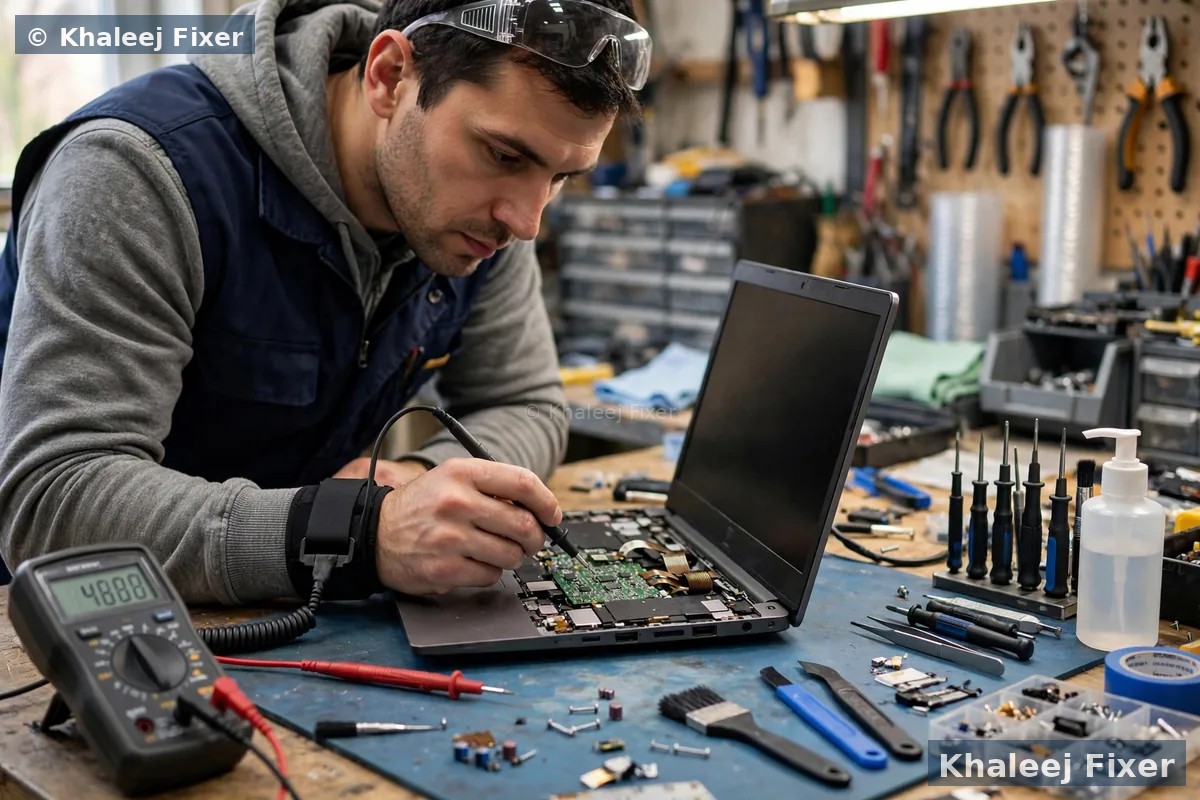
Open Task Manager and look at the battery use column. Sort by power usage. You will see which apps use the most power. Video apps, browsers with many tabs, and cloud sync tools are often at the top. Close the ones you do not need. Turn off background permission for apps you rarely use. In Settings, under Apps, you can stop an app from running in the background.
Browsers deserve a special note. Chrome with twenty tabs open is a heavy load. Each tab uses memory and power. Close tabs you are not reading, use one browser at a time, and turn off extra extensions you do not use. These small steps can add an hour or more to your battery life. If your laptop is also slow from low memory, our Sony Vaio RAM upgrade in Dubai page explains how more memory helps, and our guide on SSD or RAM upgrade for a slow laptop covers the upgrade choice.
How to check your battery health in Windows
Windows has a free battery report built in. It takes one minute to run and tells you the truth about your battery. Here is how to run it.
Step 1. Right click the Start button and open Windows Terminal or Command Prompt as an administrator.
Step 2. Type powercfg /batteryreport and press Enter. Windows saves a report file and shows you the path.
Step 3. Open the report in your browser. Look for the design capacity and the full charge capacity. Design capacity is what the battery held when new. Full charge capacity is what it holds now.
Step 4. Compare the two numbers. If the full charge capacity is close to the design capacity, your battery is healthy and the drain comes from settings or apps. If the full charge capacity is far below the design capacity, the battery is worn out and needs a swap.
The report also shows recent battery use, and how long the battery lasted each day. If the drain began after a recent update, the update may be the cause. Roll the update back and watch the battery again. If your laptop also restarts on its own, our guide on laptop keeps restarting explains the other causes.
Heat makes batteries drain faster
Heat is the biggest enemy of a laptop battery. A hot battery loses charge fast and ages fast. A battery that lives in a hot laptop loses its capacity months sooner than a battery in a cool laptop. This matters a lot in the UAE heat.
The signs are easy to spot. The base feels very hot, the fan runs loud all the time, and the battery drains fast even on light use. The laptop shuts down when it gets too hot. If you see these signs, the heat is the real problem, not the battery. Fix the heat and the battery lasts longer.
Use the laptop on a hard flat surface, not on a bed or a sofa. Soft surfaces block the vents. Keep the vents clear of dust. If the fan is noisy or the laptop still runs hot after cleaning, the fan or the thermal paste may need a bench service. Our Sony Vaio overheating repair in Dubai page covers the full heat check, and our guide on laptop overheating in Dubai has more home tips.
Charger and charging habits that wear out a battery
A bad charger can drain a battery fast. A charger that gives too little power cannot keep up with the laptop. The laptop then draws from the battery even while plugged in. If your battery drains while charging, try a different charger of the same model. If the drain stops, the old charger is the fault.
Charging habits matter too. A battery kept at full charge all day, every day, ages faster. A battery left at zero for weeks also ages fast. The best habit is simple. Keep the charge between 20 and 80 percent when you can. Unplug the charger once in a while and let the battery work. Do not leave the laptop plugged in for days on end.
Also check the charging port. A loose port can cut power without warning, so the laptop runs on battery alone and drains fast. If the charger plug wobbles in the port, the port may need a bench fix. Our guide on laptop not charging covers the safe power checks in full.

When the battery itself is the fault
Some batteries are simply done. Every battery has a life span, measured in charge cycles. A charge cycle is one full charge and drain. Most laptop batteries last a few hundred cycles. Heavy daily use eats those cycles fast. After that, the battery holds less and less charge. No setting can fix a battery at the end of its life.
The warning signs are clear. The battery drops fast even on light use. The percent jumps around. The laptop dies the moment you unplug it. The base bulges or the trackpad lifts. A bulge means the battery is swollen, which is a safety risk. Switch the laptop off at once. Do not charge it. Bring it to us and we fit a new battery.
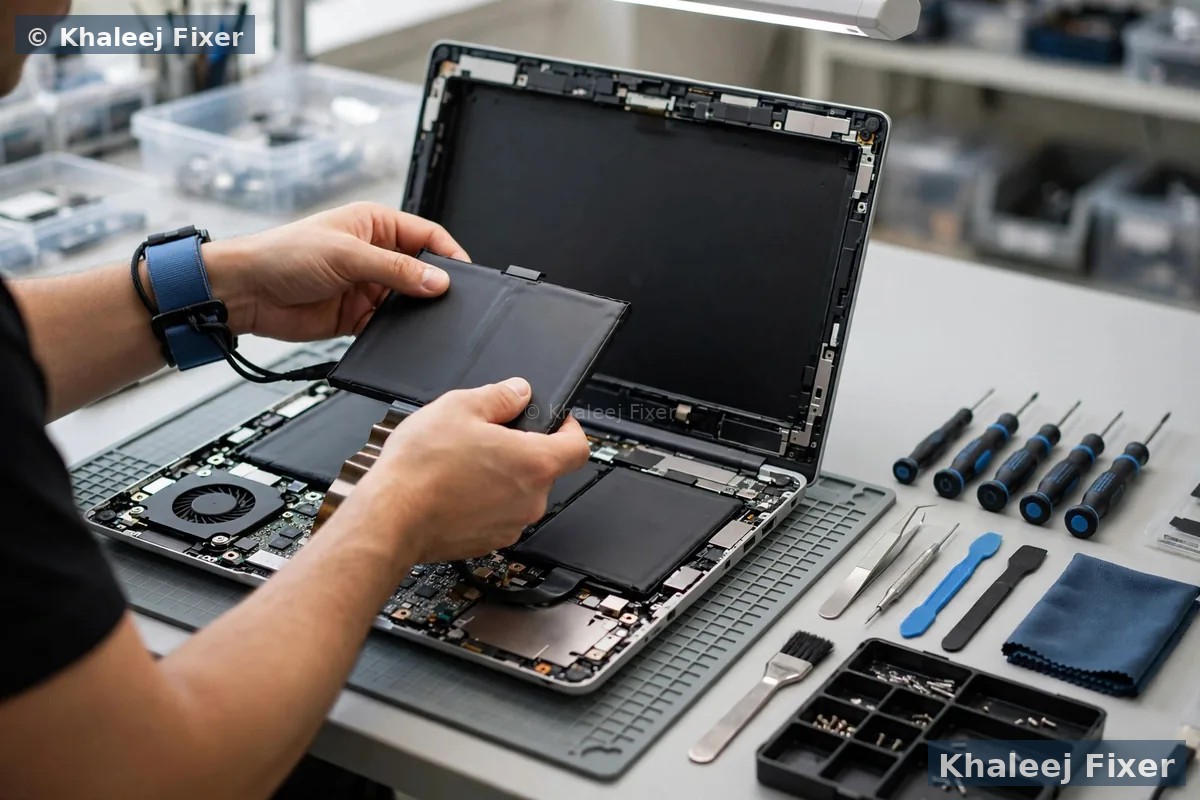
A battery swap is a quick job in most cases. We fit a battery made for your exact laptop model, since the wrong battery can swell or fail early. We check stock for your model before we quote. The swap carries a 2-month warranty. If you own a Sony Vaio, our Sony Vaio battery replacement in Dubai page covers Vaio swaps in full.

Try these fixes at home, step by step
Work through these steps in order. Test after each one. Stop when the battery lasts well again.
1. Turn on battery saver. Open Settings, then System, then Power and battery. Switch on battery saver and set it to turn on at 20 percent. This one change adds real time to your charge.
2. Turn the brightness down and shorten the screen timeout. Set the brightness to half indoors. Set the screen to turn off after two or three minutes of no use and the laptop to sleep after ten minutes.
3. Close heavy apps and tabs. Open Task Manager and sort by power usage. Close the apps at the top that you do not need. Close browser tabs you are not reading. Turn off extra extensions.
4. Turn off WiFi and Bluetooth when you do not need them. They use power all day. Turn them off when you work offline. Turn on airplane mode for the biggest saving.
5. Update Windows and your drivers. An old driver can keep the processor awake all day. A bad update can drain the battery fast. Install pending updates. If the drain began after an update, roll it back and watch again.
6. Run the battery report. Type powercfg /batteryreport in a terminal as an administrator. Compare the design capacity with the full charge capacity. If the battery is worn out, no setting will fix it. Get a free diagnosis.
When to stop and get a free diagnosis
Stop trying home fixes when you see any of these signs. They point to a battery or hardware fault that needs a bench check.
The battery report shows low full charge capacity. A battery that holds only half its design capacity is worn out and needs a swap.
The laptop dies the moment you unplug it. The battery holds no charge at all and needs a swap.
The base bulges or the trackpad lifts. The battery is swollen. Switch the laptop off. Do not charge it. Bring it in at once.
The battery drains fast even after all the fixes above. The cause may be a bad charger, a loose charging port, or a board fault.
A battery fault is usually found fast on the bench. We test the battery, the charger, the charging port, and the heat one by one until we find the cause. The diagnosis is free, so you know the real fault before you agree to anything. See our laptop repair in Dubai page for the full range of repairs, or check starting prices on our price list page.
Frequently Asked Questions
Why is my laptop battery draining so fast?
The most common causes are a bright screen, background apps, a worn out battery, heat, and a bad charger. Start by turning the brightness down and closing apps you do not need. Then run the battery report to check the battery health. If the battery holds far less than its design capacity, it is worn out and needs a swap.
How do I check my laptop battery health?
Open a terminal as an administrator and type powercfg /batteryreport, then press Enter. Windows saves a report file. Open it in your browser and compare the design capacity with the full charge capacity. If the full charge capacity is far below the design capacity, the battery is worn out.
Does a bright screen drain the laptop battery fast?
Yes. The screen is the single biggest battery user in any laptop. A screen at full brightness can use more power than the processor, the WiFi, and the fan put together. Turn the brightness down to half indoors and let Windows adjust it for you. This one change adds real time to your charge.
Can a bad charger make my laptop battery drain fast?
Yes. A charger that gives too little power cannot keep up with the laptop. The laptop then draws from the battery even while plugged in. Try a different charger of the same model. If the drain stops, the old charger is the fault. A loose charging port can cause the same problem.
How much does it cost to fix a laptop battery that drains fast in Dubai?
The cost depends on the cause. A settings fix costs nothing. A battery swap costs more. See our price list page for starting prices. The final quote always comes after the free diagnosis, and no work starts without your yes.
Battery still draining fast? Get a free diagnosis today.
Message us on WhatsApp or call. Free pickup, free diagnosis, final quote before any work, 2-month warranty.
Free Diagnosis • Free Pickup & Delivery • 2-Month Warranty • Open 7 Days 11AM to 11PM