
Short answer: match the symptom, then fix it in order
1. Letters type as numbers, like J K L giving 1 2 3. Num Lock is on. Many laptops hide a number pad inside the letter keys. Press Fn plus Num Lock once and test again.
2. Letters come out as other letters, like Q giving A or Z and Y swapped. The keyboard layout is wrong. Press Win plus Space to switch back to the layout that matches your keys.
3. The number row types symbols, like 2 giving the at sign and 3 giving a hash. Shift is stuck or Sticky Keys is on. Tap both Shift keys once each, then turn Sticky Keys off in Settings.
4. Only a few keys are wrong, and the rest are fine. Dirt under those keys, a worn key, or a spill is the likely cause. Clean the keys gently and test again.
5. The problem started after a Windows update or a spill. An update points to a driver fault. A spill points to damage inside the keyboard. Both are covered later in this guide, and a spill needs a free diagnosis before you keep using the laptop.
What the symptom tells you: match the wrong characters to the cause
The exact wrong characters are the biggest clue. Do not guess. Open Notepad on Windows or TextEdit on a Mac and type a full line of letters and numbers. A plain text app shows you the raw result, with no app setting in the way. Then match what you see to the list below.
The right hand letters type numbers. U I O J K L M type 4 5 6 1 2 3 and 0. This is the classic Num Lock sign. Your laptop has a hidden number pad built into those letter keys, and Num Lock is switched on. The keyboard is fine. The fix takes seconds.
Whole letters are swapped. Q types A, or Z and Y are swapped, or the whole alphabet looks scrambled. This is a wrong keyboard layout. Your laptop may be set to a French, German, or Dvorak layout by mistake. Or a second language, like Arabic, is active. The keys still work. They just send different letters.
Only the symbols are wrong. The letters are right, but the at sign and the quote mark swap places, or the hash key types something else. This is a US layout on a UK keyboard, or a UK layout on a US keyboard. Both type English, but they place several symbols in different spots.
Some keys add accents or do nothing until the next press. A letter gets an accent, like a becoming a with a mark over it, or a key seems dead until you press the next key. This is the US International layout, which uses dead keys. A dead key waits for the next letter to build an accented character.
Only a few keys are wrong, and the wrong result is random. One key types two letters. One key types nothing. Or the wrong characters change from day to day. This points to dirt, a worn key, a spill, or a driver fault. The next sections show you how to tell which one it is.
Cause 1: Num Lock is on, and your laptop hides a number pad in the letters
This is the most common cause of a laptop keyboard typing wrong characters, and it is also the easiest to fix. Many laptops have no separate number pad. So the maker builds one into the right hand letter keys. U I O become 4 5 6. J K L become 1 2 3. M becomes 0. When Num Lock is on, those letters type numbers instead. The keys often have small numbers printed on them in a different color, so you can see which ones are affected.
Turn Num Lock off. Press Fn plus the Num Lock key once. On some laptops the key is marked NumLk or Num, and it shares a key with Scroll Lock or Insert. On many HP, Lenovo, and Acer laptops, Fn plus F11 does the job. On some ThinkPads it is Fn plus Insert. On a few older models it is Shift plus Num Lock. Try one combination, then type U I O J K L in Notepad. If letters come back, you found it. If your keyboard has no Num Lock key at all, open the on screen keyboard with Win plus Ctrl plus O, click Options, turn on the numeric keypad, and click its Num Lock key.
Watch for Fn Lock as well. Some laptops have an Fn Lock key, often Fn plus Esc. When Fn Lock is on, the top row and some letter keys behave differently. Letters can turn into arrows, numbers, or media keys. If the Num Lock fix did not work, toggle Fn Lock once and test again.
Why does Num Lock turn on by itself? It is easy to press by mistake, because it sits close to other keys. Some laptops also turn it on at startup through a BIOS setting. If it keeps coming back after every restart, a technician can check the BIOS setting for you during a free diagnosis. Our guide on a laptop keyboard not working covers the lock keys in more detail, and the same checks apply here.
Cause 2: the wrong keyboard layout or language is active
A keyboard layout tells the computer which character each key should type. If the layout does not match the letters printed on your keys, the output will be wrong. The keys still work fine. They just send different characters. This is very common in Dubai and Sharjah, where many laptops are bought abroad or shared between family members who type in more than one language.
The classic layout swaps. A French AZERTY layout swaps Q and A, and Z and W. A German QWERTZ layout swaps Z and Y. A Dvorak or Colemak layout scrambles the whole alphabet. A US layout on a UK keyboard swaps the at sign and the quote mark. An Arabic keyboard that is active types Arabic letters. If your swap matches one of these, the layout is the cause.
Switch back in seconds. On Windows, press Win plus Space to cycle through the installed layouts, or click the language code at the right end of the taskbar, like ENG, and pick the right one. Alt plus Shift also switches layouts, and it is easy to hit by accident, especially in games or when typing fast. On a Mac, click the input menu in the menu bar, or press Control plus Space. On a Chromebook, press Ctrl plus Space.
Remove the layouts you do not use. A layout you never use can still switch itself on by accident. On Windows, go to Settings, then Time and language, then Language and region. Open your language options and remove every layout you do not need. Keep only the one that matches the letters printed on your keys. On a Mac, remove the extra input sources under System Settings, then Keyboard, then Input Sources. This one step stops the fault from coming back.
Check the US International layout too. If your letters get accents, or a key does nothing until you press the next key, you may be on the US International layout. It uses dead keys to build accented letters. Switch to plain US English instead. The dead keys will stop at once.
Cause 3: Sticky Keys, Filter Keys, or a stuck Shift key
Windows has accessibility features that change how the keyboard behaves. They help people who need them. But when they switch on by mistake, typing turns strange. Sticky Keys is the most common one. It can turn on when you press Shift five times in a row. It keeps Shift, Ctrl, or Alt active after you release the key. So the next key you press types a symbol or starts a shortcut instead of a plain letter.
Release a stuck modifier first. Tap both Shift keys once each. Then tap Ctrl, Alt, and the Windows key once each. This clears any modifier that is stuck in software. Now type the number row. If 2 types the at sign and 3 types a hash, Shift was stuck. If the letters come out in capitals when you did not press Caps Lock, tap Caps Lock once to rule it out.
Turn the accessibility features off. On Windows, open Settings, then Accessibility, then Keyboard. Switch Sticky Keys, Filter Keys, and Toggle Keys to Off. Open each one and turn off its keyboard shortcut too, so that holding Right Shift for eight seconds or pressing Shift five times does not switch it on again by accident. On a Mac, open System Settings, then Accessibility, then Keyboard, and turn the same features off.
Filter Keys causes a different fault. It tells the keyboard to ignore brief or repeated key presses. So keys get missed, or a letter appears twice when you hold a key a fraction too long. If your keys lag or double up, Filter Keys is worth checking before you blame the hardware. If you use these features on purpose, keep them on. But if you never turned them on, switching them off is safe and quick.
Cause 4: a bad keyboard driver or a Windows update
The keyboard driver is the small piece of software that turns each key press into a character on the screen. If the driver is old, damaged, or changed by a Windows update, the keyboard can start typing wrong characters. The fault often starts right after an update, or after you plug in a new external keyboard. The hardware is fine. The software is confused.
Restart first, then test. Save your work and restart the laptop. A restart clears a driver that is stuck in a bad state. Then open Notepad and type a full line. If the characters are right again, the driver just needed a fresh start. If they are still wrong, move on to the next step.
Reinstall the keyboard driver. On Windows, right click the Start button and open Device Manager. Open the Keyboards section. Right click your keyboard and choose Uninstall device. Then restart the laptop. Windows installs a fresh driver by itself when it starts up. Do not download a driver from a random website. The one Windows installs is the safe one for your model. On a Mac, the keyboard driver is part of the system, so install any pending macOS update instead, then restart.
Roll back a bad update. If the fault started on the same day as a Windows update, the update may be the cause. Open Settings, then Windows Update, then Update history, and look at the date. You can uninstall the most recent update from there, or use System Restore to go back to a point before the update. Save your work first. If the keyboard works again after the rollback, the update was the cause, and you can let the next update install later.
Test with an external keyboard. Plug in a USB keyboard and type the same keys. If the external keyboard types correctly and the built in keyboard does not, the fault is in the built in keyboard or its driver. If both keyboards type the same wrong characters, the fault is in Windows settings, not in the hardware. That one test saves a lot of guessing.
Cause 5: dirt, dust, and crumbs under the keys
A laptop keyboard is a magnet for dust, crumbs, and sand. In Dubai and Sharjah, fine dust gets everywhere, and it gets under the keys fast. A crumb under a key can hold the key half pressed. A layer of dust can stop a key from making clean contact. The result is a key that types twice, types the wrong character, or types nothing at all. Only a few keys are affected, and the rest work fine.
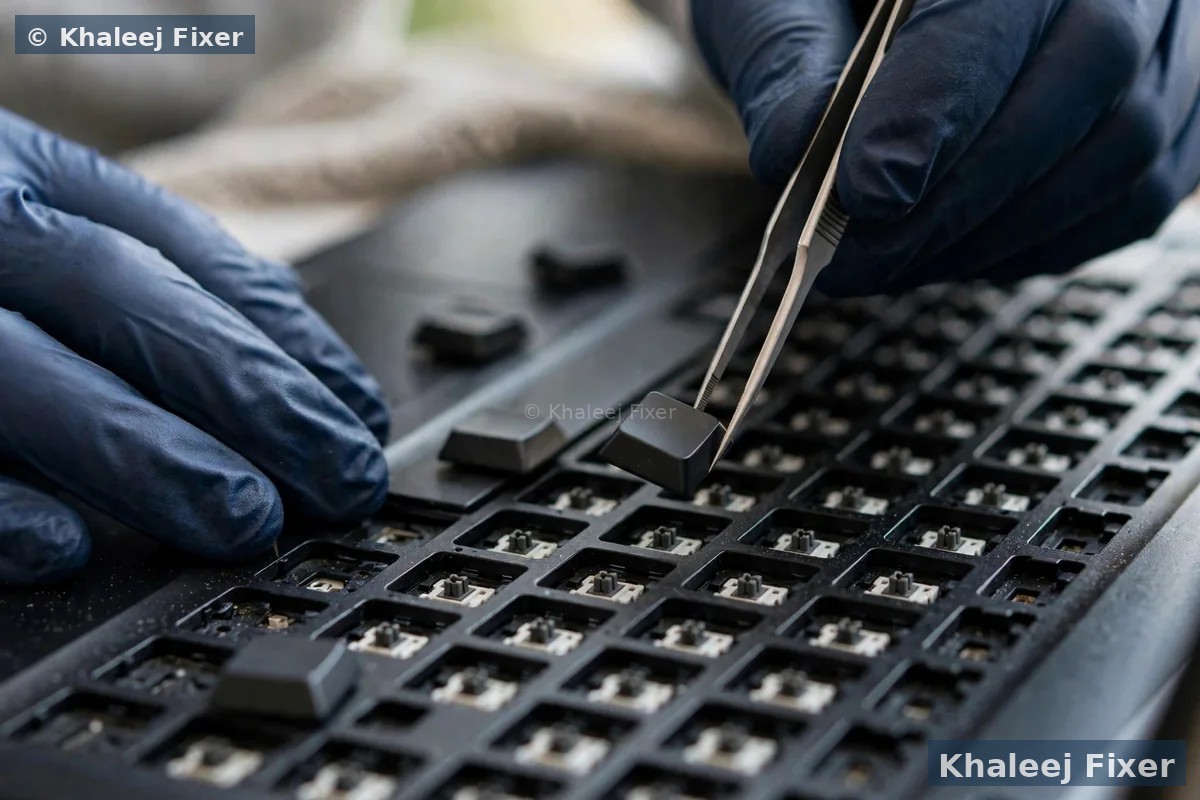
Clean the keyboard safely. Shut the laptop down and unplug the charger. Hold the laptop at a slight angle and tap the base gently so loose crumbs fall out. Then blow short bursts of compressed air between the keys. Hold the can upright and keep the bursts short. Do not use a vacuum cleaner on the laptop, because it can build static. Do not use a high pressure compressor, because it can damage the keys. Do not pry the keys off. Laptop keys are held by small plastic clips that break easily, and a broken clip means a new keyboard.
Test the keys one by one. After a clean, open Notepad and press each key in turn. Note which keys are still wrong. If the same two or three keys stay wrong after a clean, the fault is deeper than dust. The key membrane or the contact under those keys may be worn. That is a hardware fault, and it is covered in the section on a failing keyboard below.
Keep food and drinks away from the keyboard. Eating over a laptop is the fastest way to get crumbs under the keys. A keyboard cover helps, and it costs little. Wipe the keys with a dry cloth once a week. A clean keyboard types better and lasts longer, and it keeps dust out of the fan as well.
Cause 6: liquid damage, the fault that gets worse with time
A spill on a keyboard is serious. Water, tea, coffee, or juice gets under the keys and onto the thin membrane below. At first only a few keys may type wrong characters. Then more keys fail over days, as the liquid dries and leaves sticky residue, or as corrosion grows on the contacts. A spill that looks small can still hurt the board under the keyboard, and the damage can spread if the laptop keeps running.
Act at once if a spill just happened. Switch the laptop off right away. Unplug the charger. If the battery comes out, take it out. Turn the laptop upside down in a tent shape so the liquid runs out, and do not press the keys. Do not turn it back on to test it. Do not dry it with a hair dryer or put it in the sun, because heat makes the damage worse. Bring it to a workshop as it is, or book a free pickup. Fast action matters most with a spill.
An old spill can still be the cause. If the wrong characters started weeks after a small spill, corrosion is the likely cause. The liquid dried, but it left a thin layer on the contacts. That layer grows over time and changes how the keys behave. A clean of the membrane sometimes saves the keyboard. But if the corrosion reached the board, the keyboard may need a swap. A free diagnosis will tell you which one it is, before any work starts.
Do not keep typing on a spilled keyboard. Every key press pushes liquid deeper into the membrane. And a short under the keyboard can reach the board and kill the laptop. Switch it off and get it checked. Our Sony Vaio keyboard repair in Dubai page shows how we test a spilled keyboard key by key, and the same process applies to every brand.
Cause 7: a worn keyboard membrane or a failing keyboard
Under the keys of most laptops sits a thin membrane. It is a sheet with printed circuits that reads each key press. After years of daily typing, the membrane wears out. The printed circuits crack or lose contact. A key then types the wrong character, types two characters, or types nothing. The fault is worst on the keys you use most, like E, A, and the space bar. The keyboard may also fail after a drop, which can crack the membrane or loosen the ribbon cable that connects the keyboard to the board.
How to tell it is the hardware. The settings checks above all pass, yet the same keys stay wrong. The fault stays the same in Notepad, in a browser, and in a Word document. The fault stays the same when you restart the laptop. And an external USB keyboard types correctly on the same laptop. That set of signs points to the built in keyboard itself, not to Windows. A boot test helps too. Restart the laptop and press F2 or Del to enter the BIOS setup screen. If the keys type wrong characters in the BIOS screen, Windows is not even running yet, so the fault is in the hardware.
A swollen battery can press on the keyboard from below. This is easy to miss. The battery sits under the keyboard in many laptops. When a battery swells with age, it pushes up on the keyboard and the trackpad. Keys start to stick or type wrong characters. The trackpad may feel stiff, or the base may rock on a table. If you see any of those signs, stop using the laptop and bring it in. A swollen battery is a safety risk, and it should not be charged.
A keyboard swap is a common repair. The keyboard is matched to your exact model, because laptop keyboards are not all the same. Some come out on their own. Some sit under a full top cover, so the swap needs a careful hand. The board under the keyboard is checked at the same time, because a spill or a swollen battery can hurt both. The price list page shows what a repair costs, and you get a final quote after a free diagnosis, before any work starts.
Cause 8: remapping software, macros, autocorrect, and malware
Sometimes the keyboard is fine and Windows is fine, but another program changes what the keys do. Key remapping software, gaming macro tools, and text expander apps can all change the output of a key. Autocorrect can change a word after you finish typing it. And malware can change key behaviour too, though that is less common than the other causes in this guide.
Check if the fault happens in one app only. If the wrong characters appear in a game or in one program, but Notepad types correctly, the app is the cause. Check that app’s keyboard shortcuts, its language setting, and its extensions. A game macro or a browser extension can remap keys without you knowing. Turn the app’s add ons off one by one and test again.
Look for remapping and macro software. Open the list of installed apps and look for key remapping tools, macro recorders, and gaming keyboard software. If you find one you did not install on purpose, turn it off and test the keyboard. Text expanders can also change your typing, because they swap a short code for a longer phrase. Check the operating system text replacement settings too, and the autocorrect settings in Word and other apps.
Run a malware scan. If the wrong characters change over time, or keys seem to press themselves, run a full scan with Windows Defender or your antivirus. Some malware logs keys or changes input. A clean scan rules it out. If the scan finds something, remove it, restart the laptop, and test again.
Unplug extra devices. An external keyboard, a game controller, or a USB hub can send key signals of its own. Unplug them all and test the built in keyboard on its own. If the fault stops, plug the devices back in one at a time until the fault returns. The last device you plugged in is the one that causes it.
Safe checks you can do at home to find the cause
You can narrow the cause down in a few minutes. Do these checks in order. Stop at any point if a spill just happened, or if you smell burning or see a swollen battery. In those cases switch the laptop off and bring it in.
Check 1: type in Notepad. Open Notepad on Windows or TextEdit on a Mac. Type the alphabet, the number row, and a few symbols. Write down exactly which keys are wrong and what they type. This record helps you match the symptom to the cause, and it helps the technician a lot if you bring the laptop in.
Check 2: turn Num Lock off. Press Fn plus Num Lock once and test the right hand letters again. This one step fixes the most common cause of a laptop keyboard typing wrong characters.
Check 3: switch the layout. Press Win plus Space and watch the language code in the taskbar. Type a line after each switch. When the letters come right, you found the layout. Then remove the layouts you do not use so it cannot switch again by accident.
Check 4: tap the modifier keys and turn off Sticky Keys. Tap both Shift keys, Ctrl, Alt, and the Windows key once each. Then open Settings, then Accessibility, then Keyboard, and switch Sticky Keys, Filter Keys, and Toggle Keys to Off.
Check 5: restart and test with an external keyboard. Restart the laptop and type the same line again. Then plug in a USB keyboard and type the same line. If the external keyboard is right and the built in one is wrong, the fault is in the built in keyboard or its driver.
Check 6: test in the BIOS screen. Restart and press F2, F12, or Del to enter the setup screen. The exact key depends on your brand. If the keys type wrong characters on the BIOS screen, it is a hardware fault, because Windows is not running yet. If the keys are right in the BIOS screen, the cause is software that loads with Windows.
Check 7: clean the keys and look for a spill. Shut the laptop down, unplug it, and blow short bursts of compressed air between the keys. Look for sticky keys, stains, or a sweet smell. Any of those points to a spill, even an old one. Our laptop screen replacement in Dubai page is a good example of why a small fault should be checked early, because a loose part or a spill can pull on other parts over time, and the same rule applies to a keyboard.
When to stop trying fixes and bring the laptop in
Most wrong character faults are fixed by the settings above. But some signs mean the keyboard needs a workshop. Knowing the difference saves you time and protects your laptop.
Bring it in if the same keys stay wrong after every fix. If you tried Num Lock, the layout, Sticky Keys, a restart, and a driver reinstall, and the same keys still type the wrong characters, the keyboard membrane or the ribbon cable is the likely cause. No setting will fix worn hardware.
Bring it in at once after any spill. A spill needs a strip down and a clean, even if the keyboard seems to work. Corrosion grows day by day, and a keyboard that works today can fail next week. Fast action is far cheaper than a dead board later.
Bring it in if the laptop had a drop. A drop can crack the keyboard membrane, loosen the ribbon cable, or hurt the board under the keyboard. If the wrong characters started right after a drop, do not keep testing the keys. A quick bench check finds the fault before it spreads.
Bring it in if the battery looks swollen or the base rocks. A swollen battery presses on the keyboard from below and changes how the keys behave. Do not charge the laptop. Do not keep using it. Keep it away from heat and bring it to a workshop as it is. You can read about how a failing battery is handled on our data recovery in Dubai page, because a swollen battery can also threaten your files, and the same free diagnosis covers the whole laptop.
What a repair shop does about a keyboard that types wrong characters
A good workshop starts with a free diagnosis. The technician tests the keyboard key by key, checks the layout and driver settings, and opens the back to look at the membrane, the ribbon cable, and the board. You get a clear answer in plain words before any work starts. Then you get a final quote. That is how it should work. No one can promise a fix before they see the laptop.
For a settings fault, the shop fixes it on the spot. The technician resets the layout, turns off the accessibility features that switched on by mistake, and reinstalls the driver. The keyboard is tested key by key before you take the laptop home. This is a quick job, and it is often done while you wait.
For dirt and dust, the shop cleans the keyboard properly. The technician takes the keys off where it is safe, cleans the membrane and the contacts, and tests every key again. A clean saves many keyboards that look dead. If only a few keys stay wrong after a clean, those keys are the worn ones, and the technician will tell you so.
For a worn keyboard, the shop fits a new one. The keyboard is matched to your exact model number, because laptop keyboards are not all the same. Backlit keyboards are matched too. The board under the keyboard is checked at the same time, because a spill or a swollen battery can hurt both. The work carries a 2 month warranty, and the laptop is tested key by key before it goes back to you.
Ask what the shop found and what it will cost. A clear workshop tells you the cause in plain words. It tells you the final quote before it starts work. And it tells you how long the repair will take. A settings fix often takes less than an hour. A keyboard swap takes longer, because the right part must be in hand. And you can book free pickup from anywhere in Dubai or Sharjah, including Al Nahda, Al Majaz, Muwaileh, Al Qasimia, Rolla, University City, Al Taawun, and Al Khan. Our shop sits in Industrial Area 2 in Sharjah, and we are open 7 days, 11 AM to 11 PM.

How to stop the wrong characters coming back
Once the keyboard types right again, a few simple habits keep it that way. None of them take much time. And each one protects your laptop as well as your typing.
Keep only one keyboard layout installed. Remove every layout you do not use. Keep only the one that matches the letters printed on your keys. This one step stops the most common cause of wrong characters for good. Turn off the Sticky Keys shortcut too, so a fast run of Shift presses cannot switch it on again.
Keep food and drinks away from the keyboard. A keyboard cover costs little and stops crumbs and small spills from reaching the keys. Do not eat over the laptop. Keep cups and bottles to the side, not next to the laptop. A spill that never happens needs no repair.
Clean the keys once a month. Shut the laptop down, unplug it, and blow short bursts of compressed air between the keys. Wipe the keys with a dry cloth. In Dubai and Sharjah, dust builds up fast, and a monthly clean keeps it out of the keys and the fan.
Update Windows, but watch the keyboard after an update. Drivers change with updates, and a bad update can change how the keyboard behaves. After a big update, open Notepad and type a line. If the characters are wrong, you caught the fault early, and a driver reinstall fixes it in minutes.
Listen to the keyboard. Keys that start to stick, double up, or feel different are telling you something. A key that changes how it feels is often the first sign of dust, wear, or a small spill. A free diagnosis at that stage is far cheaper than a keyboard swap later. And if the laptop is still under warranty, do not open it yourself. Opening it can void the warranty. A free diagnosis at our workshop is the safe route in that case.
Frequently Asked Questions
Why is my laptop keyboard typing numbers instead of letters?
Num Lock is on. Many laptops hide a number pad inside the right hand letter keys, so U I O J K L M type 4 5 6 1 2 3 and 0 when Num Lock is switched on. Press Fn plus Num Lock once and test again. If your laptop has no Num Lock key, open the on screen keyboard with Win plus Ctrl plus O, turn on the numeric keypad, and click its Num Lock key.
Why does my laptop keyboard type the wrong letters after a Windows update?
A Windows update can change or damage the keyboard driver, so the keyboard sends the wrong characters even though the keys are fine. Restart the laptop first, then reinstall the driver from Device Manager by uninstalling the keyboard device and restarting, so Windows installs a fresh driver. If the fault started on the same day as an update, you can also roll the update back from Update history.
How do I change my keyboard layout back to US English on Windows 11?
Press Win plus Space to cycle through the installed layouts until US English is active, or click the language code at the right end of the taskbar and pick it. Then go to Settings, then Time and language, then Language and region, open your language options, and remove every layout you do not use, so it cannot switch again by accident.
Can a spill make my laptop keyboard type wrong characters?
Yes. Liquid gets under the keys and onto the thin membrane below, so a few keys type the wrong characters at first, then more keys fail over days as the liquid dries and leaves residue or as corrosion grows on the contacts. Switch the laptop off at once, unplug the charger, do not turn it back on to test it, and bring it to a workshop for a free diagnosis, because a spill can also hurt the board under the keyboard.
When should I replace my laptop keyboard instead of fixing settings?
Replace the keyboard when the same keys stay wrong after you have tried Num Lock, the layout, Sticky Keys, a restart, and a driver reinstall, and when an external USB keyboard types correctly on the same laptop. A keyboard that types wrong characters on the BIOS screen is also a hardware fault, because Windows is not running yet. A free diagnosis confirms the fault before any work starts, and you get a final quote first.
Keyboard typing the wrong letters and the fixes did not work? Get a free diagnosis today.
Message us on WhatsApp or call. Free pickup, free diagnosis, final quote before any work, 2-month warranty.
Free Diagnosis • Free Pickup & Delivery • 2-Month Warranty • Open 7 Days 11AM to 11PM