
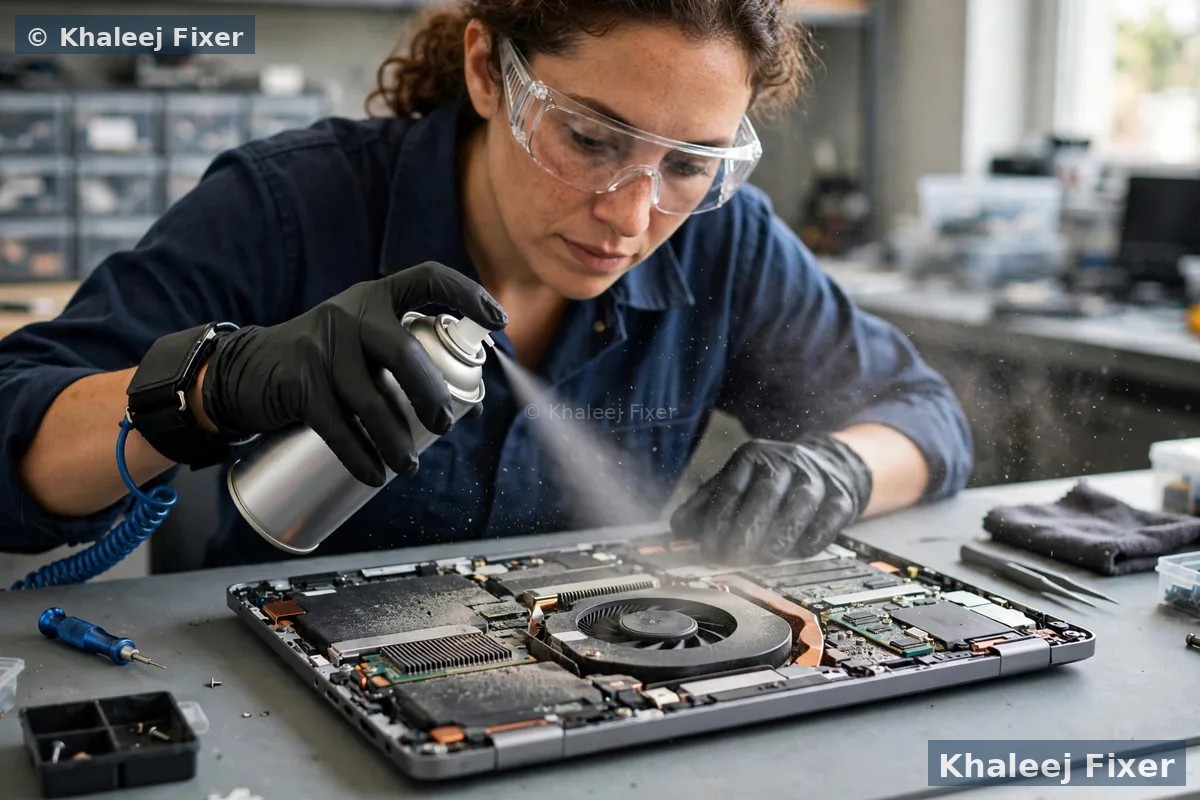
First, listen: what kind of noise is it?
Not all fan noise means the same thing. A fan that whooshes loudly for a minute when you open a game or a video editor, then settles down, is usually normal. The processor is working hard, it makes heat, and the fan spins faster to clear that heat. Once the heavy task ends, the fan should slow down within a minute or two.
A constant loud roar, even with nothing open. This points to blocked airflow, dust, a background program hogging the processor, or heat that never clears. It is the most common complaint, and it is often fixable at home.
Grinding, rattling, or clicking. This is different from a roar. It usually means something physical: a worn fan bearing, a blade touching something inside, or a loose fan. Home cleaning rarely fixes a grinding fan, and running it for weeks can damage nearby parts.
A fan that never stops, even when the laptop is cool. This can mean a stuck fan control setting, a faulty temperature sensor, or a program running in the background that you cannot see. Check the software steps below before assuming hardware failure.
If the laptop also shuts down on its own, feels very hot underneath, or smells of hot dust, stop heavy use and get it checked. Heat damage spreads. A fan problem left alone can turn into a board problem. Our guide on laptop overheating covers heat signs in more detail.
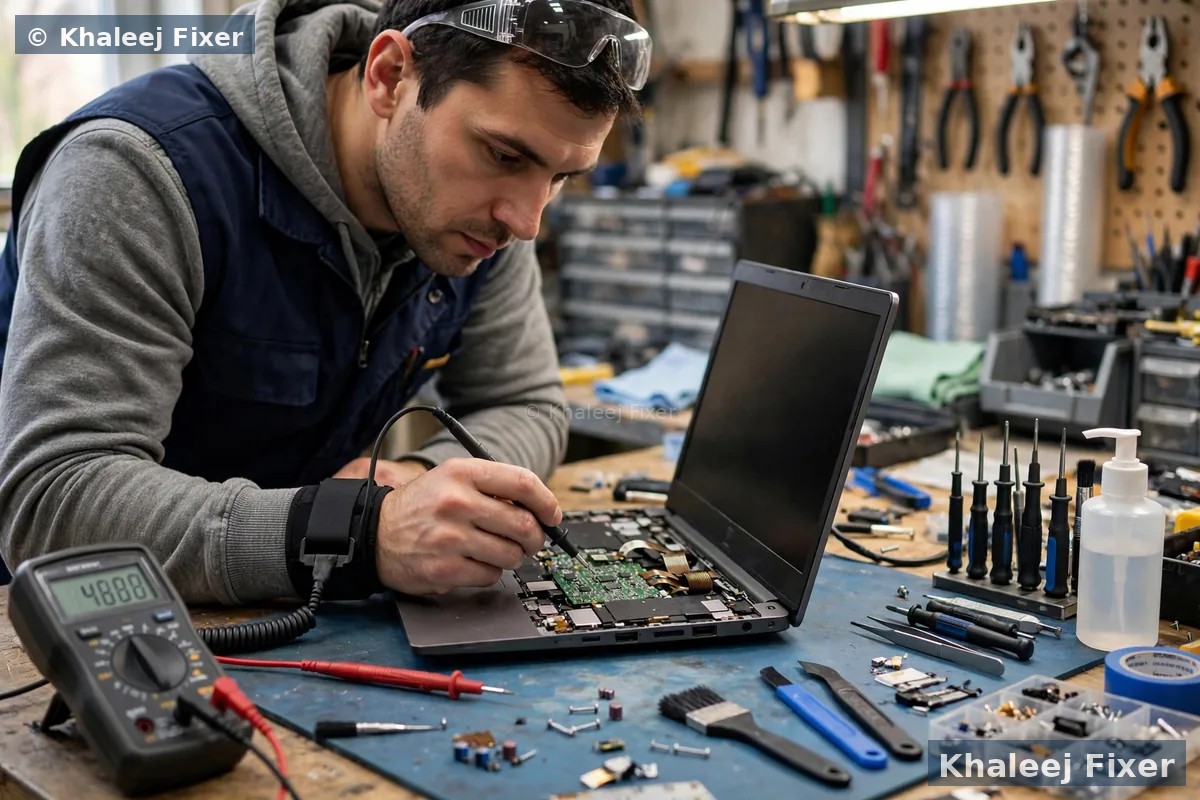
Safe home checks, in order
1. Move it to a hard, flat surface. Beds, cushions, and laps block the vents underneath and on the sides. A desk or a ventilated stand can quiet the fan within minutes, because air can finally move.
2. Close heavy programs and browser tabs. On Windows, press Ctrl, Shift and Esc together to open Task Manager and sort by CPU. On a Mac, open Activity Monitor and check CPU. Close what you do not need. A single runaway browser tab or an update running in the background can keep the fan roaring.
3. Clean the vents gently from outside. Power the laptop off and unplug it. Use short, upright bursts of compressed air into the vents, from different angles, without spinning the fan hard. Never poke tools into the vents. If dust pours out and the fan quiets down, dust was the main cause.
4. Switch the power mode. On Windows, set Power Mode to Balanced instead of Best Performance for everyday work. On a Mac, check the battery and energy settings. Best Performance modes keep the processor running hot, which keeps the fan loud.
If none of these steps help, or if the noise is grinding or rattling, stop there. Opening the laptop to reach the fan needs the right tools and care, especially on thin machines where the battery sits next to the fan. A wrong move can damage the battery or the board.
Why Dubai heat makes fan noise worse
Dubai adds two problems that cooler cities do not have. First, room temperatures run higher for much of the year, so a laptop starts warmer and its fan works harder from the first minute. A machine that was quiet in a cool office can roar in a warm room doing the exact same work. Second, dust is everywhere, especially in homes near construction or busy roads. Dust builds up on fan blades and in vent grilles faster here, and a dusty fan must spin faster to move the same amount of air.
That is why a regular vent clean matters more in the UAE than the manuals suggest. Every few months is a good rhythm for most users, and more often if you have pets or work near an open window. A cooling pad can help too, by lifting the laptop and adding airflow underneath, but it is a helper, not a cure. If the fan is grinding or the laptop overheats even on a cooling pad, the fault is inside, and a pad will not fix it.
One more Dubai specific habit helps: do not leave a laptop running inside a hot car, and do not run heavy tasks with the laptop sitting on a blanket. Both push temperatures up fast, and repeated heat stress dries out thermal paste and shortens fan life. Small habits like these add years to a cooling system.
When the fan itself needs replacing
Fans wear out. The bearing inside a small laptop fan is a moving part, and after years of spinning it can wear, wobble, and grind. Dried thermal paste makes the problem worse: the processor runs hotter, the fan spins faster to compensate, and the worn bearing gets louder still. At that point cleaning helps only a little, and the noise returns within days.
Signs that point to a fan replacement rather than a clean are clear. Grinding or rattling that does not change after a vent clean. A fan that vibrates the whole laptop. A fan that stops and starts on its own. Or a laptop that overheats and shuts down even after the vents are clean and the power mode is set to Balanced. Each of these means the cooling system needs hands on work: a fan swap, a fresh thermal paste application, or both.
Fan replacement is model specific work. The fan must match the exact laptop model, or it will not fit the mounting points and the vent shape. That is why a free diagnosis matters: we confirm the fan part, the thermal paste condition, and whether anything else is adding heat, before we quote. If your laptop screen flickers as well, read our laptop screen flickering guide, because heat and display faults sometimes travel together. Starting prices are on our price list page, and the final quote always comes after the free diagnosis.

What a professional fan service includes
A proper fan service is more than blowing dust out of the vents. We open the machine safely, clean the fan blades and the heat sink fins properly, and check the fan bearing by hand. If the bearing is worn, we replace the fan with the correct model part. We also check the thermal paste between the processor and the heat sink. Dried paste is replaced, because fresh paste lets heat move away properly and lets the fan run slower and quieter.
After the service we test under load, not just at idle. The laptop runs a heavy task for a while, and we watch temperatures and fan speed. A fan that is quiet at idle but roars under a light load still has a problem, and we would rather find that in the workshop than have you find it at home. Only when temperatures and noise stay in a healthy range under load does the machine go back to you, with free pickup and delivery in Dubai and Sharjah and a 2-month warranty on the work.
If the fan noise started after a drop or a spill, tell us. A drop can bend a fan blade or crack a mounting point, and a spill can leave residue on the fan that cleaning alone will not remove. Knowing the history helps us diagnose faster and quote accurately. Heat also wears batteries out faster, so if your battery life has dropped alongside the noise, our laptop battery replacement in Dubai page explains the signs to watch for.
Frequently Asked Questions
Is a loud laptop fan dangerous?
A loud fan on its own is a warning, not an emergency, but it should not be ignored. Constant heat and a struggling fan can shorten the life of the processor and the battery, and a laptop that shuts down from heat can lose unsaved work. Get it checked if the noise is constant or the machine runs hot.
Can I clean my laptop fan myself?
You can safely clean the outside vents with short bursts of compressed air after powering off and unplugging the machine. Do not open the laptop yourself unless you have the right tools and experience, especially on thin machines where the battery sits next to the fan.
Why is my fan loud even when nothing is open?
A background program, an update, a stuck fan setting, or dust blocking airflow can all keep the fan loud at idle. Check Task Manager or Activity Monitor for hidden heavy programs first. If nothing shows up and the fan still roars, the cause is likely dust, dried thermal paste, or a worn fan.
Does a cooling pad fix a loud fan?
A cooling pad helps by lifting the laptop and adding airflow, and it can quiet a fan that is loud only because of blocked vents or a warm room. It does not fix a grinding fan, dried thermal paste, or a blocked heat sink inside the machine.
When does a loud fan need professional repair?
When the noise is grinding or rattling, when it stays loud after vent cleaning and software checks, or when the laptop overheats or shuts down. Our free diagnosis confirms whether the fan, the thermal paste, or something else is at fault, before any repair is quoted.
Fan still roaring after the home checks? Get a free diagnosis today.
Message us on WhatsApp or call. Free pickup, free diagnosis, final quote before any work, 2-month warranty.
Free Diagnosis • Free Pickup & Delivery • 2-Month Warranty • Open 7 Days 11AM to 11PM