
First, find out what kind of flicker you have
Not all flicker is the same. Watch the screen for a minute before you change anything. Does the whole screen blink, or only one app window? Does the brightness jump up and down, or does the image shake? Does the flicker stop when you move the lid? Does it only happen on battery power? Each answer points to a different cause. Write down what you see. It helps a technician a lot if you later book a diagnosis.
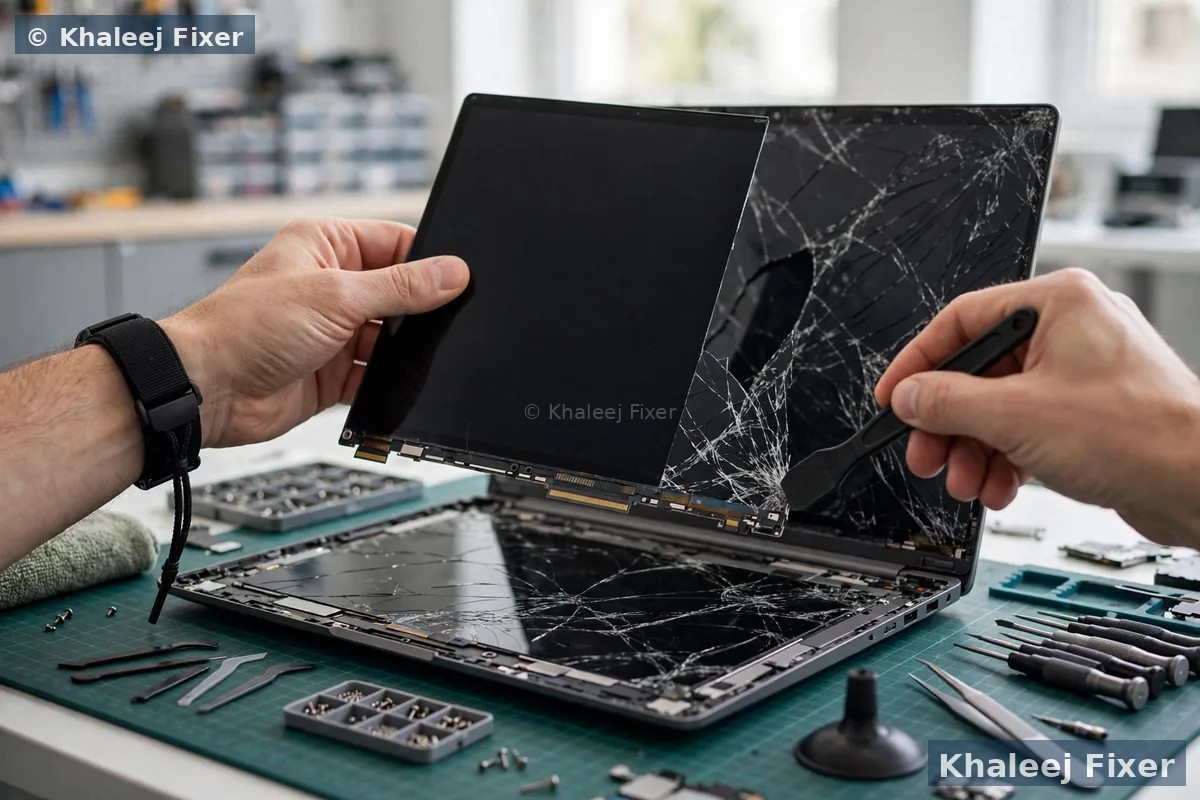
A flicker that changes with the lid angle often points to the display cable. The cable runs through the hinge. It flexes every time the lid moves. After years of opens and closes, it can wear out. A flicker that started right after a Windows update often points to a driver. A flicker in one app only often points to that app. A flicker that happens only on battery often points to a power setting. The checks below split these cases one by one.
Run the Task Manager test
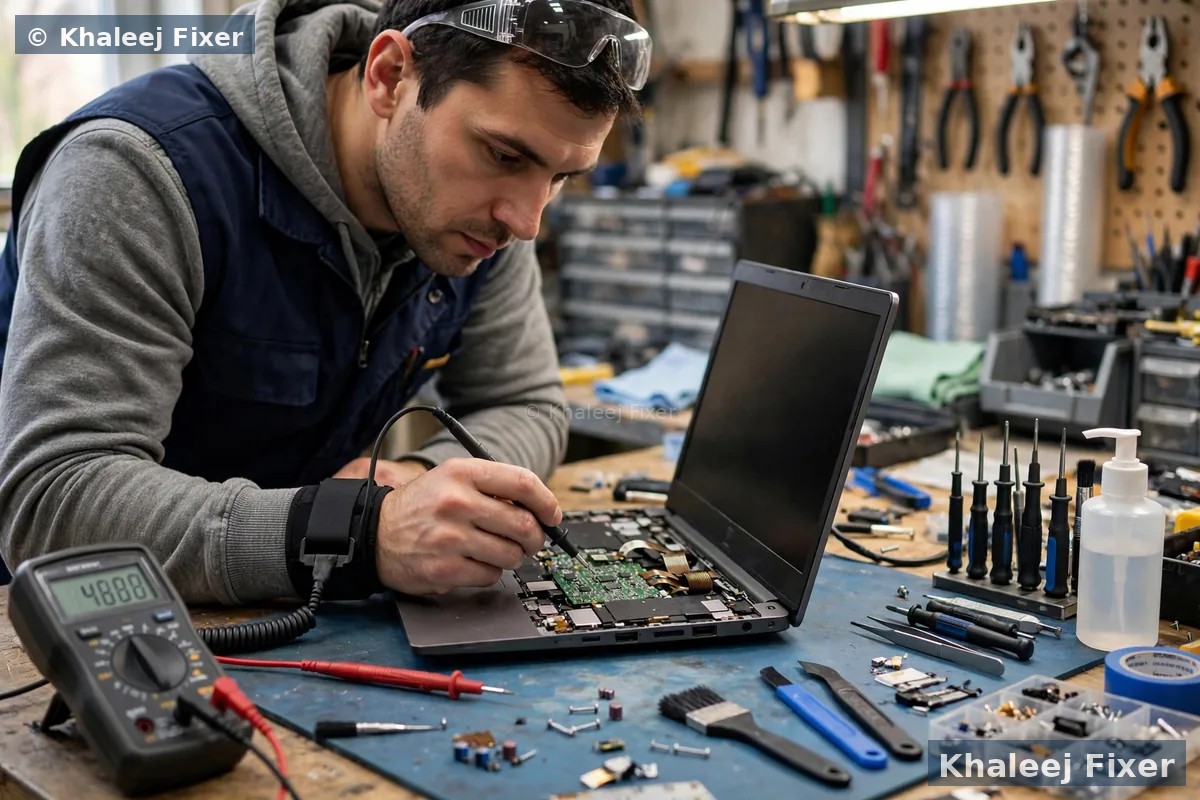
This is the most useful quick test. Press Ctrl, Shift and Esc together to open Task Manager. Watch the Task Manager window. Does it flicker too? If Task Manager flickers along with everything else, the cause is usually the display driver or the graphics hardware. If Task Manager stays steady while the rest of the screen flickers, the cause is usually an app that clashes with Windows.
Next, try the graphics driver reset. Press the Windows key, Ctrl, Shift and B together. The screen will go black for a second. You may hear a short beep. Windows reloads the graphics driver. If the flicker stops, the driver had a glitch. If it comes back, move on to the driver check below. Do not keep pressing the shortcut over and over. One clean reset is enough to test it.
Check the graphics driver
An old, broken, or wrong graphics driver is the most common software cause of flicker. If the flicker started after a Windows update, the update may have replaced your driver with a generic one. Open Device Manager. Find Display adapters. Right click your graphics card and choose Update driver. Let Windows search for a driver. Then restart the laptop and test again.
If updating does not help, try a rollback. In Device Manager, open the driver properties and look for Roll Back Driver. This returns the driver to the version before the update. If rollback is greyed out, download the driver for your exact laptop model from the laptop maker support site. Install that driver, not a generic one. A driver made for your exact model works far better than a general driver.
If you use a laptop with two graphics cards, like Intel plus NVIDIA or AMD, check both drivers. A clash between the two can cause flicker when the laptop switches between them. Update both. Then test with a video and with normal browsing. If the flicker only happens in games or video editing, the graphics switching setting may be the cause. Try setting the app to use one graphics card in the graphics settings.
Check the refresh rate and the display settings
Refresh rate means how many times per second the screen redraws the image. A wrong refresh rate can cause visible flicker, mainly on older panels. Open Display settings. Go to Advanced display settings. Check the refresh rate. Set it to the native rate for your panel. For most laptops, that is 60 Hz. If it is set to a higher rate that your panel does not support well, drop it back to 60 Hz and test.
Also check the resolution. Set it to the recommended resolution. A non native resolution can look shaky on some panels. Turn off HDR if it is on and the flicker started after you enabled it. Some panels flicker with HDR on, mainly at low brightness. If the screen has a dynamic refresh rate setting, try turning it off. Dynamic refresh saves battery, but on some laptops it causes brightness jumps that look like flicker.
Check the power settings too. If the flicker only happens on battery, open the power plan. Set it to Balanced. Look for a panel power saving feature in the graphics settings and turn it off for a test. Some power saving features dim and brighten the screen as content changes. That dimming can feel like flicker. If the flicker stops on charger power but returns on battery, a power setting is the likely cause.
Test with an external monitor
This test splits software faults from hardware faults. Connect the laptop to a TV or a monitor with an HDMI cable. Watch both screens. If both screens flicker, the cause is likely the driver, the settings, or the graphics hardware. If only the laptop screen flickers and the external screen is steady, the fault sits in the laptop screen, the display cable, or the hinge wiring.
If only the laptop screen flickers, tilt the lid slowly. Does the flicker change as the lid moves? If yes, the display cable is the prime suspect. Do not open the laptop to reseat the cable yourself unless you have done it before. Laptop lids are fragile. A wrong move can crack the panel or break a hinge mount. This is a workshop job. Our laptop screen replacement in Dubai page explains how our free diagnosis tests the cable, the panel, and the graphics system before any quote.

The external monitor test is the fastest way to split a driver fault from a screen fault.
When only one app flickers
If Task Manager stays steady but one app flickers, that app is the problem. Update the app first. Then open its settings and turn off hardware acceleration. Hardware acceleration lets the app use the graphics card directly. On some drivers, that causes flicker. Turning it off often fixes the app at once. Common apps with this issue include browsers, video apps, and some antivirus tools.
If the app still flickers, uninstall it and reinstall a fresh copy. Do not install old versions from random sites. Get the app from its official site or store. If the flicker started after you installed a new app, remove that app and test. A clash between a new app and the graphics driver is a known cause of flicker on Windows 10 and Windows 11.
Heat, battery, and other hardware causes
Heat can cause flicker too. If the laptop flickers during games, video editing, or long video calls, check the vents. Are they blocked by dust? Is the laptop on a soft bed? Move it to a hard flat surface. Let it cool. Clean the vents with a short burst of compressed air while the laptop is off. Overheating can make the graphics chip throttle, and that can show up as flicker.
A weak battery can also play a part. If the flicker only happens on battery and the battery is old, the voltage may drop under load. That drop can disturb the display. Check the battery health reading. If the pack is worn, a new battery may fix more than just battery life. Our Fujitsu battery replacement in Sharjah page shows how we test the charger, the port, and the pack together for LifeBook machines.
A failing backlight is another hardware cause. If the screen flickers mainly at low brightness but looks fine at full brightness, the backlight or its power circuit may be weak. This is a workshop diagnosis. Do not try to replace a backlight at home. Modern laptop panels are sealed units, and the backlight is part of the panel assembly.
When to stop and book a free diagnosis
Stop at once if the screen shows lines plus flicker after a drop, if the lid feels loose, or if the flicker changes strongly with lid movement. These signs point to cable or panel damage. Keep using the laptop can make it worse. A loose cable can short. A cracked panel can shed glass into the keyboard. Back up your files with an external monitor if you can, then book a diagnosis.
Stop guessing if a driver update, a driver rollback, a refresh rate change, and an external monitor test all fail to explain the flicker. The fault is then inside the machine. It may be the cable, the panel, or the graphics hardware. All three are workshop jobs. Opening the laptop yourself can damage the board or break a glued part. Our free diagnosis finds the real fault first, and the final quote comes before any work starts. For Fujitsu owners, our Fujitsu screen replacement in Sharjah and Fujitsu screen replacement in Dubai pages cover LifeBook panel matching in full. Starting prices for any screen job are on our price list page.
Frequently Asked Questions
Why is my laptop screen flickering?
The most common causes are a graphics driver problem, a wrong refresh rate, an app clash, a loose display cable, overheating, or a failing panel. Run the Task Manager test and the external monitor test first. Those two tests narrow the cause fast.
Can a graphics driver cause screen flickering?
Yes. An outdated, broken, or wrong driver is the most common software cause. Update the driver for your exact laptop model, or roll it back if the flicker started after an update. Pressing Windows, Ctrl, Shift and B resets the driver for a quick test.
Does a flickering screen always mean I need a new screen?
No. Many flicker cases are fixed by a driver update, a refresh rate change, or an app setting. Only book a panel replacement after the driver, settings, and external monitor tests point to the panel or the cable.
Why does my screen flicker only when I move the lid?
Flicker that changes with lid movement usually points to the display cable where it passes through the hinge. The cable flexes every time the lid moves and can wear out. This is a workshop repair, not a settings fix.
Is it safe to keep using a flickering laptop screen?
Short term use is usually safe if the cause is software, but stop and rest your eyes if the flicker gives you a headache. If the flicker came after a drop, or the lid feels loose, stop using the laptop and book a free diagnosis to avoid further damage.
Screen still flickering after the safe checks? Get a free diagnosis.
Message us on WhatsApp or call. Free pickup, free diagnosis, final quote before any work, 2-month warranty.
Free Diagnosis • Free Pickup & Delivery • 2-Month Warranty • Open 7 Days 11AM to 11PM