
Short answer: listen first, then act
1. A steady rhythmic click is urgent. If the click repeats at a steady pace, it is often a failing hard drive. Back up your files first. Do this before anything else.
2. A rattle that rises and falls is often the fan. If the noise gets louder when the laptop works hard and quieter when it rests, the fan is the likely cause. Dust or a worn bearing is behind it.
3. A single pop when you open the lid is often the hinge. A click that only happens when you move the lid is usually a loose screw or a tired hinge. It is annoying, but it is rarely urgent.
4. An SSD cannot click like a hard drive. A solid state drive has no moving parts. If your laptop has only an SSD, the click comes from somewhere else. Check the fan and the case first.
5. Stop at once if the click comes with slow files or errors. Slow file access, missing files, or read errors plus a click means the drive is failing. Switch the laptop off and call a pro. Do not run disk tests on a clicking drive.
What the sound tells you: match the click to the cause
A healthy laptop is quiet. You may hear a soft fan hum when it works hard. You may hear a short spin up sound when it wakes. But a clear click is not normal. The pattern of the click is the first clue. So stop and listen before you do anything else. Sit in a quiet room. Close other apps. Put your ear near the laptop and listen for a full minute.
A steady rhythmic click, same pace, again and again. This is the classic sign of a failing mechanical hard drive. The click repeats every second or two. It keeps the same pace even when you do nothing. This is the urgent one. It is often called the click of death. Your files may still be safe right now. But the drive can stop at any time. Back up first.
A rattle or grinding that rises and falls. This points to the cooling fan. The noise gets louder when the laptop gets hot or busy. It gets quieter when the laptop rests. Dust on the blades, a cable that touches the fan, or a worn bearing can all cause it. A fan fault is not usually a data emergency. But it can lead to heat damage if you leave it.
A single click or pop only when you move the lid. This points to the hinge or the case. A loose screw, a cracked hinge mount, or a plastic clip can click when the lid moves. The laptop works fine otherwise. It is the least urgent cause. But a loose hinge can pull on the screen cable over time. So get it checked before it turns into a screen fault.
A high pitched buzz that changes with load. This is often coil whine, not a click at all. It sounds like a faint squeal or a buzz. It changes when you open a game or plug in the charger. Coil whine is a normal trait of the electronics in many laptops. It is not a fault in most cases. The section later in this guide shows you how to tell it apart from a real click.
Cause 1: a failing hard drive, the click of death
This is the most serious cause of a laptop clicking noise. Older laptops and many budget laptops still use a mechanical hard drive. Inside it, metal discs spin at high speed. A small arm floats just above the discs and reads your files. When the arm cannot find its place, it resets itself again and again. Each reset makes a click. That is the click of death.
A drive can start to fail for many reasons. A drop or a knock can hurt the arm. Heat over years can wear the parts down. Dust and damp can get inside an old laptop. Or the drive may simply be old. Hard drives have moving parts, and moving parts wear out. Most drives last for years. But when they start to click, the end can come fast.
Back up your files first, before you test anything. This is the one rule that matters most. If the drive still works, copy your photos, documents, and work files to a USB drive or to cloud storage right now. Start with the files you cannot replace. Do not run a disk check first. Do not defrag the drive. Do not run a full scan. Every one of those makes the drive work harder, and a weak drive can die during the test. Back up first, test later.
Watch for the other warning signs. A clicking drive often slows the laptop down. Files take long to open. Some files may not open at all. The laptop may freeze for a few seconds, then wake up again. You may see errors that say a file cannot be read. If you see any of these signs with a click, treat the drive as failing. Switch the laptop off when the backup is done. Then read our data recovery in Dubai page to see how a pro can clone the drive before it dies. A clone copies the drive bit by bit, so your files survive even if the drive stops during recovery.
Cause 2: a fan that hits something or a fan bearing that is worn out
The cooling fan is the second most common cause of a laptop clicking noise. The fan spins to push hot air out of the laptop. It spins faster when the laptop works hard. It slows down when the laptop rests. So a fan noise follows the work of the laptop. It rises and falls with the load. That is the key test. If the noise tracks the fan speed, the fan is the cause.
Dust is the most common fan fault. Dust builds up on the blades and in the vents over months and years. The blades get heavy and wobble. They can touch the case as they spin. That touch makes a tick or a rattle. Dust also blocks the air path. The laptop gets hotter. The fan spins faster to cope. And the faster it spins, the louder the rattle gets. A laptop that has never been cleaned is the classic case. Our Sony Vaio overheating repair in Dubai page shows the same pattern on Vaio laptops, and it applies to every brand.
A cable can sag into the fan. Inside a laptop, thin cables run close to the fan. Over time a cable can sag or come loose from its clip. The fan blade then taps the cable on every turn. That makes a steady tick that follows the fan speed. It is a small fault, but it needs the laptop opened to fix. Do not poke a tool through the vent to move a cable. You can break a blade or push the cable deeper into the fan.
A worn bearing makes a grind or a rattle. The fan spins on a small bearing. The bearing wears out with use, just like a wheel bearing on a car. A worn bearing grinds at some speeds and goes quiet at others. It may stop and start. The laptop may show a fan error when it starts. A worn bearing cannot be fixed by cleaning. The fan needs a swap. The good news is that a fan swap is a common repair. It takes little time once the right part is in hand.
A fan fault is not a data emergency, but do not ignore it. A weak fan cannot cool the laptop. The laptop runs hot. It slows down to protect itself. It may shut down in the middle of your work. Over time, heat can hurt the battery and the board. So fix a clicking fan within days, not months. A simple clean often solves a dusty fan. A worn fan needs a new fan. Either way, a free diagnosis will tell you which one it is.
Cause 3: loose parts, screws, and hinge clicks
Not every click comes from a moving part. A laptop is full of screws, brackets, and clips. A screw can work loose over years of heat and vibration. A small bracket can crack. A plastic clip can tire and pop. Any of these can rattle when the fan spins up or when you move the laptop. The sound is often faint. It may come and go. It may stop if you press gently on the base or the palm rest.
The lid test tells you if it is the hinge. Open and close the lid slowly. Listen for a click or a crack at one angle. If the sound only happens when the lid moves, the hinge is the likely cause. A loose hinge mount or a tired hinge can click as the lid turns. The screen may also wobble when you type. Or the lid may not hold the angle you set. A hinge fault starts small. But the screen cable runs through the hinge area. A loose hinge pulls on that cable every time you open the lid. Over time the screen can flicker, show lines, or go black at some angles. Our laptop screen replacement in Dubai page covers what happens when that cable gets hurt, and why a hinge check early saves a screen repair later.
A loose screw can wander inside the laptop. A screw that has come free can sit on the board and vibrate. It can also short a circuit if it moves to the wrong place. If you hear something small move when you tilt the laptop, stop using it and get it opened. Do not shake the laptop to find the screw. Shaking can push it onto the board. A technician can open the back, find the screw, and put it back where it belongs.
Do not ignore a case rattle for months. A loose part rarely kills a laptop on its own. But it can rub against the fan, the drive, or the board. A small rub over months can wear through a cable or scratch a board. A quick check at a workshop finds the part and fixes it before it causes real harm.
Cause 4: the optical drive, if your laptop still has one
Most new laptops have no disc drive. But older laptops still have one. The optical drive spins a disc to read it. When Windows wakes the drive, it may spin up and click once or twice. That short sound is normal. It happens when you start the laptop or when you open File Explorer. It stops in a few seconds.
When the optical drive is the problem, the sound keeps going. A disc that is warped or scratched can wobble as it spins. The drive may click as it tries to read it again and again. A drive with a weak motor may grind as it spins up. Take the disc out and listen again. If the click stops, the disc or the drive was the cause. If the laptop clicks with no disc inside, the cause is somewhere else.
An optical drive fault is rarely urgent. You can live without a disc drive for most work. But if the drive keeps spinning up on its own, it can drain the battery and slow the laptop. A technician can unplug the drive or swap it for a storage caddy. Many owners use the freed space for a second drive instead.
Coil whine vs clicking: how to tell them apart
Many owners mix up coil whine with a click. They sound different once you know what to listen for. Coil whine is a high pitched squeal or a faint buzz. It changes when the load changes. Open a game or a heavy app, and the pitch shifts. Plug in the charger, and the tone may change. It comes from the small coils on the board and the graphics chip. Current flows through them, and they vibrate at high speed. That vibration is the whine.
Coil whine is a tone, not a tap. A click is a short sharp tap. It has a clear start and a clear stop. Coil whine is a steady tone that holds for seconds. It fades in and out with the load. It does not repeat at a steady pace like a failing drive. And it does not track the fan speed like a dusty fan. If the sound is a high tone that follows the work you do, it is most likely coil whine.
Coil whine is usually harmless. Makers describe it as a normal trait of the electronics. It does not mean the board is failing. It does not mean your files are at risk. It can be annoying, and some laptops whine louder than others. But it is not a fault that needs a repair in most cases. If the whine is very loud or new, get a free diagnosis to be sure. A new whine can also point to a charger fault, and a bad charger is worth checking.
One quick test separates coil whine from a click. Mute the speakers first, to rule out an audio fault. Then open a heavy app and watch the sound. If the tone shifts with the load and has no sharp tap, it is coil whine. If you hear a sharp tap that repeats at a steady pace, go back to the drive section of this guide. That tap needs your attention first.
Safe checks you can do at home to find the cause
You can narrow the cause down in a few minutes. Do these checks in order. Stop at any point if the laptop clicks in a steady rhythm and you have not backed up yet. Back up first, then come back to the checks.
Check 1: find out if you have a hard drive or an SSD. On Windows, open Settings, then System, then Storage, then Disks and volumes. It lists each drive and its type. If the only drive is an SSD, the click cannot be a hard drive. An SSD has no moving parts, so it cannot click the way a spinning drive does. Skip the drive checks and look at the fan and the case. If you have a mechanical hard drive, treat a steady click as urgent and back up first.
Check 2: mute the speakers. Press the mute key or turn the volume to zero. If the click stops at once and comes back when you unmute, the sound comes from the audio, not from a moving part. A driver or a sound setting can make the speakers pop when audio starts. That is a software fault, and it is easy to fix. If the click stays while muted, it is a real hardware sound.
Check 3: listen at the vent, then at the base. Put your ear near the side vent, then near the bottom of the laptop. A fan noise is loudest at the vent. A drive click is loudest through the bottom case, where the drive sits. This one test often settles it. If you are not sure where the drive sits, check your model page on the maker support site.
Check 4: load the drive, not the fan. Copy a large file from one folder to another. If the clicking starts or speeds up during the copy and stops when the copy ends, the drive is the source. If the noise follows the processor instead, open a few heavy browser tabs and watch the fan. A noise that rises with the fan speed points to the fan.
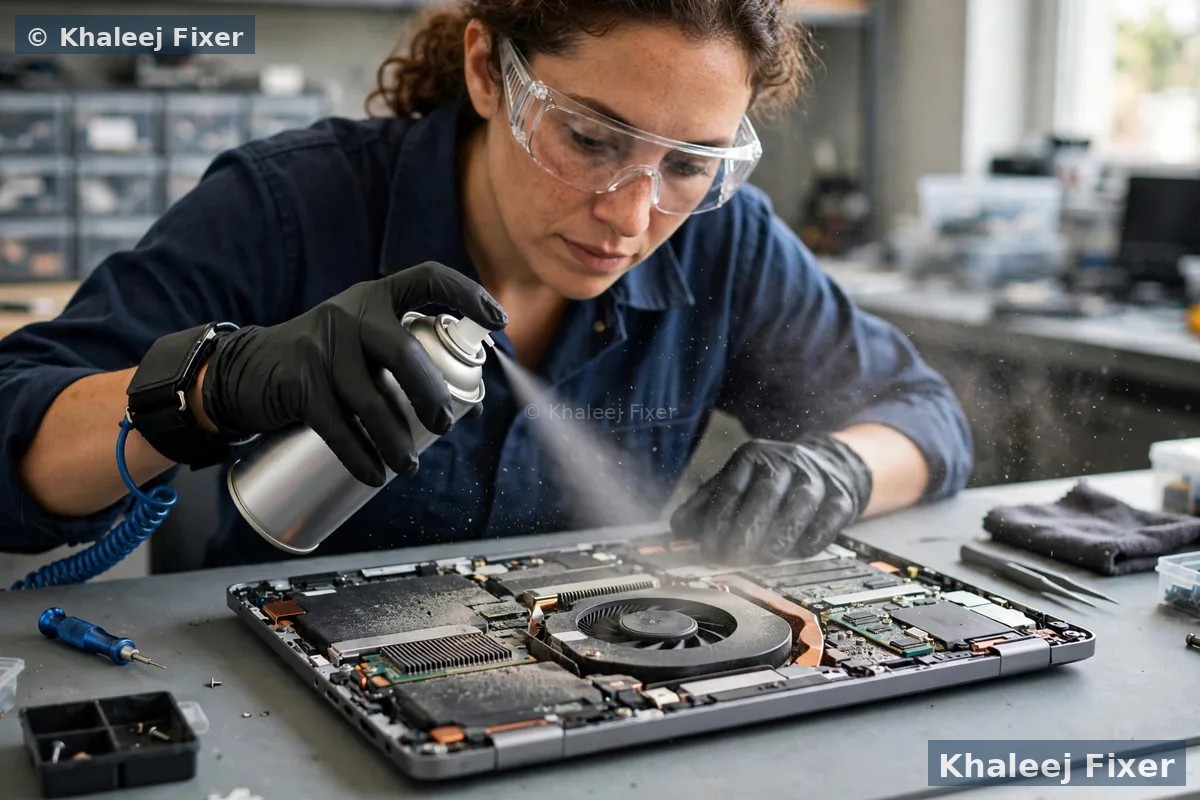
Check 5: clean the vents from the outside. Shut the laptop down and unplug it. Blow short bursts of compressed air through the intake and exhaust vents. Hold the can upright and keep the bursts short. Do not use a vacuum cleaner on the laptop, because it can build static. Do not blast a fan with a high pressure compressor. A light clean from the outside often quiets a dusty fan. If the click stays after a clean, the fault is deeper inside.
Check 6: boot into the BIOS screen. Restart the laptop and press F2, F12, or Del to enter the setup screen. The exact key depends on your brand. If the click keeps going on the BIOS screen, it is a hardware fault, not a software fault. Windows is not even running yet, so no app or driver can cause it. If the click stops in the BIOS screen, the cause may be software that loads with Windows. Either way, note what you found. It helps the technician a lot.
When to stop using the laptop right away
Most clicks give you time. A dusty fan can wait a few days. A loose hinge can wait a week. But some signs mean you should stop now. Knowing the difference saves your files and your laptop.
Stop at once if the click is rhythmic and files are slow or missing. A steady click plus slow file access is the classic sign of a dying drive. Every minute of use can make it worse. Back up what you can, then switch the laptop off. Do not run a disk check. Do not run recovery software on a clicking drive. Each scan reads the drive again and can destroy more data. If the laptop will not turn on at all, our guide on how to get data off a dead laptop shows the safe steps to take next.
Stop if the laptop shuts down on its own or gets very hot. A fan that has stopped working cannot cool the laptop. The laptop heats up fast. It may shut down without warning to protect itself. That shutdown can corrupt files that were open. Let the laptop cool down. Do not keep turning it back on to finish your work. Bring it in for a fan check.
Stop if you smell burning or see a swollen battery. A burnt smell means something on the board has failed. A swollen battery can press on the drive and the fan, and it is a safety risk. Do not charge the laptop. Do not keep using it. Keep it away from heat and bring it to a workshop as it is.
Stop if the click started after a drop or a spill. A drop can crack a drive or loosen a fan. A spill can short the board. If the click started right after either one, do not keep testing the laptop. Switch it off and get a free diagnosis. A quick check now is far cheaper than a dead drive later.
What a repair shop does about a clicking laptop
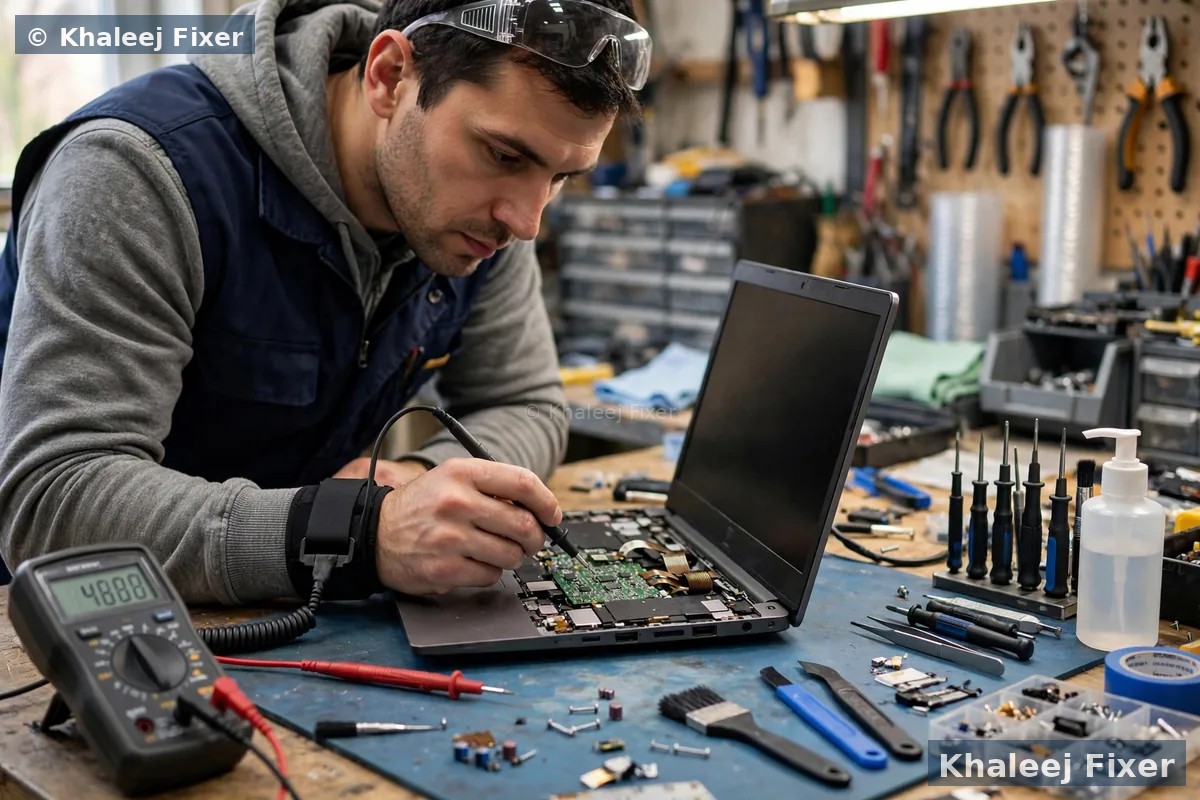
A good workshop starts with a free diagnosis. The technician listens to the laptop, opens the back, and finds the exact source of the sound. You get a clear answer before any work starts. Then you get a final quote. That is how it should work. No one can promise a fix before they see the laptop.
For a clicking hard drive, the shop clones the drive first. The technician reads the drive bit by bit and copies it to a healthy drive. That clone is the safety net. If the old drive dies during the work, the clone still holds your files. Then the drive is swapped for a new one. Most owners pick an SSD as the swap, because an SSD has no moving parts, so it cannot click, and it makes the laptop faster as well. Our data recovery in Dubai service covers the full process, with free pickup across Dubai and Sharjah.
For a clicking fan, the shop cleans it and tests it. The technician takes the fan out, cleans the blades and the vents, and checks the bearing. If the bearing is worn, the fan is swapped for a new one. The vents are cleared and the heat paste is checked at the same time. A clean and a fan swap are both quick jobs once the right part is in hand.
For loose parts and hinges, the shop tightens and refits. The technician opens the back, finds the loose screw or bracket, and puts it back where it belongs. A tired hinge is tightened or swapped. The screen cable is checked for wear at the same time. If your laptop is an Asus, our Asus laptop service center in Dubai page covers the brand specific checks we run on Asus models.
Ask what the shop found and what it will cost. A clear workshop tells you the cause in plain words. It tells you the final quote before it starts work. And it tells you how long the repair will take. A simple fan clean often takes a day or less. A drive clone and swap takes longer, because the clone must finish before the old drive is touched. Ask for your files on a new external drive or a USB stick, so you keep a copy you can use right away.
How to stop the clicking coming back
Once the click is fixed, a few simple habits keep it away. None of them take much time. And each one protects your files as well as your laptop.
Set up a backup that runs itself. The real lesson of a clicking drive is not the repair. It is the backup. A backup that needs you to remember will fail one day. Set up cloud sync for your documents and photos. Or plug in an external drive once a week and copy your work folder. Or both. Two copies in two places is the simple rule. One copy on the laptop and one copy somewhere else. Then a drive fault is an annoyance, not a disaster.
Keep the vents clear and the laptop cool. Do not use the laptop on a bed or a soft sofa, because the fabric blocks the vents. Use it on a hard flat surface. Keep the vents free of dust with a light clean every few months. Keep it out of direct sun and away from heat. A cool laptop is a quiet laptop, and its fan lasts longer.
Handle it with care and listen to it. Do not move the laptop while the drive is working hard. Close the lid gently and carry it in a padded bag. And listen to it now and then. A new sound is a warning. A drive that starts to click or a fan that starts to rattle is telling you something. Back up that same day. A five minute backup is the cheapest recovery you will ever do. You can see what a repair costs on our price list page, and you can book free pickup from anywhere in Dubai or Sharjah, including Al Nahda, Al Majaz, Muwaileh, Al Qasimia, Rolla, University City, Al Taawun, and Al Khan. Our shop sits in Industrial Area 2 in Sharjah, and we are open 7 days, 11 AM to 11 PM.
Leave free space on the drive. Do not fill the drive to the last gigabyte. A full drive works harder and runs hotter. Leave some free space. Shut the laptop down properly instead of forcing it off. And if the laptop is still under warranty, do not open it yourself. Opening it can void the warranty. A free diagnosis at our workshop is the safe route in that case.
Frequently Asked Questions
Is a clicking noise from my laptop dangerous?
It depends on the cause. A steady rhythmic click from a mechanical hard drive is dangerous for your files, because the drive can fail at any time, so back up first and stop using the laptop. A fan rattle or a hinge click is less urgent, but it should still be fixed within days, because a weak fan can overheat the laptop and a loose hinge can pull on the screen cable.
Can a clicking hard drive be fixed?
A clicking hard drive cannot be fixed with software, and you should never run a disk check or a defrag on it, because each test makes the drive work harder. A professional can clone the drive bit by bit to save your files, then swap the drive for a new one, often an SSD, which has no moving parts and cannot click. The sooner you stop using the clicking drive, the better the chance your files survive.
Why does my laptop click only when I turn it on?
A click at startup often comes from the hard drive spinning up or the fan spinning up at full speed. If the click is a short spin up sound that stops in a few seconds, it is usually normal. If the click repeats in a steady rhythm at startup and the laptop is slow to load or will not boot, the drive is likely failing, so back up your files and get a free diagnosis.
Can an SSD laptop make a clicking noise?
An SSD has no moving parts, so it cannot click the way a mechanical hard drive does. If your laptop has only an SSD and you hear a clicking noise, the sound comes from somewhere else, most often the cooling fan, a loose screw or bracket, or the hinge. Check the fan first, then listen at the vents to find where the sound is loudest.
How do I stop my laptop fan from clicking?
Shut the laptop down, unplug it, and blow short bursts of compressed air through the vents to clear dust from the blades. Keep the vents clear and use the laptop on a hard flat surface so air can flow. If the click stays after a clean, the fan bearing may be worn or a cable may touch the blades, and the fan needs a check or a swap at a workshop.
Laptop clicking and you are not sure why? Get a free diagnosis today.
Message us on WhatsApp or call. Free pickup, free diagnosis, final quote before any work, 2-month warranty.
Free Diagnosis • Free Pickup & Delivery • 2-Month Warranty • Open 7 Days 11AM to 11PM