
Try these first, in this order
1. Wait 30 seconds. The laptop may be busy with an update or a heavy task. It may free itself.
2. Press Ctrl, Shift, and Esc together. This opens Task Manager. End the app that says Not Responding.
3. Restart the laptop properly. A full restart clears stuck tasks and frees memory.
4. Close extra browser tabs. Too many tabs eat RAM fast. Keep only the tabs you need.
5. Back up your files. If freezes keep coming back, copy your files first. Then work on the cause.
What does a freeze look like? Freezing is not the same as slow
A freeze means the laptop stops responding. The mouse may move but clicks do nothing. Or nothing moves at all. The clock on the screen may stop. The app window may turn pale and show Not Responding. The laptop may stay like this for minutes. Or it may stay stuck until you force it off.
A slow laptop is different. A slow laptop still responds. It just takes long to open apps and files. It lags when you type. A crash is different too. A crash closes the app or shows a blue screen. Then the laptop restarts. A freeze sits in the middle. The laptop is on. The screen is on. But nothing happens.
Note the pattern before you fix anything. Does it freeze in one app only? Does it freeze soon after you switch it on? Does it freeze when the fan gets loud? Does it freeze after an update? The pattern points to the cause. Write it down. It helps a technician too. If you are asking why does my laptop keep freezing, the pattern is your first clue.
Quick checks first: restart, wait, and Task Manager
Start with the simplest step. Wait for 30 to 60 seconds. The laptop may be installing a Windows update in the background. It may be scanning files. It may be saving a large file. The drive light may blink while it works. Give it a short time to finish. If the screen comes back to life, the freeze was a short stall.
If waiting does not help, open Task Manager. Press Ctrl, Shift, and Esc together. This is the fastest way to see what is stuck. On the Processes tab, look for the app that says Not Responding. Click it once. Then click End task. The app closes. Your other work stays safe. If the mouse will not move at all, press Ctrl, Alt, and Delete. Then choose Task Manager from that screen.
Next, check if the mouse and keyboard respond. Move the mouse. Press Caps Lock and watch its light. If the light turns on and off, Windows is still alive. Only one app is stuck. If nothing responds at all, the whole system is stuck. Then hold the power button for 10 seconds to force the laptop off. Wait 30 seconds. Then switch it on again.
Do not force the laptop off again and again. Forced shutdowns can damage open files. Use them only when nothing else works. If you must force it off often, the cause needs fixing. A laptop that needs a forced shutdown every day has a real fault.
Too many startup programs: the laptop freezes soon after you switch it on
Many apps set themselves to start with Windows. Chat apps, cloud drives, music apps, and printer tools all load at sign in. Each one takes memory and processor time. With too many of them, the laptop can freeze in the first few minutes. The desktop appears. Then nothing works for a while.
Open Task Manager with Ctrl, Shift, and Esc. Click the Startup apps tab. You will see a list of apps and their startup impact. Right click any app you do not need at sign in. Choose Disable. Keep your security software on. Disable the rest one by one. Then restart and test. The laptop should reach the desktop faster and stay stable.
If the freeze happens only in the first minutes after sign in, startup programs are the likely cause. This is one of the easiest fixes. It costs nothing. It takes five minutes. If the laptop still freezes later in the day, look at the next causes below.
A full hard drive: Windows needs free space to work
Windows needs free drive space to run well. It uses the space for updates and temp files. It also uses it when RAM runs short. When the main drive is nearly full, the laptop can freeze at random times. Opening a file can stall. Saving a file can stall. An update can stall halfway.
Check your free space now. Open File Explorer. Click This PC. Look at the drive bar under your main drive. If it shows red, the drive is nearly full. Aim to keep at least 15 to 20 percent of the drive free. On a small drive that means real room to breathe.
Free space the safe way. Delete old downloads you no longer need. Empty the Recycle Bin. Remove apps you never use from Settings, then Apps. Move photos and videos to a USB drive or cloud storage. Then restart and test for a day. If freezes stop, a full drive was the cause.
Old hard drive vs SSD: a slow drive can look like a freeze
Older laptops use a spinning hard drive. It reads data with a moving part. It is slow. When Windows asks it for many files at once, it can fall behind. The screen stops. The mouse stops. Everything waits for the drive. This can feel like a freeze. It is really a slow drive that cannot keep up.
An SSD has no moving parts. It reads data far faster. That is why an SSD upgrade is the most common fix for an old laptop that freezes and lags. If your laptop still has a spinning hard drive, an SSD upgrade can change how it feels. It boots faster. Apps open faster. Freezes become rare.
Check which drive you have. Open Task Manager. Click the Performance tab. Click Disk. It will show SSD or HDD. If it shows HDD and the laptop freezes under load, talk to a technician about an SSD upgrade. Your files move to the new drive. Nothing is lost when the job is done right.
Low RAM and too many browser tabs
RAM is the laptop short term memory. Every open app uses some RAM. Every browser tab uses some RAM. When RAM runs out, Windows moves data to the drive instead. The drive is far slower than RAM. The laptop stalls. It may look frozen for a minute or more. Then it wakes up. Then it stalls again. If you ask why does my laptop keep freezing every time you open Chrome, low RAM is often the answer.
This is common on laptops with only 4GB of RAM. Windows 11 alone uses a large share of that. Add a browser with 20 tabs and a video call. The RAM is full. The laptop freezes. Close the tabs you do not need. Close apps you are not using. Keep one browser open, not two. Restart the browser once a day. These small habits help a lot.
To check RAM use, open Task Manager. Click the Performance tab. Click Memory. If the number stays near 100 percent during normal work, you need more RAM. A RAM upgrade is a simple job on most laptops. It gives the laptop room to breathe. If your laptop keeps freezing with many tabs open, low RAM is the likely cause.
Overheating and dust: heat makes a laptop freeze to protect itself
Heat is a common cause of freezing. When the processor gets too hot, it slows itself down. This is called throttling. If the heat keeps rising, the laptop can freeze or shut down to protect the chip. Dust makes this worse. Dust blocks the vents. Dust clogs the fan. Air cannot flow. Heat builds up inside.
Watch for the signs. The base feels hot to touch. The fan runs loud all the time. The laptop freezes during video calls or heavy work. It freezes more in a warm room. These signs point to heat. Use the laptop on a hard flat surface. Never use it on a bed or a cushion. A soft surface blocks the vents from below.
A fan clean can fix it. A technician opens the laptop, clears the dust from the vents and the fan, and checks the fan spins free. In Dubai and Sharjah heat, dust builds fast. A yearly clean keeps the laptop cool. If the fan makes a grinding noise, it may be worn out. Do not keep using a laptop with a dead fan. The heat can damage the board.
Outdated or faulty drivers
A driver is the software that lets Windows talk to a part of the laptop. The graphics driver, the WiFi driver, and the chipset driver all matter. If a driver is old or broken, the laptop can freeze. The screen may freeze during a video. The laptop may freeze when you plug in a device. Freezes that start right after an update often point to a driver.
Update the graphics driver first. Open Device Manager. Find Display adapters. Right click your graphics card. Choose Update driver. Better still, download the driver from your laptop maker website. Get the driver that matches your exact model. Do not use random driver updater tools from the web. They can install the wrong driver and make things worse.
If the freeze started after a driver update, roll it back. In Device Manager, right click the same device. Choose Properties. Open the Driver tab. Choose Roll Back Driver. Then restart and test. If the freeze stops, the new driver was the cause. Keep the old driver until the maker releases a fixed one.
Windows updates stuck in the background
Windows updates run in the background. A large update can use the processor and the drive hard for a long time. During that time the laptop can feel frozen. Apps open slowly. Clicks do nothing. The screen may not respond for minutes. This is normal during a big update. But it feels like a fault.
Check before you blame the laptop. Open Settings, then Windows Update. If an update is downloading or installing, let it finish. Plug in the charger. Do not force the laptop off during an update. Forcing it off can break Windows files. That can cause real freezes later.
If an update keeps failing and the laptop freezes after each try, the update may be stuck. Restart the laptop. Run Windows Update again. If it fails again, ask a technician to repair the Windows system files. A stuck update is a software job. It does not need new parts.
Malware: hidden programs that eat your resources
Malware is unwanted software that runs in secret. It can use your processor and your RAM. It can show popups. It can change your browser settings. It can add strange icons to your desktop. If freezing started with popups or strange new programs, malware may be the cause.
Run a full scan with Windows Security. Open Settings, then Privacy and security, then Windows Security. Choose Virus and threat protection. Choose Full scan. Let it finish. It can take an hour. Do not run two security tools at once. They can fight each other and freeze the laptop themselves.
Remove any program you do not know. Open Settings, then Apps. Look for apps you never installed. Uninstall them one by one. If the laptop still freezes after a clean scan, the cause is likely hardware or a driver. A technician can check the system files next.
Failing hard drive and bad sectors: back up first
A failing drive is the most serious cause of freezing. A drive with bad sectors cannot read some parts of its surface. Windows waits for the data. It retries. The laptop stalls. Freezes get longer over days or weeks. Files open slowly. Some files may not open at all. You may hear a clicking sound from an old hard drive. That sound is a warning.
If you suspect the drive, back up your files first. Do not run heavy drive tests before you back up. Copy your photos, documents, and work files to a USB drive or cloud storage. Do it while the laptop still works. A failing drive can stop without warning. Your files are worth more than the drive.
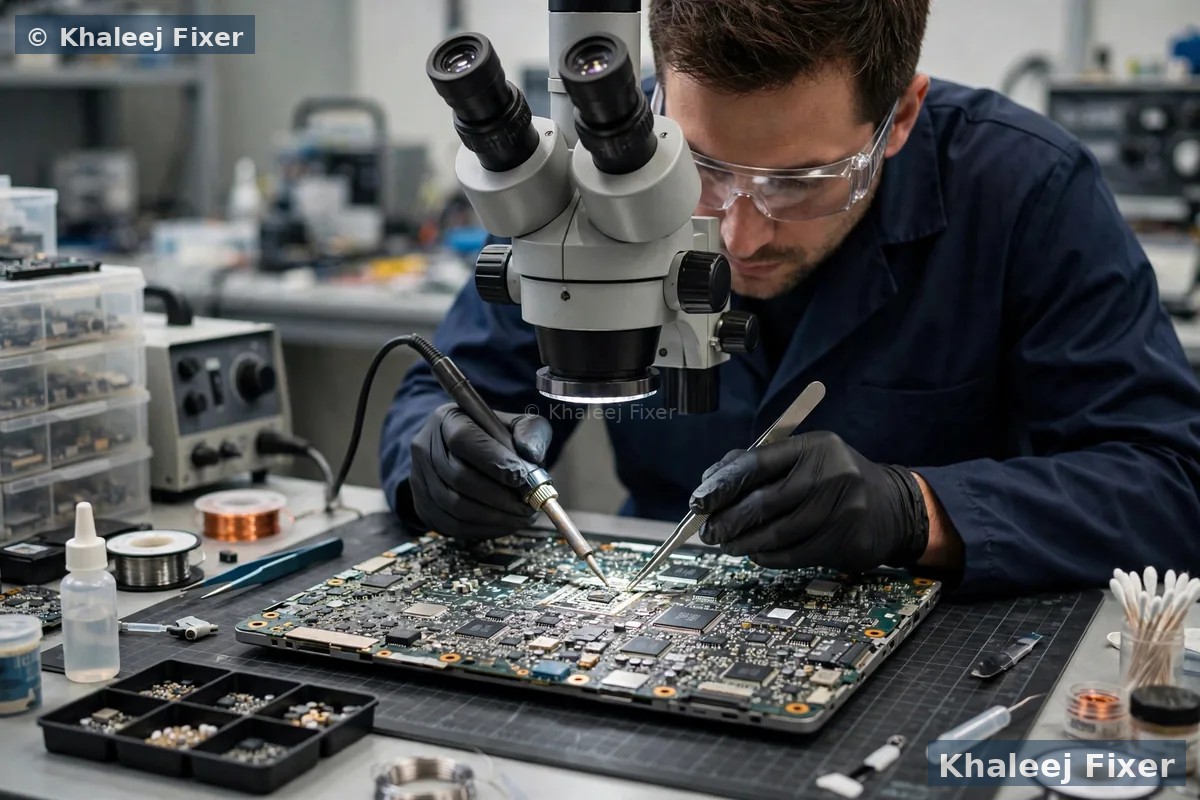
After the backup, a technician can test the drive health on the bench. They check the drive smart status. They test for bad sectors. If the drive is failing, they fit a new SSD and move your files to it. Do not keep using a laptop with a failing drive. Each freeze can damage more files. See our guide on a laptop screen flickering fix for another hardware test that uses the same careful approach.
How to tell a software freeze from a hardware fault
This test saves time. Watch when the freeze happens. If the laptop freezes only in one app, the cause is software. That app is stuck. Close it with Task Manager. Update it or reinstall it. If the laptop freezes in every app, the cause may be RAM, heat, or the drive. If the laptop freezes at the logo screen before Windows loads, the cause is hardware. Windows has not started yet. So Windows cannot be the cause.
Try Safe Mode as a second test. Safe Mode starts Windows with only the basic drivers and no startup apps. If the laptop runs fine in Safe Mode, a startup app or a driver is the cause. If it still freezes in Safe Mode, the cause is likely hardware. RAM, heat, or a failing drive are the top suspects. That result is often the real answer to why does my laptop keep freezing again and again. Write down what you find. Tell the technician. It saves a lot of test time.
A few more signs help. Freezes with a blue screen point to RAM or a driver. Freezes with a hot base point to dust and heat. Freezes with a clicking sound point to a failing hard drive. Freezes only on battery may point to a weak battery. For battery health, our battery guides explain the Windows battery report in one short step. That report is all you need for a battery check.
When to back up your files first
Back up your files before any big fix. This is the rule for every freeze that keeps coming back. A freeze can mean a failing drive. It can mean bad RAM. It can mean a board fault. Any of these can take your files with it. Copy your files while the laptop still turns on.
Start with the files you cannot replace. Photos, work documents, and school files come first. Copy them to a USB drive. Or upload them to cloud storage. Then copy the rest. Do not wait for a perfect backup plan. A simple copy is better than no copy. If the laptop freezes during the copy, do it in small parts. Copy one folder at a time.
If the laptop will not stay on long enough to copy files, stop and get help. A technician can take the drive out and read it on the bench. Your files stay private. The drive comes back to you. For HP owners, our HP laptop repair in Dubai page covers HP freezes, drive tests, and data safety in full.
What a repair involves
A repair visit starts with a free diagnosis. The technician asks when the freezes started and what you were doing when they happened. Then they test the RAM, the drive health, the fan, and the heat. They check the startup apps and the drivers. Each test rules out one cause. The pattern you noted at home helps a lot here.
Once the cause is clear, you get the final quote. No work starts without your yes. A fan clean is done on the bench the same day in most cases. An SSD upgrade moves your files to the new drive. A RAM upgrade adds memory to your laptop. A drive test tells you if the old drive is safe to keep. If the board is the fault, the technician explains the options in plain words.
You can bring the laptop to our shop in Industrial Area 2 in Sharjah. Or use our free pickup and delivery across Dubai and Sharjah. The repair carries a 2-month warranty. For the full range of fixes, see our laptop repair in Dubai page. If your screen goes dark during a freeze, our guide on a laptop screen goes black fix shows the next test to run.
Frequently Asked Questions
Why does my laptop keep freezing on Windows 11?
Windows 11 laptops freeze for the same core reasons as any laptop. Low RAM, too many startup programs, a full drive, overheating, a faulty driver, a stuck Windows update, malware, or a failing drive. Start with Task Manager. End the frozen app. Then check startup programs, free drive space, and heat. If the freeze happens at the logo screen before Windows loads, the cause is hardware.
Why does my laptop freeze when I open Chrome?
Chrome uses a lot of RAM, and each tab adds more. With many tabs open, RAM fills up and Windows moves data to the drive. The laptop stalls and looks frozen. Close tabs you do not need. Keep one browser open, not two. Turn off Chrome extensions you never use. If the laptop has only 4GB of RAM, a RAM upgrade is the lasting fix.
How do I unfreeze my laptop without losing my work?
Wait 30 seconds first. The laptop may free itself. Then press Ctrl, Shift, and Esc to open Task Manager. Click the app that says Not Responding. Click End task. Your other apps stay open and your work in them stays safe. If nothing responds at all, hold the power button for 10 seconds to force the laptop off. Save your work often so a forced shutdown costs you little.
Can low RAM cause my laptop to freeze?
Yes. When RAM runs out, Windows moves data to the drive instead. The drive is far slower than RAM, so the laptop stalls. This happens most on laptops with only 4GB of RAM, or when many apps and browser tabs are open at once. Check RAM use in Task Manager under the Performance tab. If it stays near 100 percent during normal work, a RAM upgrade is the fix.
Is freezing a sign my hard drive is failing?
It can be. A failing drive has bad sectors that Windows cannot read. The laptop waits and retries, and the screen stalls. Freezes that get longer over days or weeks, slow file access, and a clicking sound from an old hard drive all point to a failing drive. Back up your files first. Then get a drive health test before the drive stops for good.
Laptop still freezing? Get a free diagnosis today.
Message us on WhatsApp or call. Free pickup, free diagnosis, final quote before any work, 2-month warranty.
Free Diagnosis • Free Pickup & Delivery • 2-Month Warranty • Open 7 Days 11AM to 11PM