
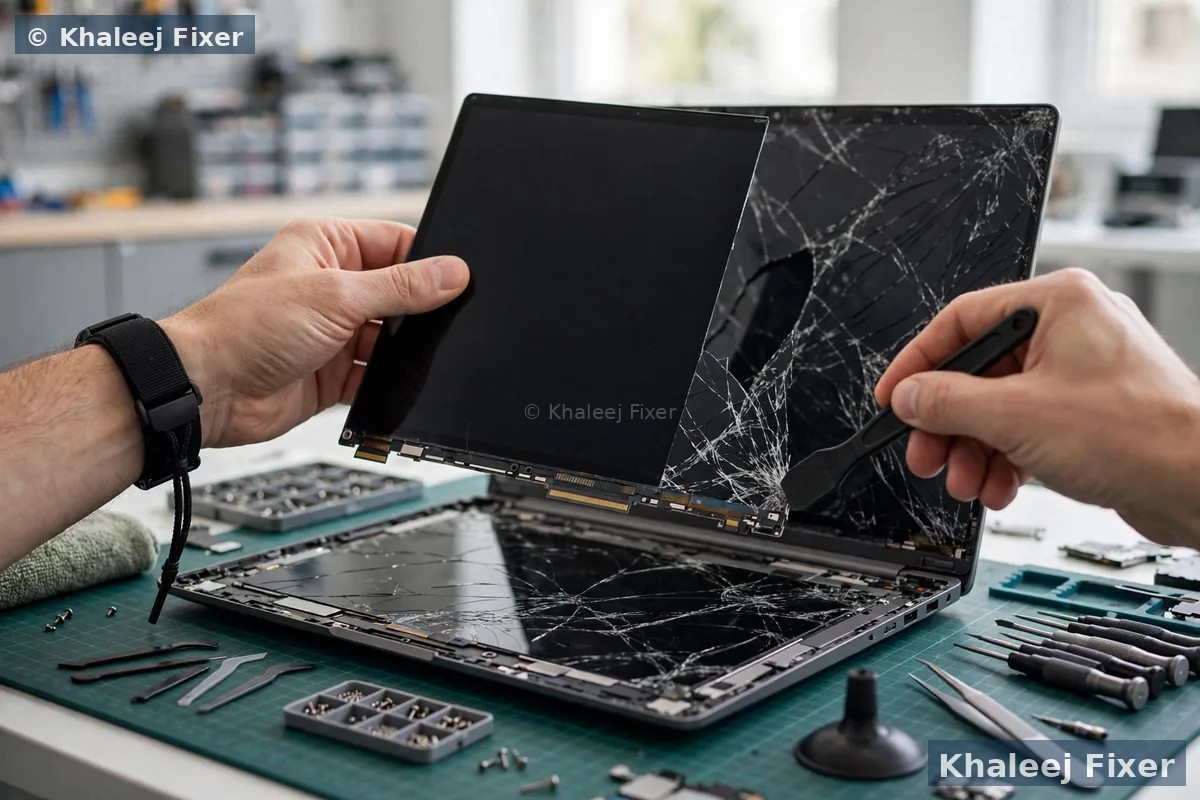
Try these first, in this order
1. Press the brightness up key. Use the sun key, often Fn plus F5 or F6.
2. Plug in the charger. If the screen brightens, battery saver or a power plan is the cause.
3. Turn off adaptive brightness. This one setting dims the screen on its own.
4. Shine a torch at the screen. If you see a faint picture in the torch light, the panel still works. Only the backlight has failed.
What does a dim laptop screen look like?
A dim screen is not always fully dark. It may look grey and washed out. White pages may look light grey. Colours may look flat and dull. Text may be hard to read in a bright room. These are all signs of a laptop screen too dim.
Note when the screen went dim. After a Windows update points to the driver. After you unplug the charger points to a power plan. After a drop points to the cable or the panel. Also check the logo screen. Turn the laptop off, then on, and watch the logo. A dim logo points to hardware. A bright logo with Windows going dim points to a driver or a setting.
Start with the brightness keys and the slider
Many dim screens are fixed here. Laptops have two brightness controls. One is the slider in Windows. The other is the keyboard keys. The two can disagree. The slider may show full brightness while the keys sit low. Always test both.
Find the sun keys on your keyboard. They sit on the top row on most laptops. Press the brightness up key a few times. On some laptops you must hold the Fn key at the same time. On others you press the sun key alone. Try both ways. If the screen brightens step by step, the fix is done.
Then check the slider in Windows. Open Settings, then System, then Display. Drag the brightness slider to the far right. If the slider moves but the screen does not change, the driver or the backlight may be at fault. On a MacBook, open System Settings, then Displays.
Adaptive brightness: the setting that dims your screen by itself
Adaptive brightness is the most common cause of a dim laptop screen. Most laptops have a small light sensor near the camera. It reads the light in the room and changes the screen brightness on its own. But the sensor can read the room wrong. It can dim the screen too far, even in a bright room. A Windows update can also turn this setting back on without telling you.
To turn it off in Windows, open Settings, then System, then Display. Find the line that says Change brightness automatically when lighting changes. Turn that off. On Windows 11 it may read Help improve battery by optimizing the content shown and brightness. On a MacBook, open System Settings, then Displays, and uncheck Automatically adjust brightness. Then set the brightness by hand.
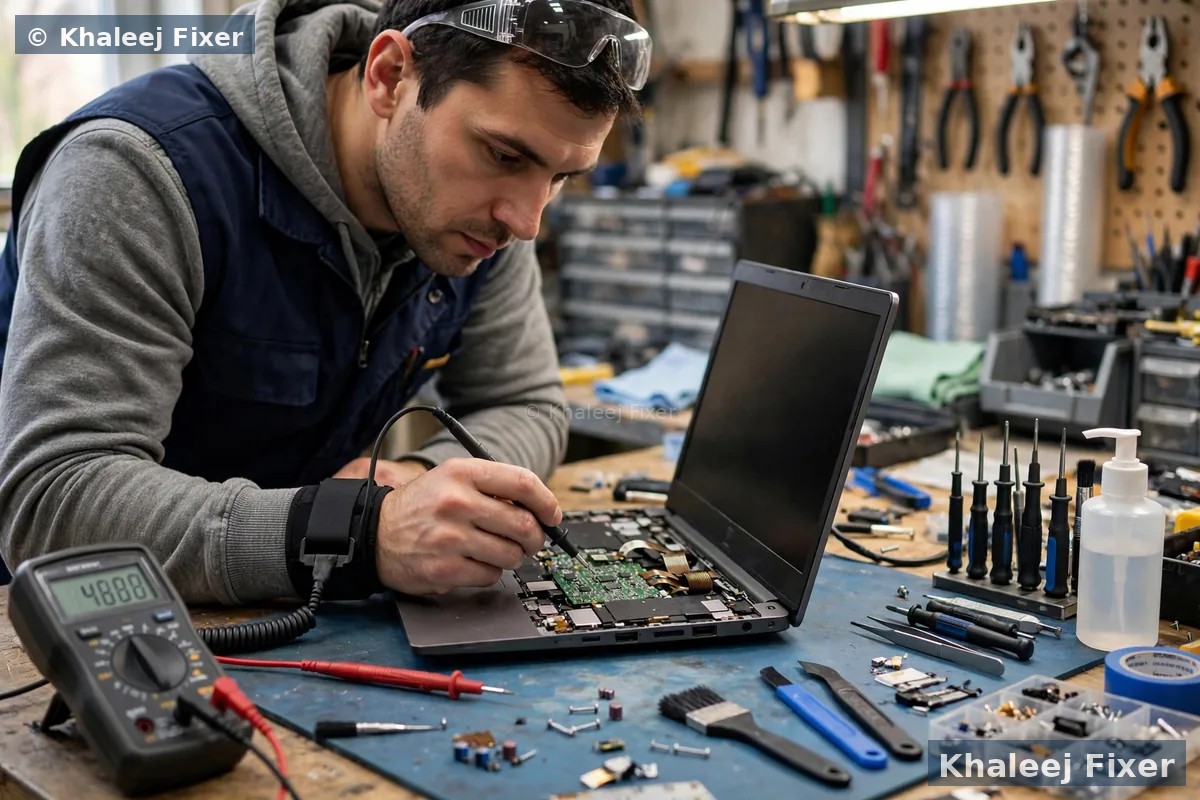
Power plans and battery saver dimming
Windows has power plans. A power plan decides how bright the screen can go. The Power saver plan dims the screen to save battery. If your laptop switched to Power saver on its own, the screen will look dim even at full brightness.
Battery saver is the other culprit. It turns on when the battery runs low. When battery saver is on, it caps the screen brightness. The slider may show 100 percent, but the screen stays dim. The cap is the cause, not the slider.
To check, plug in the charger first. If the screen brightens at once, a power setting is the cause. Then open Settings, then System, then Power and battery. Turn off Battery saver and set the plan to Balanced. Set brightness to full for On battery and Plugged in. Test again with the charger unplugged.
Display drivers: the most common software cause
The display driver is the software that talks to the graphics chip. It controls the brightness. If the driver is old or broken, the brightness controls can stop working. The slider moves, but the screen stays dim. This is a common cause of a laptop screen too dim at full brightness.
A Windows update can break a good driver. The update installs a generic driver that cannot control the backlight. The screen goes dim the next morning. If your screen went dim right after an update, the driver is the first suspect.
First, restart the graphics driver. Press the Windows key, Ctrl, Shift, and B together. The screen will blink. If the screen brightens, the driver was the cause.
If that does not work, update the driver. Open Device Manager. Find Display adapters. Right click your graphics card. Choose Update driver. Better still, download the driver from your laptop maker website. If the fault started after an update, choose Roll back driver instead. Then restart and test. Our guide on a laptop screen flickering covers the same steps.
The external monitor test: screen fault or graphics fault?
This test takes five minutes. It tells you if the fault is in the screen or inside the laptop. You need an HDMI cable and a TV or a monitor.
Plug the laptop into the TV with the HDMI cable. Turn the TV on and switch it to the right HDMI input. Then press the display switch key on your laptop. This is often Fn plus F4, F5, or F8, depending on the brand. You may need to press it two or three times.
If the TV picture is bright and clear, the laptop is working fine. The fault sits in the laptop screen, the backlight, or the screen cable. If the TV picture is dim too, the fault is inside the laptop. The graphics chip or the driver is the cause. Our guide on a laptop screen goes black uses the same test.

The flashlight test: is the backlight dead?
A laptop screen has two parts that make the picture. The panel draws the picture. The backlight lights it up. If the backlight fails, the picture is still there but too dark to see. This is why a laptop screen too dim at full brightness often means a backlight fault. The flashlight test proves it in one minute.
Turn the laptop on and open a bright page, like a white website. Then shine a torch at the screen at a close angle. If you can see a faint picture or faint text in the torch light, the panel still works. Only the backlight has failed.
If you see nothing in the torch light, the fault may be the panel, the cable, or the graphics chip. Run the external monitor test above to narrow it down. A backlight fault is not a home fix. On newer laptops the backlight is built into the screen. On older laptops a small board called the inverter feeds the backlight. Either way, the laptop needs a bench check. Do not open the screen yourself.
A loose display cable can dim the screen
A thin cable runs through the hinge from the laptop base to the screen. It carries the picture signal and the backlight power. Every time you open and close the lid, that cable flexes. Over years of use it can loosen at its connector. A loose cable can dim the screen. It can also make the screen flicker or go dark at one lid angle.
Test it by moving the lid slowly. Open the lid a little, then close it a little. Watch the brightness at each angle. If the screen brightens at one angle and dims at another, the cable is the likely cause. Note that angle and tell the technician. A loose hinge makes this worse. It pulls on the cable with every move. Do not open the laptop to push the cable back in yourself. The connector is small and fragile.
Screen panel damage and old age
A damaged panel can also make a screen dim. A drop, a knock, or pressure on the lid can crack the thin layers inside the panel. A heavy bag can press the lid into the keyboard. A pen left on the keyboard can press into the screen when the lid closes. The damage may show as a dim patch, a dark corner, or a screen that never gets bright.
Age plays a part too. The backlight LEDs get weaker over years of use. An old laptop may never get as bright as it once did. If your laptop is five or six years old and the screen has grown dim slowly over months, the backlight may be worn out. Heat can speed this up. Use the laptop on a hard flat surface and keep the vents clear of dust. Our guide on laptop screen lines covers panel damage in full.
When a home fix is enough and when repair is needed
A home fix is enough when a setting or a driver is the cause. If the brightness keys fix it, you are done. If turning off adaptive brightness fixes it, you are done. If a clean driver install fixes it, you are done. These fixes cost nothing and take a few minutes.
Repair is needed when the tests point to hardware. If the flashlight test shows a faint picture, the backlight has failed. If the screen brightens at one lid angle only, the cable is loose. If the external monitor is clear but the laptop screen stays dim, the screen or the cable is the cause. If the screen is dim from the logo screen onward, the fault is hardware.
Get help soon if the screen dims fast over a few days. A fault that spreads fast means the panel damage is growing. Back up your files as soon as you see a dim screen. Most dim faults do not touch your files. But a laptop with a failing screen can fail in other ways too. Copy your files to a USB drive or cloud storage while you can still read the screen.
What a repair involves
A repair visit starts with a free diagnosis. The technician asks when the screen went dim, if the laptop was dropped, and if the screen changes when you move the lid. Then they run the external monitor test and the flashlight test. They test the cable, the panel, and the graphics chip. Each test rules out one cause.
Once the cause is clear, you get the final quote. No work starts without your yes. A cable fix is done on the bench. The cable is re-seated or swapped, and the hinge is checked at the same time. A backlight fault usually means a screen swap. On most newer laptops the backlight is built into the screen. The new screen must match your exact laptop model.
You can bring the laptop to our shop in Industrial Area 2 in Sharjah. Or use our free pickup and delivery across Dubai and Sharjah. The repair carries a 2-month warranty. If you own a Sony Vaio, our Sony Vaio screen replacement in Dubai page covers Vaio screens, backlights, and panels in full. For a full screen swap, see our laptop screen replacement in Dubai page.
Frequently Asked Questions
Why is my laptop screen so dim even at full brightness?
The most common causes are adaptive brightness, battery saver, a power plan cap, or a faulty display driver. If the screen is dim from the logo screen onward, the cause is usually hardware, like a failing backlight or a loose display cable. Check adaptive brightness first, then the driver.
How do I fix a dim laptop screen?
Press the brightness up key, then drag the slider to full in Settings, System, Display. Turn off adaptive brightness and battery saver. Then restart the graphics driver with Windows, Ctrl, Shift, and B. If none of these help, run the external monitor test and the flashlight test.
Why does my laptop screen keep dimming by itself?
A screen that dims by itself is usually adaptive brightness at work. The light sensor reads the room and dims the screen on its own. Battery saver can do the same when you unplug the charger. Turn off adaptive brightness in Settings, System, Display. Turn off battery saver. Then set the brightness by hand and test for a day.
Can a driver update fix a dim laptop screen?
Yes, sometimes. If the screen went dim after a Windows update, the driver may be the cause. Restart the graphics driver with Windows, Ctrl, Shift, and B. Then update the driver from your laptop maker website. If the screen is dim on the logo screen before Windows loads, the driver is not the cause.
Is a dim laptop screen a backlight problem?
It can be. Shine a torch at the screen. If you see a faint picture in the torch light, the panel still works and only the backlight has failed. A backlight fault is not a home fix. On most newer laptops the backlight is built into the screen, so the fix is a screen swap after a free diagnosis. See our price list page for starting prices.
Screen still too dim? Get a free diagnosis today.
Message us on WhatsApp or call. Free pickup, free diagnosis, final quote before any work, 2-month warranty.
Free Diagnosis • Free Pickup & Delivery • 2-Month Warranty • Open 7 Days 11AM to 11PM