
Try these first, in this order
1. Restart the laptop. A full restart clears a short term driver glitch. Save your work first if you can still read the screen.
2. Plug in an external monitor or TV. If the lines show on the second screen too, the graphics chip or driver is the cause. If the second screen is clear, the laptop screen or its cable is the cause.
3. Move the screen lid slowly. Open the lid a little, then close it a little. If the lines change, flicker, or vanish at one angle, the screen cable is the likely cause.
4. Check if the lines show from the very first second. Turn the laptop off, then turn it on and watch the logo screen. Lines that show on the logo screen point to hardware. Lines that show only after Windows loads point to the driver.
What do laptop screen lines look like?
Lines on a laptop screen are not all the same. The shape, the colour, and the way they move all give clues about the cause. Take a good look before you try any fix. Note if the lines run up and down or side to side. Note if they are thin or thick. Note if they stay in one place or move across the screen. Note if they cover the full screen or only part of it. These small details help a technician find the fault fast.
A few thin lines in one corner may be a small cable fault. A full screen of lines may be a dead panel or a graphics fault. Lines that come and go when you move the lid point to the cable. Lines that stay the same no matter what you do point to the panel or the graphics chip. The sections below explain each type in plain words.
Also note when the lines first appeared. Did they show up after a drop? After the laptop got hot? After a Windows update? After you closed the lid hard? The timing often tells you the cause. A drop points to the panel or the cable. A Windows update points to the driver. Heat points to the graphics chip or the cooling system. Write down what happened just before the lines appeared. It saves time later.
Vertical lines on laptop screen
Vertical lines on laptop screen run from the top of the display to the bottom. They may be white, black, or coloured. One thin line may sit at the edge of the screen. A group of lines may cover a wide band. In some cases the lines cover the full screen from top to bottom.
The most common cause of vertical lines is the screen panel itself. Inside the panel, thin lines of pixels run down the screen. If one of those lines fails, a straight vertical line shows on the display. A knock or a drop can break one of these lines. Pressure on the screen can do the same. A panel fault like this does not heal on its own. It needs a screen check on the bench.
A loose screen cable can also cause vertical lines. The cable carries the picture signal from the laptop base to the screen. If the cable is loose, some of the signal gets lost. The missing signal shows up as vertical lines. Cable lines often change when you move the lid. Panel lines stay the same at every angle.
A graphics fault can cause vertical lines too. But graphics lines usually show on an external monitor as well. That is why the external monitor test matters so much. If the lines show on a TV or a second monitor, the screen panel is not the cause. The graphics chip or the driver is the cause. Our guide on a laptop screen flickering covers a related screen fault, and the same test steps apply there too.
Horizontal lines on laptop screen
Horizontal lines on laptop screen run from the left side of the display to the right side. They may be thin and faint. They may be thick and bright. They may sit in one band across the middle of the screen. Or they may cover the full screen in stripes.
Horizontal lines often point to the screen cable or the panel. The cable carries rows of picture data to the screen. If part of that data is lost, a horizontal band shows up. A cable that is loose at the hinge can cause this. So can a cable that is worn from years of opening and closing the lid. If the lines move or change when you tilt the screen, the cable is the likely cause.
A driver fault can also cause horizontal lines. This is more likely if the lines appeared right after a Windows update. Or if they show only inside one program. Or if they vanish after a restart and then come back later. A driver fault is good news. It costs nothing to fix at home. The driver steps below cover it in full.
Heat can cause horizontal lines as well. A laptop that runs very hot can make the graphics chip act up. The lines may show during video calls, games, or heavy work. The base may feel very hot. The fan may run loud. If heat is the cause, let the laptop cool down. Use it on a hard flat surface. Keep the vents clear. If the lines keep coming back when the laptop gets hot, the cooling system needs a bench check.
Coloured lines and lines that move or flicker
Coloured lines are often red, green, blue, or pink. They may sit in one place. They may flash on and off. They may change colour when you scroll or open a new window. Coloured lines can mean a panel fault. They can also mean a graphics fault. The external monitor test tells you which one it is.
Lines that move, flicker, or change with the screen angle point to the cable. The cable flexes every time the lid moves. A worn cable loses the signal for a moment. The picture breaks into lines. Then the signal comes back. This on and off pattern is a strong sign of a cable fault.
Lines that stay fixed in one place point to the panel. A dead row or column of pixels stays dead. It does not move. It does not change colour. It shows on every screen, from the logo screen to Windows. A fixed line like this needs a panel check. If you own a MacBook, our MacBook screen replacement in Dubai page covers Apple screens and cables in full.
What causes lines on a laptop screen?
A laptop screen needs five parts to work together. The graphics chip draws the picture. The driver tells the graphics chip what to draw. The screen cable carries the picture to the display. The panel shows it. And the backlight lights it up. If any one of these fails, laptop screen lines can appear. The sections below explain each cause in plain words.
Loose or damaged screen cable. A thin cable runs through the hinge from the laptop base to the screen. Every time you open and close the lid, that cable flexes. Over years of use it can loosen at its connector. The wires inside can also break. A cable fault often makes lines that change when you move the lid. This is one of the most common causes, and it is also one of the cheaper fixes.
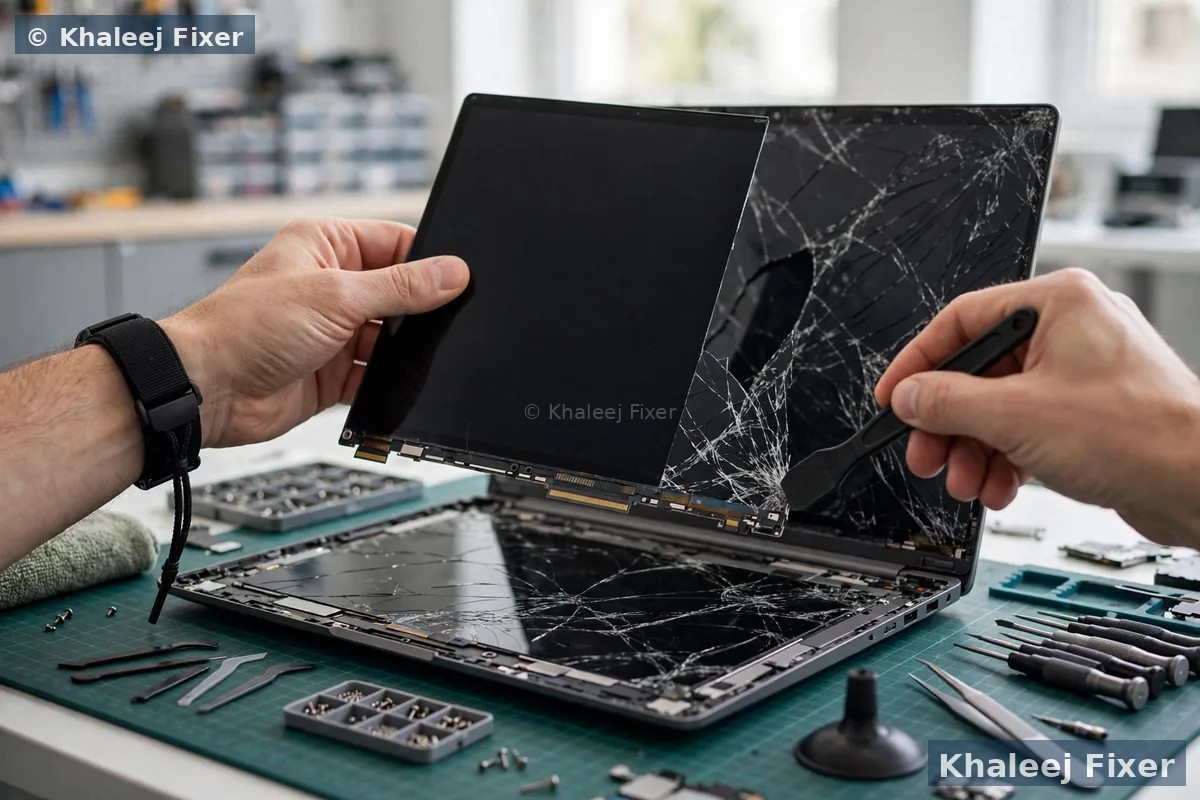
Faulty screen panel. The panel is the glass display itself. A drop, a knock, or pressure on the lid can damage the panel. A dead row of pixels shows as a straight line. A cracked panel can show lines, black patches, and colour bands all at once. A panel fault stays the same at every lid angle. It also shows on the logo screen before Windows loads.
Graphics card problem. The graphics chip draws every picture on the screen. If the chip starts to fail, lines can show across the full display. Graphics lines often show on an external monitor too. They may also show in games and videos before they show on the desktop. A graphics fault needs a bench check. It is not a home fix.
Pressure damage. Pressure is a quiet cause that people miss. A heavy bag on top of the laptop can press the lid into the keyboard. A pen left on the keyboard can press into the screen when the lid closes. A laptop squeezed into a full bag can bend the lid a little. Any of these can crack the panel or pinch the cable. The lines may show right away. Or they may show a few days later as the damage spreads.
Driver issue. The driver is the software that talks to the graphics chip. A bad driver can draw the picture wrong. Lines, bands, and colour shifts can all come from a driver fault. A bad Windows update can break a good driver. A driver clash can do the same. A driver fault is the easiest cause to fix. The steps below cover it in full.
Heat and age. Old laptops get lines more often. The cable wears out. The panel ages. The cooling system fills with dust. Heat builds up. The graphics chip runs hotter than it should. Any of these can bring lines on slowly over weeks. If your laptop is old and the lines grow worse each week, get it checked before the screen fails fully. Our laptop screen replacement in Dubai page covers screen swaps, cables, and panels in full.
The external monitor test: screen fault or graphics fault?
This is the single most useful test for laptop screen lines. It takes five minutes. It tells you if the fault is in the screen or inside the laptop. You need an HDMI cable and a TV or a monitor.
Plug the laptop into the TV with the HDMI cable. Turn the TV on and switch it to the right HDMI input. Then press the display switch key on your laptop. This is often Fn plus F4, F5, or F8, depending on the brand. You may need to press it two or three times to cycle through the display modes. Now look at the TV screen.
If the TV picture is clear and has no lines, the laptop is working fine. The graphics chip, the driver, and Windows are all doing their jobs. The fault sits in the laptop screen, the screen cable, or the panel. The fix is a screen or cable job.
If the lines show on the TV too, the fault is inside the laptop. The graphics chip or the driver is the cause. Try the driver steps below first. If a clean driver install does not clear the lines, the graphics chip needs a bench check.
The external monitor test is also a good short term fix. If your work cannot wait, use the laptop with a TV or monitor until the screen is repaired. Save your work often. And do not ignore the fault for weeks. A loose cable can get worse. A heat problem can damage other parts.
Lines on laptop screen fix: safe checks to try at home
Work through these steps in order. Test after each one. Stop when the lines stay gone.
1. Restart the laptop fully. Save your work first. Then shut the laptop down fully. Wait ten seconds. Press the power button once to start again. A short term driver glitch often clears with a full restart.
2. Restart the graphics driver. Press the Windows key, Ctrl, Shift, and B together. The screen will blink. You may hear a beep. This restarts the graphics driver without restarting the laptop. If the lines vanish, the driver was the cause.
3. Update the graphics driver. Open Device Manager. Find Display adapters. Right click your graphics card. Choose Update driver. Better still, download the driver from your laptop maker website. Do not use a random driver site. A clean driver install fixes many repeat line faults.
4. Check the screen cable by moving the lid. Open the lid slowly to a few angles. Watch the lines at each angle. If they change or vanish at one angle, note that angle. Tell the technician. It helps a lot. Do not open the laptop to push the cable back in yourself. The connector is small and fragile. The screen bezel can crack if forced. Leave cable work to a technician.
5. Check for heat and dust. Feel the base of the laptop. Is it very hot? Is the fan loud all the time? Use the laptop on a hard flat surface. Keep the vents clear of dust. Let it cool down for half an hour. Then start it again and see if the lines are gone.
6. Roll back a recent update. If the lines started the day after a Windows update, the update may have broken the driver. Open Settings, then Windows Update, then Update history. Uninstall the latest update. Restart. If the lines clear, the update was the cause. Then update the driver from the laptop maker website before you install the Windows update again.

Cable fix or screen replacement: how to tell
This is the question most customers ask. The answer depends on the test results above. A cable fix is the likely answer when the lines change as you move the lid. A cable fix is also likely when the lines come and go. Or when the screen shows lines only at one lid angle. Or when the hinge is loose or wobbly. A loose hinge pulls on the cable with every move. The cable and the hinge should be checked together. Fixing the cable without fixing the hinge often means the same fault comes back in a few weeks.
A screen replacement is the likely answer when the lines stay the same at every angle. When the lines show on the logo screen before Windows loads. When the external monitor is clear but the laptop screen has lines. When the lines started right after a drop or a hard knock. When a coloured band covers part of the screen and never moves. These signs point to the panel itself. A panel fault needs a screen swap.
Sometimes the cable and the panel are both fine. Then the graphics chip is the cause. This is the case when the lines show on the external monitor too. A graphics chip fault needs a bench check. It may be a chip fault. It may be a board fault. A bench test finds out which one it is.
Do not guess and order a screen on your own. A wrong guess wastes money. A free diagnosis finds the real cause first. The technician tests the cable, the panel, and the graphics one by one. Then you get the final quote before any work starts. Our guide on a laptop screen goes black covers a related fault, and the same test steps help there too.
When to stop using the laptop
Most line faults are safe to live with for a short time. You can keep working on an external monitor. But some signs mean you should stop and get help soon.
The lines spread fast. One thin line becomes five lines in a day. A small band becomes a wide band. This means the panel damage is spreading. Switch off and bring it in.
The screen flickers hard or goes black as well. Lines plus a black screen point to a cable or panel fault that is getting worse. Keep using it and the screen may fail fully.
The laptop got a hard knock or a spill. The panel, the cable, or the board may be damaged. Switch the laptop off. Do not keep using it. Do not charge it after a spill.
The laptop runs very hot with the lines. Heat plus lines can mean a graphics or cooling fault. Let it cool down. If it still runs hot after a clean, get it checked.
Back up your files as soon as you see lines. Most line faults do not touch your files. But a laptop with a failing screen can fail in other ways too. Copy your files to a USB drive or cloud storage while you can still read the screen. It takes a few minutes. It saves a lot of stress later.
What happens at a repair visit
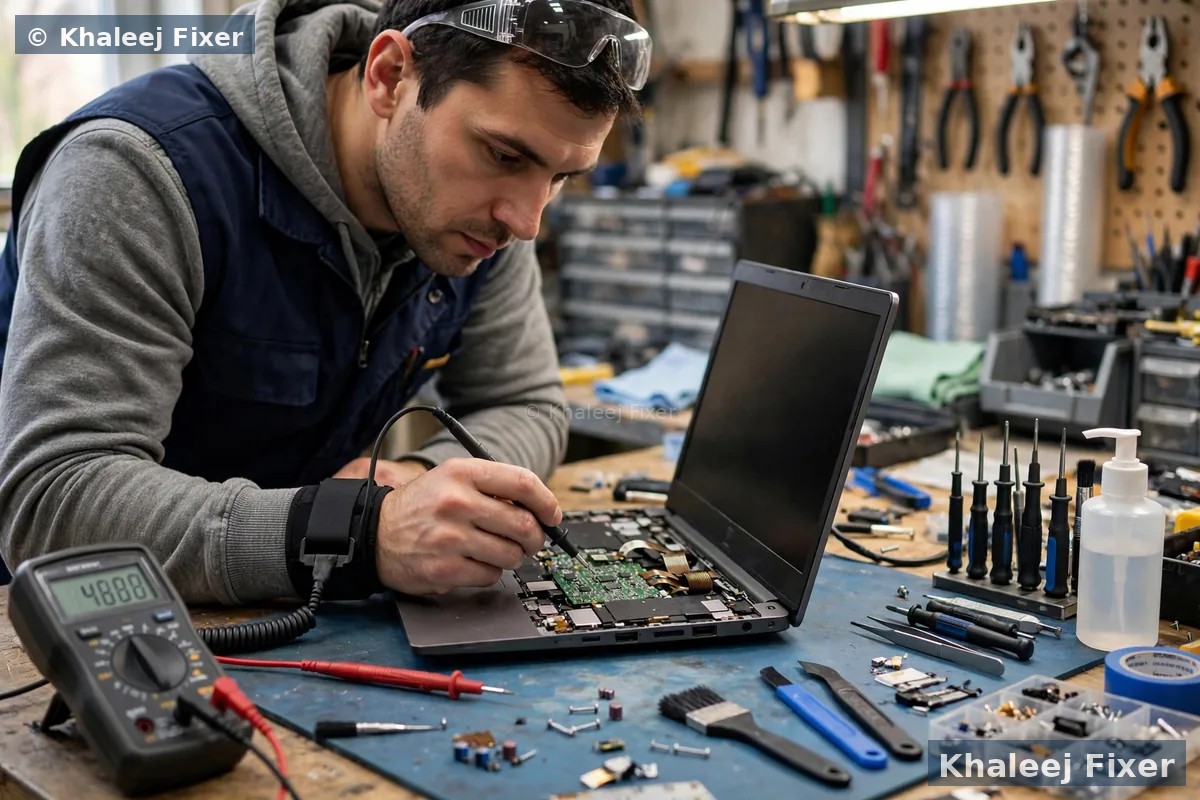
A repair visit starts with a free diagnosis. The technician asks when the lines first appeared. They ask if the laptop was dropped. They ask if the lines change when you move the lid. Then they run the external monitor test. They test the cable. They test the panel. They test the graphics chip. Each test rules out one cause. The fault is found step by step.
Once the cause is clear, you get the final quote. No work starts without your yes. A cable fix is done on the bench. A screen swap uses a matching screen for your exact laptop model. The old screen is tested before the new one goes in. The new screen is tested before the laptop goes back to you. The hinge is checked at the same time, so a loose hinge does not damage the new cable.
You can bring the laptop to our shop in Industrial Area 2 in Sharjah. Or use our free pickup and delivery across Dubai and Sharjah. The repair carries a 2-month warranty. We are open 7 days, from 11AM to 11PM. If you own a Sony Vaio, our Sony Vaio screen replacement in Dubai page covers Vaio screens, cables, and panels in full.
Frequently Asked Questions
Why does my laptop screen have vertical lines?
Vertical lines are most often caused by a faulty screen panel or a loose screen cable. A dead row of pixels shows as a straight line from top to bottom. A loose cable can cause the same look. If the lines change when you move the lid, the cable is the likely cause. If they stay the same at every angle, the panel is the likely cause. The external monitor test tells you if the graphics chip is involved.
Can a driver update fix lines on a laptop screen?
Yes, sometimes. If the lines started after a Windows update, or they vanish after a restart and come back later, the driver may be the cause. Press Windows, Ctrl, Shift, and B to restart the graphics driver. Then update the driver from your laptop maker website. If the lines show on the logo screen before Windows loads, the driver is not the cause. The fault is hardware.
How do I know if it is the screen or the graphics card?
Plug the laptop into a TV or a monitor with an HDMI cable. If the second screen is clear and has no lines, the laptop screen or its cable is the cause. If the lines show on the second screen too, the graphics chip or the driver is the cause. Try a clean driver install first. If the lines stay, the graphics chip needs a bench check.
Can lines on a laptop screen go away on their own?
A driver glitch can clear on its own after a restart. A loose cable fault will not heal on its own. It usually gets worse over time. A panel fault will not heal either. Lines from a dead row of pixels stay for good. If the lines keep coming back, get a free diagnosis. It finds the real cause before the screen fails fully.
How much does it cost to fix lines on a laptop screen in Dubai?
The cost depends on the cause. A driver fix costs nothing. A cable repair costs more, and a full screen swap costs more again. See our price list page for starting prices. The final quote always comes after the free diagnosis, and no work starts without your yes.
Screen full of lines? Get a free diagnosis today.
Message us on WhatsApp or call. Free pickup, free diagnosis, final quote before any work, 2-month warranty.
Free Diagnosis • Free Pickup & Delivery • 2-Month Warranty • Open 7 Days 11AM to 11PM