
Try these first, in this order
1. Press the brightness keys. The screen may be dimmed to zero by mistake. Press the brightness up key a few times and watch for any change.
2. Shine a torch at the screen. If you can see a faint image in the torch light, the backlight has failed. The screen is working, but its light is out.
3. Plug in an external monitor or TV. If the picture shows on the second screen, the laptop itself is fine. The fault sits in the laptop screen, the cable, or the backlight.
4. Hold the power button for 15 seconds. This forces a full shut down. Then press the power button once to start again. A stuck sleep or a bad driver often clears with a restart.
First, check if the laptop is really still running
A black screen can mean two very different things. The laptop may still be running with a dead display, or the laptop may have shut down by itself. The fix is different in each case, so check first. Look for the power light. If it is on, the laptop has power. Listen for the fan. If you hear the fan, the laptop is running. Press the Caps Lock key. If the Caps Lock light turns on and off, Windows is still alive behind the black screen. If the Caps Lock light does not respond at all, the laptop may have frozen or shut down.
This guide is about the first case. Your laptop screen goes black but the laptop is still on. The power light is on, the fan runs, and the keys respond. If your laptop will not turn on at all, or it turns on and then dies, that is a different fault. Our guide on laptop not turning on covers that case in full.
Also note when the black screen happens. Does it happen when you open the lid, or in the middle of work? Does it happen after the laptop sleeps, or only when you move the screen? Does it happen every time, or once in a while? The timing tells you a lot about the cause, and a technician will ask you these same questions. Write down what you see. It saves time later.
What makes a laptop screen go black while it still runs?
The picture on your screen needs four things to work together. The graphics chip must draw the image. The screen cable must carry it to the display. The screen panel must show it. And the backlight must light it up so you can see it. If any one of these four fails, the screen goes black while the rest of the laptop keeps running.
The backlight has failed. The backlight is the lamp behind the screen. When it dies, the screen looks fully black, but the picture is still there, very faint. This is one of the most common causes, and the torch test below proves it in seconds.
The screen cable is loose or damaged. A thin cable runs through the hinge from the laptop base to the screen. Every time you open and close the lid, that cable flexes. Over years of use it can loosen or wear out. A laptop screen goes black randomly when the cable is the cause, often when you move the lid or tilt the screen.
The graphics driver has crashed. The driver is the software that talks to the graphics chip. A bad driver, a bad Windows update, or a clash between two drivers can crash the display. The laptop keeps running, but the screen stays black. A restart often clears it, but it may come back until the driver is fixed.
The RAM is loose or faulty. The memory sticks sit in slots on the board. If a stick works loose, or one stick starts to fail, the laptop may power on with a black screen. The fan spins, the lights come on, but no picture appears. This is more common after a knock or a drop.
Heat has shut the display down. A laptop that runs very hot can cut the display to protect itself. The fan runs loud, the base feels very hot, and the screen goes black during heavy work. This matters a lot in the UAE heat.
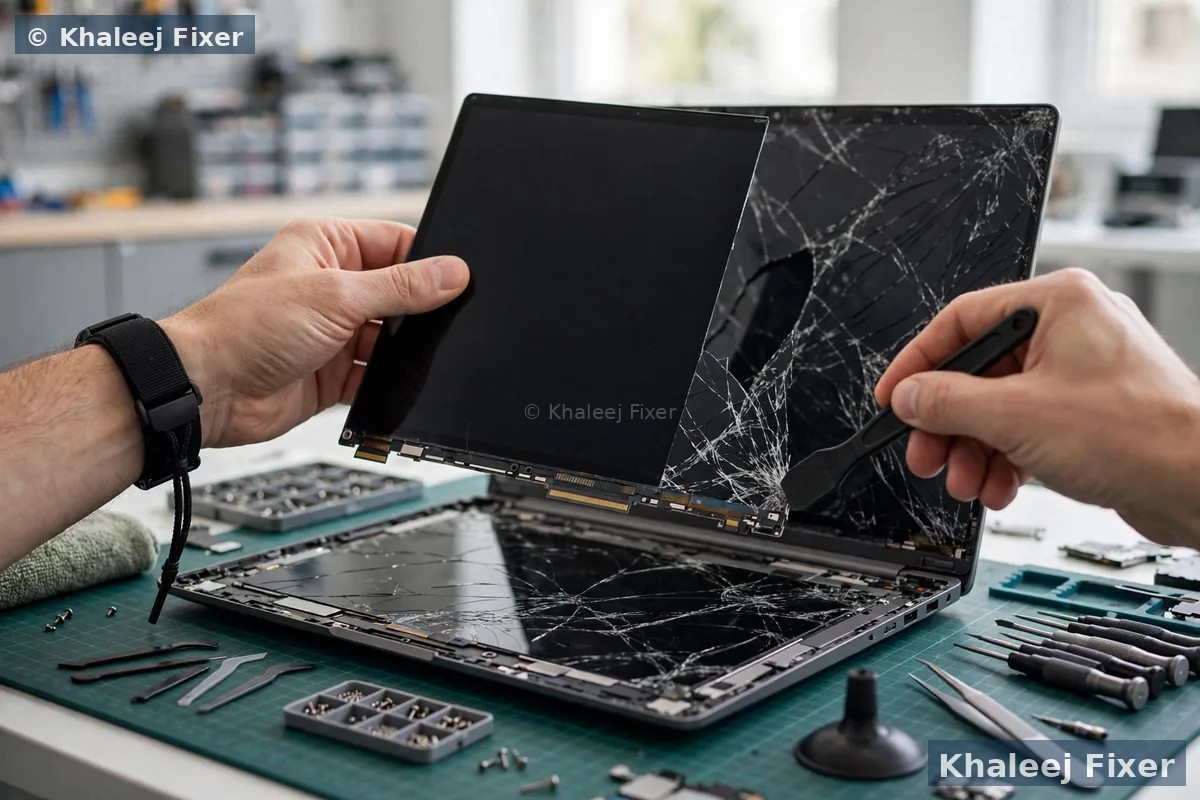
The screen panel itself has failed. A cracked panel, a dead panel, or water damage can kill the display while the laptop keeps working. If the screen went black right after a drop or a spill, the panel is the likely cause. A panel fault needs a screen swap, which our laptop screen replacement in Dubai page covers in full.
The torch test: is the backlight the problem?
This is the single most useful home check for a black screen, and it takes less than a minute. Turn the laptop on and wait a few seconds. Then shine a bright torch, or your phone flashlight, at the screen at a sharp angle. Look very closely. If you can see a faint image, your desktop icons, or the login screen, the screen panel is working. Only the backlight is dead. The laptop is drawing the picture, but there is no light behind it to make it visible.
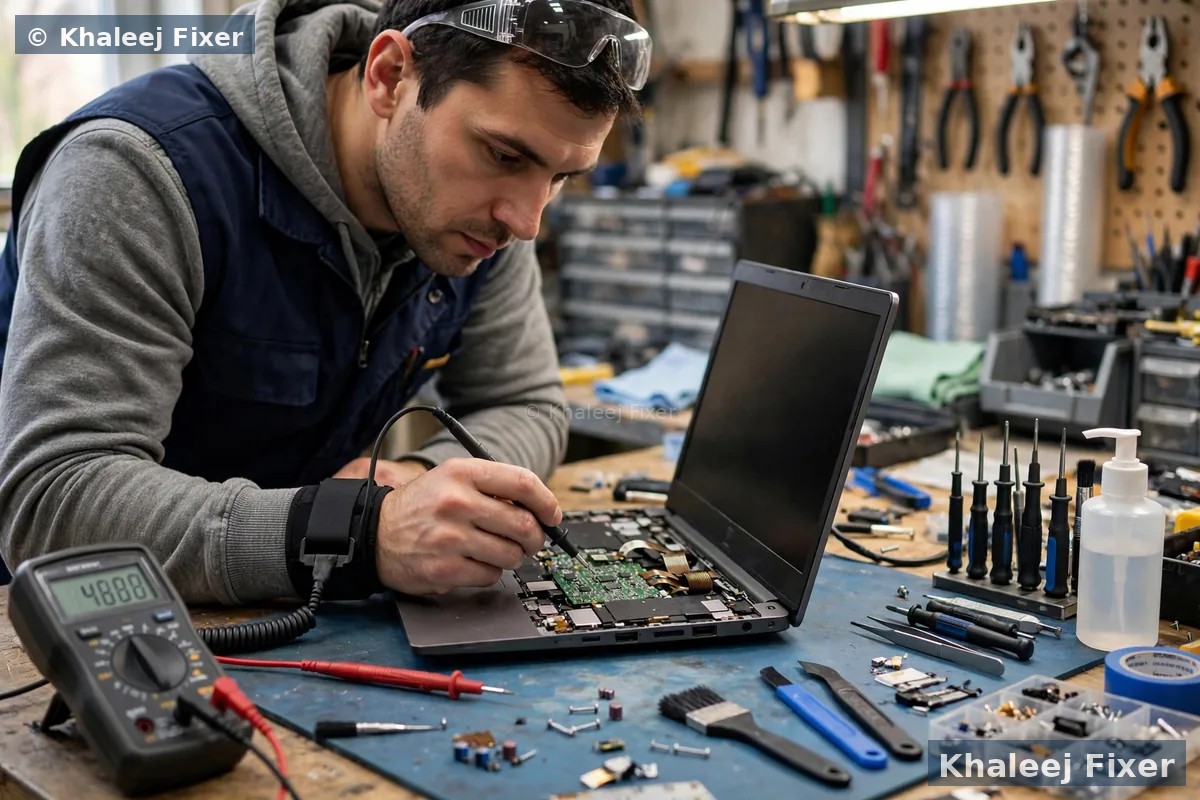
A backlight fault is a bench job in most cases. The backlight sits inside the screen assembly, and opening it needs care. In some laptops the backlight is part of the screen, so the fix is a screen swap. In others the backlight cable or the inverter can be fixed on its own. Either way, the torch test tells the technician exactly where to look, and it stops you from paying for a full screen when only the light has failed.
If the torch test shows nothing at all, not even a faint shape, the fault is deeper. The panel, the cable, the graphics chip, or the RAM may be the cause. Move on to the external monitor test below.
The external monitor test: is it the screen or the laptop?
Plug the laptop into a TV or a monitor with an HDMI cable. Turn the TV on and switch it to the right HDMI input. Then press the display switch key on your laptop, often Fn plus F4, F5, or F8, depending on the brand. You may need to press it two or three times to cycle through the display modes. If the picture appears on the TV, the laptop is working fine. The graphics chip, the RAM, and Windows are all doing their jobs. The fault sits in the laptop screen, the screen cable, or the backlight.
If the TV also stays black, the fault is inside the laptop. The graphics driver, the graphics chip, or the RAM may be the cause. Try the restart steps below before you conclude anything. A driver crash can leave both screens black until the laptop restarts. If the laptop has a dedicated graphics card, a graphics chip fault is also possible, and that needs a bench check.
The external monitor test is also a good short term fix. If your work cannot wait, use the laptop with a TV or monitor until the screen is repaired. Just remember to save your work often, and do not ignore the fault for weeks. A loose cable can get worse, and a heat problem can damage other parts.
Laptop screen goes black randomly when you move the lid
Does the screen flicker or go black when you open the lid, close it a little, or tilt the screen back? Does the picture come back when you hold the screen at a certain angle? This pattern points to the screen cable. The cable runs through the hinge, and it flexes every time the lid moves. After years of daily use, the cable can loosen at its connector, or the wires inside can break. The screen then loses the signal for a moment, and goes black.
A loose hinge makes the problem worse. A wobbly hinge pulls on the cable with every move. If your hinge is loose, stiff, or cracked, get it checked with the cable. Fixing the cable without fixing the hinge often means the same fault comes back in a few weeks. Our guide on a broken laptop hinge explains the hinge signs to watch for.
Do not open the laptop to push the cable back in yourself unless you know the model well. The cable connector is small and fragile, and the screen bezel can crack if forced. A technician can reseat or replace the cable in one bench visit, and test the hinge at the same time. If you own a MacBook, our MacBook screen replacement in Dubai page covers Apple screens and cables in full.
Laptop screen black after sleep in Windows 11
A laptop screen black after sleep is a very common complaint in Windows 11. You close the lid, or the laptop sleeps on its own. You open the lid, and the screen stays black. The power light is on. The fan may run. But nothing wakes the display. This is often a software fault, not a broken screen, and it is worth trying the home fixes below before you book a repair.
The most common cause is the graphics driver failing to wake up. Windows 11 changed how sleep and wake work, and some older drivers do not handle the new sleep states well. A second common cause is the fast startup setting. Fast startup saves the system state when you shut down, and a saved bad state can leave the screen black on the next start. A third cause is a Windows update that changed a power setting or a driver without warning.
The first thing to try is the graphics reset shortcut. Press the Windows key, Ctrl, Shift, and B together. The screen will blink, and you may hear a beep. This restarts the graphics driver without restarting the laptop. If the picture comes back, the driver was the cause. Then update the graphics driver from the laptop maker website, not from a random driver site, and turn off fast startup in the power settings. If the problem keeps coming back after every sleep, the driver or a deeper power fault needs a bench check. Our guide on laptop keeps restarting covers related Windows faults as well.

RAM, heat, and power: the causes people miss
Not every black screen is a screen fault. Three other causes hide behind a black display, and each one has its own signs.
Loose or faulty RAM. If the laptop powers on, the fan spins, and the screen stays black from the very first second, the RAM may be the cause. This often follows a knock, a drop, or a recent RAM upgrade. Some laptops also beep in a pattern when the RAM fails. Listen for beeps when you press the power button. Reseating the RAM means opening the laptop base, so leave this to a technician unless you are sure of the steps for your model.
Heat. A laptop that runs very hot can cut the display while the fan spins at full speed. The base feels very hot, and the black screen often happens during video calls, games, or heavy work. Use the laptop on a hard flat surface, not on a bed or a sofa, and keep the vents clear of dust. If the fan is loud all the time, or the laptop still runs hot after a clean, the fan or the cooling system may need a bench service.
Power and battery. A weak battery or a failing charger can cut the display while the laptop still runs on low power. If the screen goes black only on battery power, but works fine on the charger, the battery may be the cause. If the charger plug wobbles in the port, the port may be loose. Our guide on a laptop not charging covers the safe power checks in full.
A black screen that started right after a Windows update is also worth noting. A bad update can break a driver or change a power setting. If the screen went black the day after an update, try the driver steps below, and roll the update back if the problem began with it. If you own a Sony Vaio, our Sony Vaio screen replacement in Dubai page covers Vaio screens, cables, and backlights in full.

Try these fixes at home, step by step
Work through these steps in order. Test after each one. Stop when the picture stays on.
1. Restart the graphics driver. Press Windows, Ctrl, Shift, and B together. The screen will blink. If the picture comes back, the driver had crashed. Update the driver next.
2. Force a full restart. Hold the power button for 15 seconds until the laptop turns off. Unplug the charger. If the battery comes out, take it out for a minute. Then put it back, plug in, and press the power button once. A stuck sleep state often clears with a full restart.
3. Check the brightness and the display key. Press the brightness up key a few times. Then press Fn plus the display switch key to cycle through the display modes. A laptop set to show only on an external screen will look black when nothing is plugged in.
4. Try the external monitor. Plug in a TV or monitor. If the picture shows there, the laptop is fine and the fault is in the screen, the cable, or the backlight. Use the external screen for your urgent work.
5. Update the graphics driver. If you can see the screen again, open Device Manager, find Display adapters, right click your graphics card, and choose Update driver. Better still, download the driver from your laptop maker website. A clean driver install fixes many repeat black screens.
6. Turn off fast startup. Open Control Panel, then Power Options, then Choose what the power buttons do. Click Change settings that are currently unavailable, and uncheck Turn on fast startup. Save the change and restart. Fast startup can trap a bad display state between restarts.
When to stop and get a free diagnosis
Stop trying home fixes when you see any of these signs. They point to a hardware fault that needs a bench check.
The torch test shows a faint image. The backlight has failed. The fix needs the screen opened on the bench.
The screen goes black when you move the lid. The cable or the hinge is the cause. Both need a bench check together.
The external monitor stays black too. The fault is inside the laptop. The graphics chip, the RAM, or the board may be the cause.
The black screen started after a drop or a spill. The panel, the cable, or the board may be damaged. Switch the laptop off and bring it in. Do not keep using it.
A black screen fault is usually found fast on the bench. We test the backlight, the cable, the panel, the RAM, and the graphics one by one until we find the cause. The diagnosis is free, so you know the real fault before you agree to anything. See our laptop repair in Dubai page for the full range of repairs, or check starting prices on our price list page.
Frequently Asked Questions
Why does my laptop screen go black but the laptop still runs?
The most common causes are a failed backlight, a loose screen cable, a crashed graphics driver, faulty RAM, or heat. The laptop keeps running because only the display has failed. Shine a torch at the screen first. If you see a faint image, the backlight is the cause. If you see nothing, plug in an external monitor to find out if the fault is in the screen or inside the laptop.
How do I know if it is the backlight or the screen itself?
Shine a bright torch at the screen at a sharp angle. If you can see a faint image, your desktop, or the login screen, the panel is working and only the backlight has failed. If the screen stays fully black in the torch light, and an external monitor works, the panel or the cable is the likely cause.
Why does my laptop screen go black after sleep in Windows 11?
The graphics driver often fails to wake up after sleep in Windows 11, or the fast startup setting traps a bad display state. Press Windows, Ctrl, Shift, and B to restart the graphics driver. Then update the driver from your laptop maker website and turn off fast startup in the power settings. If the problem keeps coming back, the driver or a power fault needs a bench check.
Can a loose cable make the laptop screen go black randomly?
Yes. The screen cable runs through the hinge and flexes every time you open or close the lid. Over time it can loosen or wear out, so the screen goes black when you move the lid and comes back at a certain angle. A loose hinge makes it worse. The cable and the hinge should be checked together on the bench.
How much does it cost to fix a black laptop screen in Dubai?
The cost depends on the cause. A driver fix costs nothing. A cable or backlight repair costs more, and a full screen swap costs more again. See our price list page for starting prices. The final quote always comes after the free diagnosis, and no work starts without your yes.
Screen still black? Get a free diagnosis today.
Message us on WhatsApp or call. Free pickup, free diagnosis, final quote before any work, 2-month warranty.
Free Diagnosis • Free Pickup & Delivery • 2-Month Warranty • Open 7 Days 11AM to 11PM