
Short answer: match the symptom, then fix it in order
1. Touch does nothing at all, on the whole screen. Touch input is turned off or the touch driver is missing. Open Device Manager, find HID-compliant touch screen, and turn it on. Then update the driver.
2. Touch stopped right after a Windows update. The update changed the driver or a touch setting. Reinstall the touch driver and check Tablet Mode and touch settings. A restart often helps too.
3. Touch works in some spots only, with dead zones. The touch layer under the glass is damaged. A crack or a hard knock can kill touch in one area while the rest still works. This is a hardware fault.
4. Touch dies when you move the lid, or it comes and goes. The display cable through the hinge is loose or worn. The cable flexes each time you open and close the lid. A bench check can confirm it.
5. The screen taps by itself, or it jumps and opens apps you did not touch. This is ghost touch. A dirty or wet screen, a bad charger, or a damaged touch layer can cause it. Clean the screen and test with the charger unplugged.
Which laptops have a touchscreen, and why touch can stop so suddenly
Most touchscreen laptops are 2-in-1 convertibles. The screen folds back so the laptop works like a tablet. Common models are the HP x360, the Lenovo Yoga, the Dell Inspiron 2-in-1, the Asus Vivobook Flip, the Acer Spin, and the Microsoft Surface range. Many business laptops carry touch too. Toshiba Portege touch models and Dynabook models are good examples. If your laptop has a touchscreen, the screen has two layers. The top layer shows the picture. The thin touch layer below it reads your finger. The picture can look perfect while the touch layer is dead. That is why a screen can look fine and still not respond to touch.
Touch can stop in a second. A Windows update can turn it off. A driver can break. A small knock can crack the touch layer. A cable can work loose in the hinge. The fault often feels sudden because the touch layer is thin and delicate. It does not need a big drop to fail. A press on the lid in a bag can be enough. Or a spill can reach the edge of the screen and hurt the touch layer over days.
Do not confuse a touchscreen with a touchpad. They are different parts. The touchpad is the flat pad below the keyboard. The touchscreen is the screen itself. A dead touchpad does not mean the screen is broken. And a dead touchscreen does not mean the touchpad is broken. This guide is about the screen only. If your touchpad is the problem, that needs a different check.
Start with the simple checks in this guide. They take a few minutes. They fix most software faults. And they tell you clearly when the fault is hardware. Write down what you see as you test. Note if touch is dead everywhere or only in some spots. Note if it dies when you move the lid. Note if it started after an update, a drop, or a spill. That record helps a technician a lot if you bring the laptop in.
Cause 1: touch input is turned off in Windows settings or Device Manager
This is the most common cause of a laptop touchscreen not working, and it is also the easiest to fix. Windows can turn touch input off. A driver update can disable it. A setting change can switch it off. Or someone may have turned it off by mistake. The screen still shows a perfect picture. The mouse and keyboard still work. Only touch is dead.
Turn touch back on in Device Manager. Right click the Start button and open Device Manager. Open the Human Interface Devices section. Look for HID-compliant touch screen. Right click it. If you see Enable device, click it. Then test the screen. If you see Disable device, it means touch is already on. In that case the fault is somewhere else. If you see two HID-compliant touch screen entries, enable both. Some laptops list touch twice, once for the screen and once for the pen.
Check if the entry is missing. If HID-compliant touch screen is not in the list at all, click View at the top of Device Manager and choose Show hidden devices. If it still does not appear, the driver may be missing. Or Windows may not see the touch hardware at all. That points to a driver fault or a hardware fault. The next cause covers the driver fix. The hardware check comes later in this guide.
Check the touch setting in Windows too. Open Settings, then System, then Tablet. Make sure the tablet settings allow touch. On some laptops the maker adds its own touch switch in its own app. HP, Lenovo, Dell, and Asus each ship a small settings app with their laptops. Open it and look for a touch or pen setting. If touch is off there, turn it on and test again. A quick restart after you change the setting helps Windows load it cleanly.
Cause 2: the touch driver is old, damaged, or changed by a Windows update
The touch driver is the small piece of software that turns a tap on the glass into a click on the screen. If the driver is old, damaged, or changed by a Windows update, touch can stop at once. The fault often starts on the same day as an update. The screen looks fine. The mouse works fine. Only touch is dead. This is very common after a big Windows update.
Restart first, then test. Save your work and restart the laptop. A restart clears a driver that is stuck in a bad state. Then tap the screen. Try a tap on a desktop icon. Try a swipe in the browser. If touch works again, the driver just needed a fresh start. If it is still dead, move on to the next step.
Update the touch driver. Open Device Manager. Open Human Interface Devices. Right click HID-compliant touch screen and choose Update driver. Choose Search automatically for drivers. Let Windows look for a newer driver. Then restart the laptop and test again. If Windows says the best driver is already installed, the driver may still be damaged. In that case move on to the reinstall step below.
Reinstall the touch driver. In Device Manager, right click HID-compliant touch screen and choose Uninstall device. Tick the box to delete the driver software if you see it. Then restart the laptop. Windows installs a fresh driver by itself when it starts up. Do not download a driver from a random website. Get the driver from Windows Update or from your laptop maker site only. HP, Lenovo, Dell, Asus, Acer, and Microsoft each list the right touch driver for each model on their own support page.
Roll back a bad update. If touch died on the same day as a Windows update, the update may be the cause. Open Settings, then Windows Update, then Update history, and look at the date. You can uninstall the most recent update from there. Or use System Restore to go back to a point before the update. Save your work first. If touch works again after the rollback, the update was the cause. Let the next update install later, after the maker releases a fixed driver.
Cause 3: Tablet Mode or touch settings changed after an update
Windows 11 changed how Tablet Mode works. It now switches by itself when you fold a 2-in-1 laptop back. That sounds helpful. But it can also cause trouble. After an update, the tablet settings can change. Touch may work in tablet mode but not in laptop mode. Or touch may stop when you fold the screen past a certain angle. The driver is fine. The setting is the problem.
Test in both positions. Open the laptop to a normal angle and tap the screen. Then fold it back into tablet mode and tap again. Then bring it back to a normal angle and tap once more. If touch works in one position and not in the other, the mode switch is the cause. The hinge sensor tells Windows which mode to use. A wrong mode setting can turn touch off in one position.
Check Settings, then System, then Tablet. Open Settings. Go to System. Open Tablet. Look at the options for tablet mode and touch. Make sure touch is allowed. Try changing the setting, then change it back. Then restart the laptop. A restart helps Windows read the hinge sensor cleanly. Also check the rotation lock. If rotation lock is on, the screen may stay in the wrong mode and touch may behave strangely.
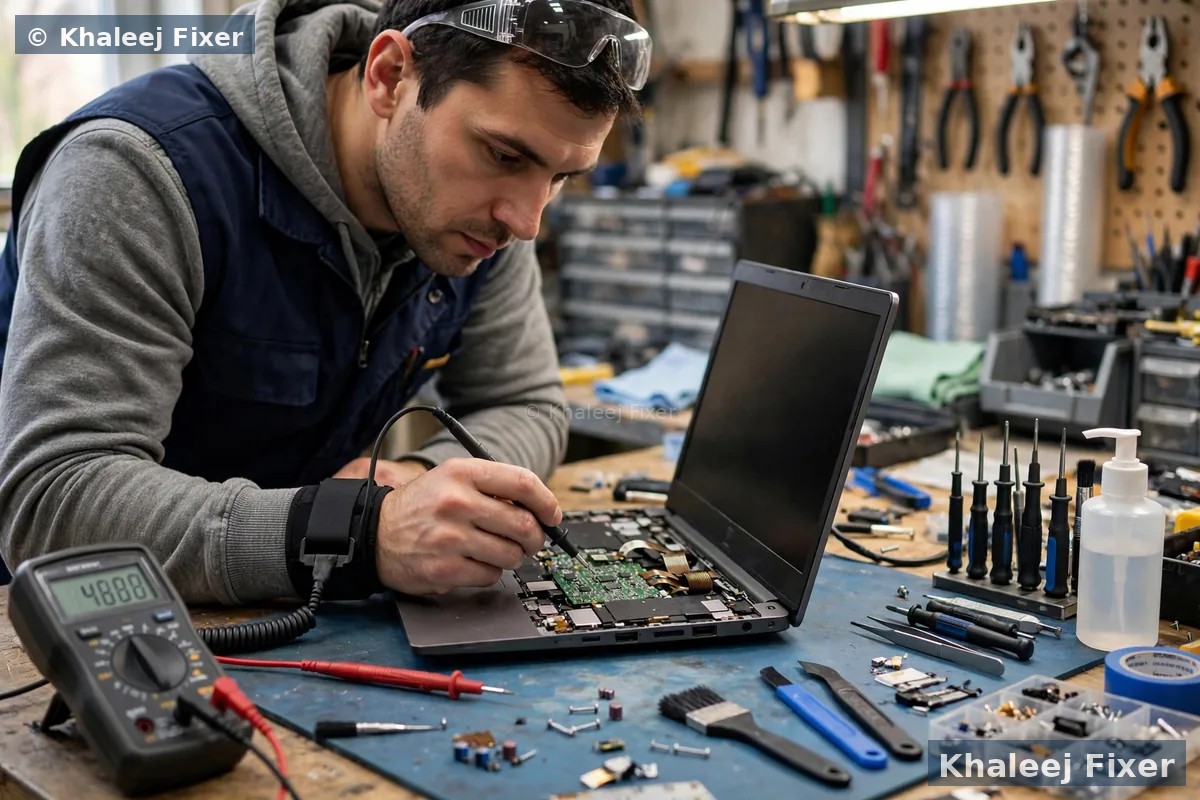
Calibrate the touch screen. Type Tablet PC Settings in the Windows search box and open it. Click Calibrate. Follow the crosses on the screen with your finger. Touch each cross in order. Then save the calibration. A bad calibration can make taps land in the wrong place. Or it can make touch feel dead near the edges. Calibration is safe. It only changes where Windows thinks your finger lands. If the calibration tool does not open, or if it says no touch screen is found, the driver or the hardware is the fault, not the setting.
Cause 4: a dirty or wet screen and ghost touches
A touchscreen reads tiny changes on the glass. Dirt, grease, and water can confuse it. A greasy fingerprint can block a tap. A drop of water can look like a finger. In Dubai and Sharjah, dust and sweat build up on screens fast. A screen that looks clean can still have a thin film of grease on it. That film can make touch weak or random.
Clean the screen the right way. Switch the laptop off. Use a soft microfibre cloth. Dampen it lightly with clean water. Wipe the screen in slow circles. Do not spray water on the screen. Do not use window cleaner or harsh chemicals. Do not press hard. Let the screen dry fully. Then switch the laptop on and test touch again. A clean screen fixes many weak touch faults at once.
Ghost touches have a clear pattern. The screen taps by itself. Apps open on their own. The cursor jumps around. The keyboard pops up when you did not touch it. This is ghost touch. A dirty screen can cause it. A wet screen can cause it. A bad charger can cause it too. Unplug the charger and test on battery only. If the ghost touches stop, the charger is the cause. Try a different charger from the same maker. Cheap chargers often cause ghost touch on touchscreen laptops.
Remove the screen protector to test. A thick or old screen protector can block touch. A cracked protector can cause ghost touches. Peel it off and test the bare glass. If touch works again, the protector was the cause. Fit a new protector made for your exact model. A protector that is too thick or made for a different model can sit badly on the edges and confuse the touch layer.
Cause 5: a loose or worn display cable through the hinge
The touch layer connects to the laptop through a thin cable. That cable runs through the hinge. It flexes each time you open and close the lid. After years of daily use, the cable can wear out. It can work loose from its socket. Or it can get pinched in the hinge. The picture may stay perfect, because the picture uses a different cable or a different part of the same cable. Only touch dies.
The hinge test is the clue. Open the lid slowly and tap the screen at each angle. Does touch work at one angle and die at another? Does it come back when you wiggle the lid? Does it die only when the lid is fully open or fully folded back? If the answer is yes to any of these, the cable is the likely cause. A driver fault does not change when you move the lid. A cable fault does.
Do not open the laptop to fix the cable yourself. The cable is thin and fragile. The hinge area is tight. A wrong move can tear the cable or crack the screen. A technician opens the base and the screen bezel, reseats the cable, and tests touch at every lid angle. If the cable is worn, it is swapped for the right part for your model. The work needs a careful hand, because the same area holds the Wi-Fi wires and the webcam cable too.
This fault is common on 2-in-1 laptops, because the lid moves more than on a normal laptop. It folds back flat. It flips around. Each fold flexes the cable. If your laptop is a 2-in-1 and touch comes and goes, tell the technician about the hinge test. It saves a lot of time. Our laptop screen replacement in Dubai page explains how the screen and its cables are tested, and the same bench test covers the touch cable too.
Cause 6: a cracked or damaged digitizer, the touch layer under the glass
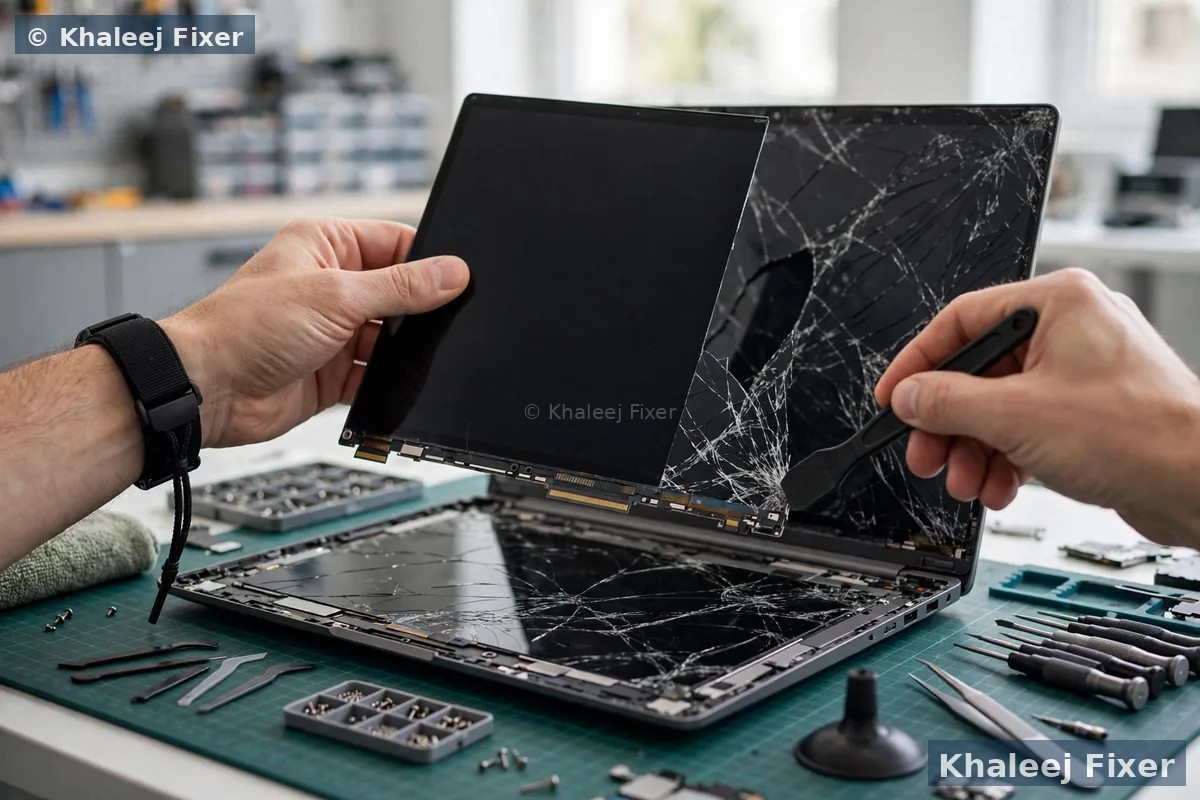
The digitizer is the thin touch layer under the glass. It reads your finger and sends the position to the laptop. If the digitizer cracks or gets damaged, touch dies in that area. The glass above it may look fine. The picture may look perfect. But the touch layer below is broken. This is the most common hardware cause of a laptop touchscreen not working in some spots only.
Dead zones tell the story. Draw a slow line across the screen with your finger in Paint or in a notes app. Does the line break in one area? Does it jump over a spot? Does one corner never respond? A dead zone that stays in the same place points to the digitizer. A software fault usually kills all touch at once. A digitizer fault kills touch in a patch. The patch often sits near a crack, a dent on the edge, or the spot where the laptop took a knock.
A small crack can kill a big area. The digitizer is a thin sheet with fine lines across it. A crack can cut many lines at once. So a small crack near the edge can kill touch across a wide strip. A press on the lid in a bag can crack the digitizer without cracking the glass you see. A drop on a corner can do the same. Look closely at the edges of the screen in good light. A hairline crack near the bezel is easy to miss.
A damaged digitizer cannot be fixed by a setting or a driver. The screen assembly must be swapped. On most laptops the digitizer comes glued to the glass as one part. So the repair swaps the full touch screen assembly. The new screen is matched to your exact model, because touch screens are not all the same. The laptop is tested after the swap, with taps in every corner, before it goes back to you.
Cause 7: a recent spill or drop
A spill or a drop can kill touch in hours or in days. Water, tea, coffee, or juice can reach the edge of the screen. It can seep under the bezel and onto the digitizer connector. At first touch may work fine. Then it gets weak. Then it dies in one area. Then it dies everywhere. A drop can crack the digitizer, loosen the cable, or bend the lid frame so the screen presses on the touch layer.
Act at once if a spill just happened. Switch the laptop off right away. Unplug the charger. If the battery comes out, take it out. Turn the laptop upside down in a tent shape so the liquid runs out. Do not press the screen. Do not turn it back on to test touch. Do not dry it with a hair dryer or put it in the sun, because heat makes the damage worse. Bring it to a workshop as it is, or book a free pickup. Fast action matters most with a spill.
An old spill can still be the cause. If touch died weeks after a small spill, corrosion is the likely cause. The liquid dried, but it left a thin layer on the digitizer connector. That layer grows over time and breaks the contact. A clean of the connector sometimes saves the screen. But if the corrosion reached the digitizer itself, the screen assembly must be swapped. A free diagnosis will tell you which one it is, before any work starts.
After a drop, look at the lid and the hinge. A bent lid can press on the screen edge. A loose hinge can pull on the cable. A crack in the bezel can let dust reach the digitizer. If touch died right after a drop, do not keep tapping hard to test it. Hard taps can make a crack worse. Book a free diagnosis. The technician checks the screen, the cable, and the hinge in one bench test. You can read how a drop is checked on our Toshiba laptop screen replacement in Dubai page, and the same check applies to every brand.
Cause 8: a BIOS or UEFI touch setting, or a hardware fault on the board
The BIOS, also called UEFI on newer laptops, is the first software that runs when you switch the laptop on. It checks the hardware before Windows loads. Some laptops have a touch setting in the BIOS. If that setting is off, Windows never sees the touchscreen at all. The driver cannot fix it, because Windows does not know the touch hardware is there.
Check the BIOS setting with care. Restart the laptop and press F2, F10, or Del to enter the BIOS setup screen. The exact key depends on your brand. Look for a touch, digitizer, or Human Interface Device setting. If you find it and it is off, turn it on. Save and exit. Then test touch in Windows. Do not change other BIOS settings. A wrong BIOS change can stop the laptop from starting. If you are not sure, leave it alone and let a technician check it during a free diagnosis.
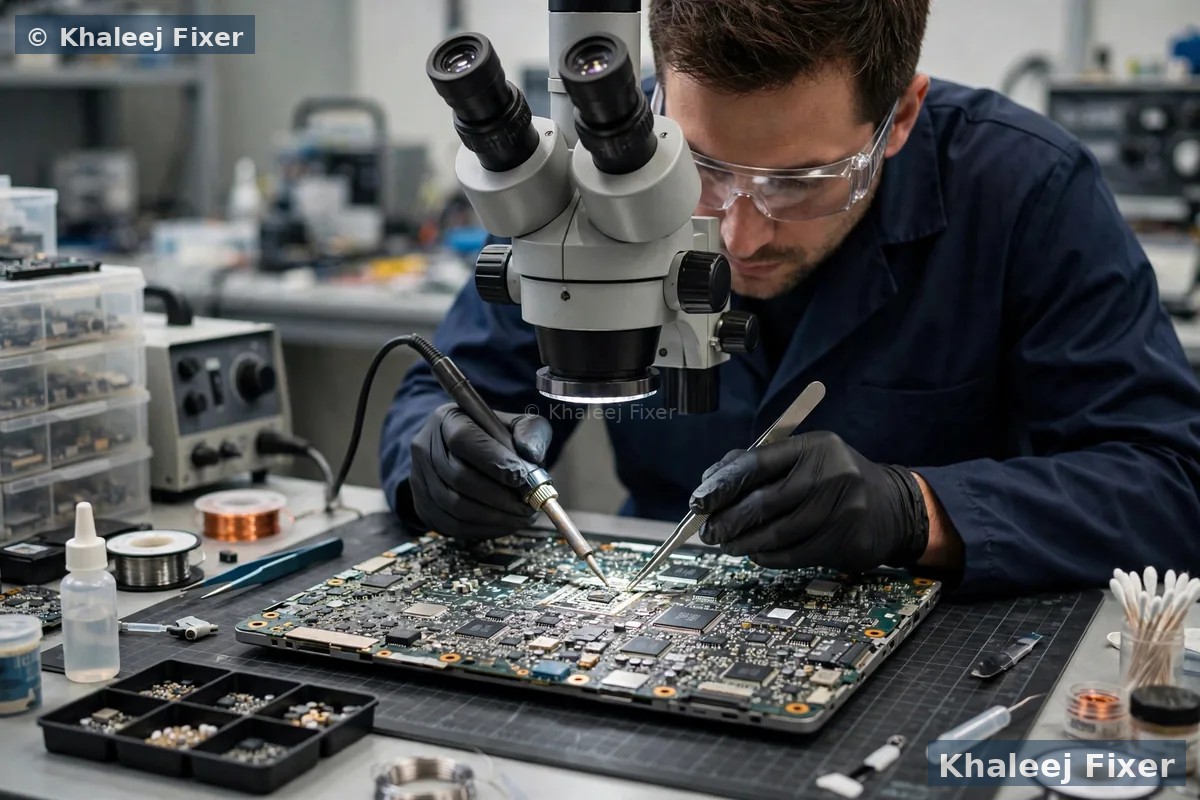
A board fault is the last cause to check. The touch signal runs from the screen, through the cable, to a small chip on the board. If that chip or its circuit is damaged, touch dies even with a good screen and a good cable. A spill can cause this. A power surge can cause it. A swollen battery can press on the board and cause it too. A board fault is less common than a driver fault or a digitizer fault. But it does happen, and it needs a board level check.
A swollen battery is worth a look here. The battery sits under the keyboard in many laptops. When a battery swells with age, it pushes up on the keyboard and the trackpad. It can also press on the board. If the base rocks on a table, or the trackpad feels stiff, or the keyboard feels raised, stop using the laptop and bring it in. A swollen battery is a safety risk, and it should not be charged. Our laptop battery replacement in Dubai page explains how a swollen battery is handled safely, and the same free diagnosis covers the touch fault too.
Safe checks you can do at home to find the cause
You can narrow the cause down in a few minutes. Do these checks in order. Stop at any point if a spill just happened, or if you smell burning or see a swollen battery. In those cases switch the laptop off and bring it in.
Check 1: restart and tap. Save your work and restart the laptop. Then tap a desktop icon. Try a swipe in the browser. A restart clears a driver that is stuck in a bad state. If touch works again, the fault was software.
Check 2: clean the screen. Switch the laptop off. Wipe the screen with a soft microfibre cloth, dampened lightly with clean water. Let it dry fully. Then switch on and test again. A dirty screen can block taps and cause ghost touches.
Check 3: look for HID-compliant touch screen in Device Manager. Right click Start and open Device Manager. Open Human Interface Devices. If HID-compliant touch screen is there and disabled, enable it. If it is there and on, right click it, choose Uninstall device, and restart so Windows installs a fresh driver. If it is missing, show hidden devices from the View menu. A missing entry points to a driver or hardware fault.
Check 4: do a clean boot test. A clean boot starts Windows with only the basic programs. Type msconfig in the search box and open System Configuration. On the Services tab, tick Hide all Microsoft services, then click Disable all. On the Startup tab, open Task Manager and disable all startup items. Restart the laptop and test touch. If touch works in a clean boot, a program or a startup app is blocking it. Turn the services back on in small groups to find the one that causes it. Then turn your normal startup back on.
Check 5: test the lid angle and the charger. Open the lid slowly and tap at each angle. If touch dies at one angle, the hinge cable is the likely cause. Then unplug the charger and test on battery only. If ghost touches stop without the charger, the charger is the cause. Try a different charger from the same maker.
Check 6: draw a line across the screen. Open Paint and draw a slow line from one side to the other. Do it across the top, the middle, and the bottom. If the line breaks in the same spot each time, that spot is a dead zone. A dead zone points to the digitizer. If the line draws cleanly but taps do nothing, the fault is more likely a setting or a driver.
Check 7: test the pen and the touch separately, and note what an external monitor does not tell you. If your laptop came with a pen, test the pen on the screen. If the pen works but finger touch does not, the finger touch setting or driver is the fault. If neither works, the digitizer or the cable is more likely. An external monitor test is NOT a touch test. Plugging in a normal monitor only shows the picture on another screen. It says nothing about touch on your laptop screen. So do not use it to judge touch. Our laptop repair in Dubai page lists the bench tests we run, and a touch test is always done on the laptop screen itself.
When to stop trying fixes and bring the laptop in
Most touch faults are fixed by the settings above. But some signs mean the screen needs a workshop. Knowing the difference saves you time and protects your laptop.
Bring it in if touch stays dead after every software fix. If you tried a restart, the Device Manager enable, a driver update, a driver reinstall, and a clean boot, and touch is still dead, the fault is hardware. No setting will fix a broken digitizer or a worn cable.
Bring it in at once after any spill. A spill needs a strip down and a clean, even if the screen seems to work. Corrosion grows day by day, and a screen that works today can fail next week. Fast action is far cheaper than a dead board later.
Bring it in if touch dies when you move the lid. A cable fault gets worse with each open and close. Keep using it and the cable can tear fully. A quick bench check finds the fault before it spreads to the picture too.
Bring it in if the screen is cracked or has dead zones. A cracked digitizer will not heal. Tapping hard on a dead zone can make the crack worse. A free diagnosis confirms if the screen assembly must be swapped, and you get a final quote first.
Bring it in if the battery looks swollen or the base rocks. A swollen battery presses on the board from below and can kill touch. Do not charge the laptop. Do not keep using it. Keep it away from heat and bring it to a workshop as it is. You can read about how a failing board is handled on our laptop motherboard repair in Dubai page, because a swollen battery can also threaten the board, and the same free diagnosis covers the whole laptop.
What a repair shop does about a touchscreen that does not work
A good workshop starts with a free diagnosis. The technician tests touch in every corner of the screen, checks the Device Manager entry and the driver, and tests the lid at every angle. The BIOS touch setting is checked too. You get a clear answer in plain words before any work starts. Then you get a final quote. That is how it should work. No one can promise a fix before they see the laptop.
For a settings or driver fault, the shop fixes it on the spot. The technician enables HID-compliant touch screen, reinstalls the driver from the maker site, fixes the tablet settings, and calibrates the screen. Touch is tested in every corner before you take the laptop home. This is a quick job, and it is often done while you wait.
For a cable fault, the shop reseats or swaps the cable. The technician opens the base and the screen bezel, checks the cable for wear, reseats both ends, and tests touch at every lid angle. If the cable is worn, it is swapped for the right part for your model. The hinge is checked at the same time, because a loose hinge can pull on the cable again.
For a damaged digitizer, the shop swaps the touch screen assembly. The screen is matched to your exact model number, because touch screens are not all the same. The new screen is fitted, the cable is connected, and touch is tested in every corner, with the pen too if your laptop has one. The work carries a 2 month warranty, and the laptop is tested again before it goes back to you.
For a board fault, the shop checks the board and your files. The technician checks the touch circuit on the board and looks for spill damage or a swollen battery. If your files are at risk, they are protected first. Our data recovery in Dubai page explains how files are saved when a laptop has board damage. And you can book free pickup from anywhere in Dubai or Sharjah, including Al Nahda, Al Majaz, Muwaileh, Al Qasimia, Rolla, University City, Al Taawun, and Al Khan. Our shop sits in Industrial Area 2 in Sharjah, and we are open 7 days, 11 AM to 11 PM.
How to stop the touchscreen failing again
Once touch works again, a few simple habits keep it that way. None of them take much time. And each one protects your screen as well as your touch.
Clean the screen once a week. Use a soft microfibre cloth. Wipe off dust and grease before it builds up. In Dubai and Sharjah, dust builds up fast. A weekly clean keeps touch sharp and stops ghost touches.
Use the right charger only. A cheap charger can cause ghost touch. Use the charger that came with the laptop, or a charger from the same maker. If you buy a spare charger, buy it from a trusted shop and check that it matches your model.
Open and close the lid by the centre. Lift the lid from the middle, not from one corner. A corner lift twists the hinge and pulls on the cable. A centre lift spreads the load. It is a small habit, and it adds years to the cable.
Keep food and drinks away from the laptop. Keep cups and bottles to the side, not next to the laptop. A spill that never happens needs no repair. Use a sleeve or a padded bag when you carry the laptop. A hard press on the lid in a bag can crack the digitizer.
Update Windows, but watch touch after an update. Drivers change with updates, and a bad update can change how touch behaves. After a big update, tap the screen in each corner. If touch is dead, you caught the fault early, and a driver reinstall fixes it in minutes.
Listen to the screen. Touch that gets weak in one corner, or ghost touches that come and go, are early signs. A free diagnosis at that stage is far cheaper than a screen swap later. If your laptop is a Toshiba or Dynabook touch model, our Toshiba laptop repair in Dubai page covers the checks for those models. And if the laptop is still under warranty, do not open it yourself. Opening it can void the warranty. A free diagnosis at our workshop is the safe route in that case.
Frequently Asked Questions
Why did my laptop touchscreen suddenly stop working?
The most common cause is touch input turned off in Device Manager or a touch driver changed by a Windows update. A dirty screen, a loose cable in the hinge, or a cracked digitizer can also stop touch suddenly. Restart the laptop first, then check HID-compliant touch screen in Device Manager, then clean the screen and test the lid angle. If touch stays dead after those checks, a free diagnosis finds if the fault is the driver, the cable, or the screen assembly.
How do I turn the touchscreen back on in Windows 11?
Right click the Start button and open Device Manager, then open Human Interface Devices and find HID-compliant touch screen. Right click it and choose Enable device. If it is already on, right click it and choose Uninstall device, then restart the laptop so Windows installs a fresh driver. Also check Settings, then System, then Tablet, to make sure touch is allowed, and restart once more after you change the setting.
Can a cracked screen stop the touchscreen working?
Yes. A crack can damage the digitizer, which is the thin touch layer under the glass. The picture may still look perfect while touch is dead in the cracked area or across the whole screen. A small crack near the edge can cut many touch lines at once, so it can kill touch in a wide area. The screen assembly must be swapped, because the digitizer comes glued to the glass as one part on most laptops.
Why does my touchscreen work in some spots only?
Touch that works in some spots only points to a damaged digitizer or a worn display cable. A crack, a hard knock, or a press on the lid can kill touch in one patch while the rest still works. Draw a slow line across the screen in Paint to map the dead zone. If the line breaks in the same spot each time, the digitizer is the likely cause. If touch comes and goes when you move the lid, the hinge cable is the likely cause instead.
When should I replace the digitizer instead of fixing settings?
Replace the digitizer when touch stays dead in the same spots after you have tried a restart, the Device Manager enable, a driver update and reinstall, a clean boot, and a screen clean. A cracked screen, a dead zone that never moves, or touch that works only in some areas all point to the digitizer. A free diagnosis confirms the fault before any work starts, and you get a final quote first.
Touchscreen still not working and the fixes did not help? Get a free diagnosis today.
Message us on WhatsApp or call. Free pickup, free diagnosis, final quote before any work, 2-month warranty.
Free Diagnosis • Free Pickup & Delivery • 2-Month Warranty • Open 7 Days 11AM to 11PM