
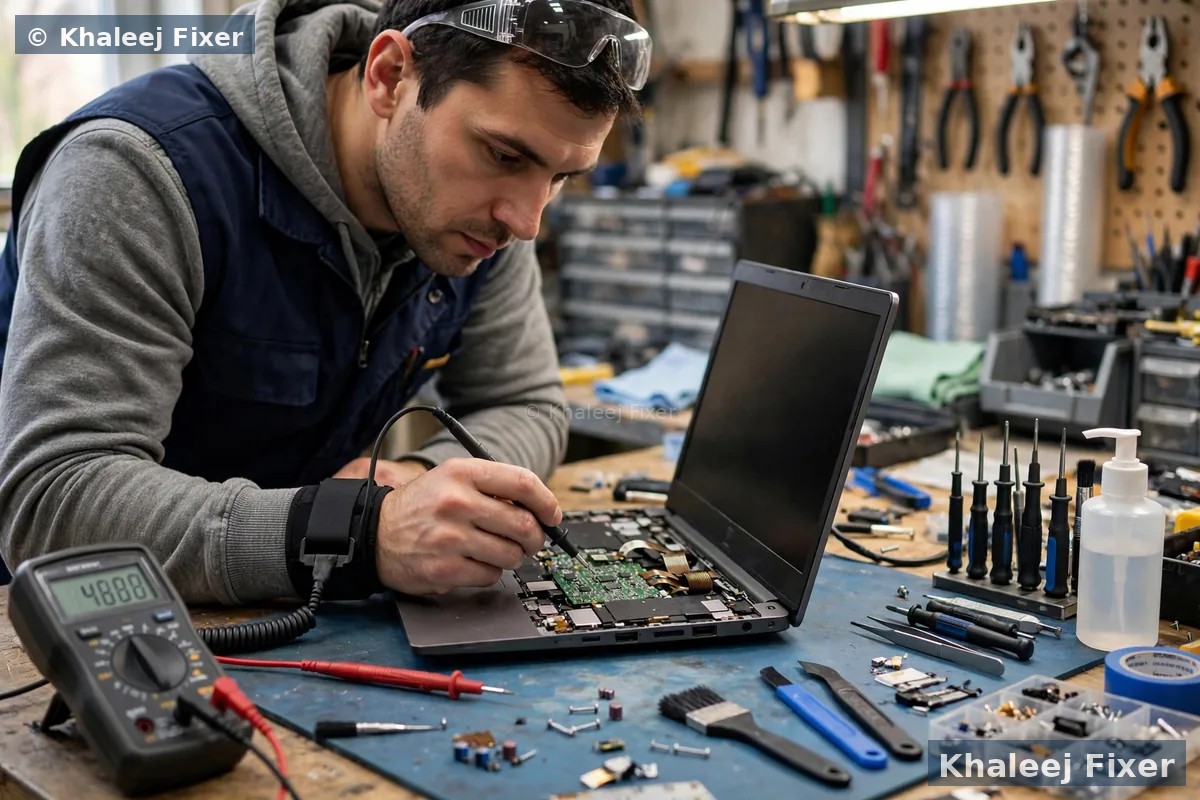
First, check volume, mute, and the mute key
This is the most common cause, and the easiest to fix. Press the volume up key a few times. Look for the speaker icon in the taskbar. If it shows a cross, the sound is muted. Click it once to unmute. Also check the mute key on your keyboard. It is usually in the top function row, marked with a speaker icon. Press it together with the Fn key if needed.
Check the volume inside the app too. A video player or a call app can be muted on its own, even when the laptop volume is fine. If sound comes back after this step, you are done. If it stays silent, move to the next step.
Check the output device: your sound may be going somewhere else
Laptops often send sound to the wrong place. A Bluetooth headset you used yesterday may still be connected. A monitor connected by HDMI may be set as the sound output. A pair of headphones left plugged in will silence the built in speakers on most laptops. Unplug all headphones and headsets. Turn off Bluetooth for a minute. Then click the speaker icon in the taskbar and check the output device list.
Make sure the built in speakers are selected, not a monitor, not a TV, and not a Bluetooth device. Play a short video after you change the output. If sound returns, the speakers were fine all along. The laptop was simply sending sound to another device.
Restart the laptop and run the sound troubleshooter
A restart clears a stuck audio service. Save your work first, then restart the laptop fully. Do not just close the lid. A full restart reloads the audio driver and resets the sound service. Test a video after the restart.
If the restart does not help, run the built in sound troubleshooter. In Windows, open Settings, then System, then Sound, and look for the troubleshoot option. The troubleshooter checks the output device, the driver, and the audio service. It fixes simple problems on its own. It also tells you what it found, which helps a technician if you later book a repair.
Update or reinstall the audio driver
A driver is the small program that lets Windows talk to the speakers. After a Windows update, the old driver can stop working. Open Device Manager, expand the sound and audio list, and find the audio device entry. Right click it and choose Update driver. Let Windows search for a new driver.
If updating does not help, try reinstalling. Right click the audio entry again and choose Uninstall device. Then restart the laptop. Windows will install a fresh driver on its own during the restart. Test the speakers after the restart. If Device Manager shows a yellow warning mark on the audio entry, the driver is the likely fault. If the audio entry is missing entirely, the laptop may not be seeing the audio hardware at all. That points to a hardware fault, covered below.
Check the headphone jack for a stuck switch
Most laptops use a small switch inside the headphone jack. When you plug headphones in, the switch cuts the built in speakers. When you unplug them, the switch should spring back and restore the speakers. Dust or a bent contact can keep that switch stuck. The laptop then thinks headphones are still plugged in, even when the jack is empty. The speakers stay silent for no visible reason.
Plug a pair of headphones in and out a few times, slowly. Listen for a small click as the plug seats. Play a short video after each try. If the speakers return on one try, the jack switch was the fault. Do not poke inside the jack with a pin or a toothpick. You can bend the contact further or push dust deeper. If the jack feels loose, or if the plug wobbles in the socket, the jack itself may need replacing. That is a workshop job, and it is covered by the free diagnosis.
Also check for a spill near the jack. A drink spilled on the side of a laptop can reach the audio jack and corrode the contact over days. If you spilled anything near the jack, tell the technician. It changes how the repair is done, and it helps us check for wider damage at the same time.
One speaker dead, both speakers dead, or distorted sound
The pattern tells you a lot. One speaker dead while the other works usually means a speaker unit fault or a loose speaker cable on that side. Both speakers dead at once, with no sound from headphones either, usually means a driver or audio chip problem. Both speakers dead, but headphones work fine, usually means the speaker units or their cable.
Distorted or crackling sound is different again. A crackle at high volume can mean a torn speaker cone. A crackle that comes and goes can mean a loose cable. A buzz that changes when you move the charger can mean charger interference. Try a different charger and test again. If the buzz stops, the charger was the cause.
Test with headphones before you decide. If headphones sound perfect, the audio system is fine and the built in speakers are the suspect. If headphones are also silent or distorted, the fault sits deeper, in the driver or the audio chip. Tell the technician which test you ran. It saves diagnosis time.
When it is time to book a repair
Book a repair when the speakers stay silent after the mute check, the output check, the restart, and the driver reinstall. Book it sooner if one speaker is dead, if the sound crackles at all volumes, if the headphone jack feels loose, or if the speakers failed after a spill or a drop. These are hardware signs, and no setting will fix them.
In the workshop, we test the speaker cable first. A loose or damaged cable is a cheaper fix than full speakers. If the cable is fine, we test the speaker units themselves. We also check the headphone jack, because a stuck jack switch can silence the speakers even with nothing plugged in. The final quote always comes after the free diagnosis. Starting prices are on our price list page. If your laptop has other problems too, our laptop touchpad not working guide covers touchpad fixes, and our laptop not charging guide covers power checks.

Frequently Asked Questions
Why is my laptop speaker suddenly not working?
The most common reasons are a mute key press, sound sent to the wrong output device, or a driver problem after a Windows update. Try the mute check, the output check, and a restart first. Hardware faults are less common but do happen after drops, spills, or cable wear.
My laptop has no sound, but headphones work. What does that mean?
It usually means the audio system is fine and the built in speakers or their cable are the fault. A stuck headphone jack switch can also silence the speakers. This needs a workshop diagnosis to confirm which part failed.
Can a Windows update break laptop speakers?
Yes. An update can change the output device, mute the sound, or break the old audio driver. Check the output device first, then update or reinstall the driver in Device Manager. A restart after the driver reinstall is essential.
One laptop speaker works and one does not. Is that a driver problem?
Usually not. One dead speaker with the other working points to that speaker unit or its cable. A driver problem normally affects both speakers at once. Book a free diagnosis and we will test the cable first.
Do you repair laptop speakers in Dubai and Sharjah?
Yes. Diagnosis is free, pickup and delivery are free across Dubai and Sharjah, and the final quote comes before any work. Message us on WhatsApp or call, and we will arrange a pickup.
Speaker still silent? Get a free diagnosis today.
Message us on WhatsApp or call. Free pickup, free diagnosis, final quote before any work, 2-month warranty.
Free Diagnosis • Free Pickup & Delivery • 2-Month Warranty • Open 7 Days 11AM to 11PM