
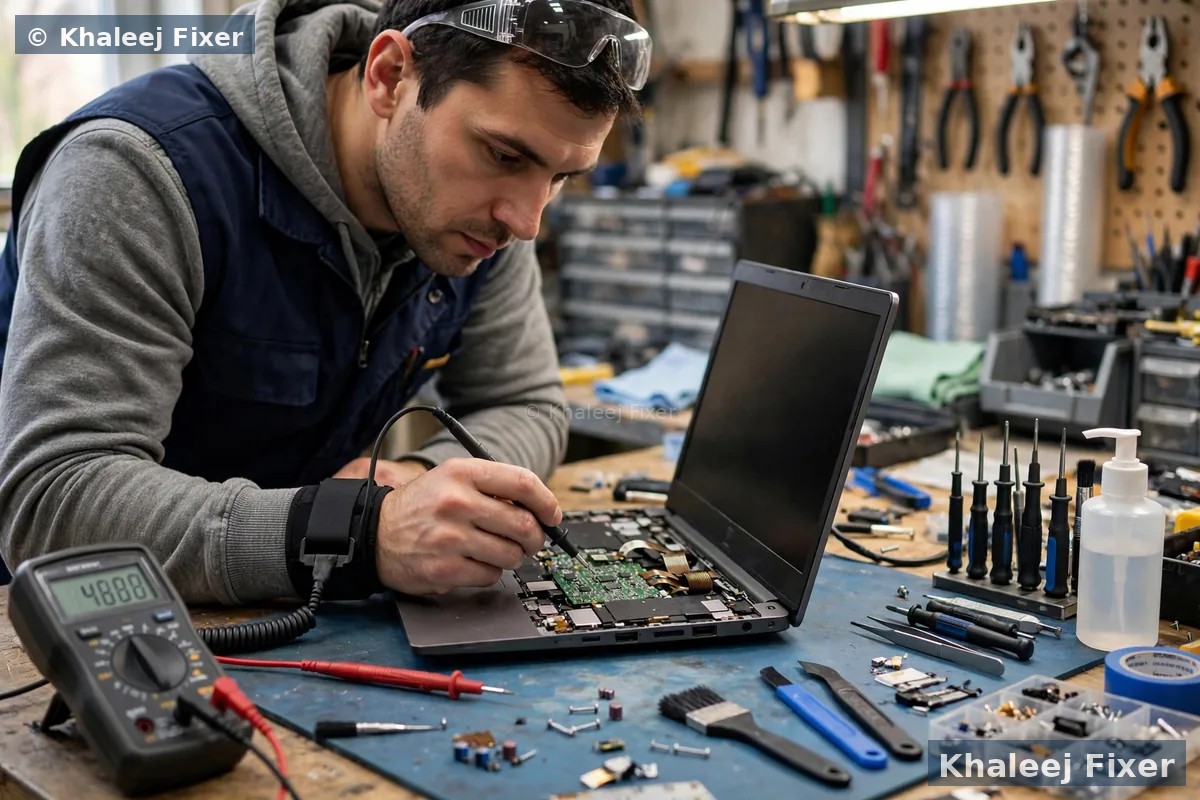
First, check the simple things
Start with the wall socket. Plug a phone charger into the same socket. If the phone does not charge either, the socket is the problem. Try another socket in another room. Next, check the charger brick. Is it warm? A charger that stays stone cold while plugged in may be dead. Is it very hot? Unplug it and let it cool. A charger that smells burnt should not be used again.
Check the cable end to end. Look for cuts, kinks, and frayed spots near the plug. Bend the cable gently near each end while watching the charging light. If the light flickers, the cable is damaged inside. Do not tape a damaged charger cable and keep using it. A damaged cable can cut power mid charge and confuse the charging circuit.

Check the charging port
Plug the charger in and wiggle it very gently. Does it feel loose? Does the charging light go on and off as you move it? A loose port is a common fault. Ports wear out after years of plugging and unplugging. Dust in the port can also break the connection. Power the laptop off first. Then use a dry soft brush or a short burst of compressed air to clear dust from the port. Never push a pin or a metal tool into the port.
If the port feels loose even after cleaning, stop. A loose port needs a workshop fix. Forcing the plug can break the solder inside and turn a small job into a board job. Our laptop battery replacement in Dubai page explains how our free diagnosis tests the charger, the port, and the battery together, so you pay for the real fault only.
Try another charger, if you have one
The fastest way to split the fault is a known good charger. Borrow the same model charger from a friend or a colleague. If the laptop charges fine with the borrowed charger, your charger is dead. Buy a matched charger for your exact model. A cheap universal charger with the wrong voltage can damage a battery over time.
If the laptop still does not charge with a good charger, the fault sits inside the laptop. It may be the port. It may be the battery. It may be the charging circuit on the board. That is the point to stop guessing and book a free diagnosis. We test all three parts with meters and software, so you get one clear answer.
Check the battery health reading
On Windows, open a command prompt and run a battery report. It shows the design capacity and the full charge capacity. If the full charge capacity is far below the design capacity, the pack is worn. On a Mac, open System Settings and look at the battery health section. A reading of Service Recommended means the pack is worn, even if it still charges a little.
A battery that charges to 60 percent and stops may also be a setting, not a fault. Some laptops have a battery care mode that caps charging at 60 or 80 percent to extend pack life. Check your brand settings app before you worry. If no cap is set and the charge still stops early, the pack or the charging circuit needs a check. Our Fujitsu battery replacement in Dubai page shows the same charger first habit for LifeBook machines, and our Razer laptop battery replacement in Dubai page covers it for gaming laptops.
Try a power reset and a driver check
A power reset helps when the charging circuit is stuck. Power the laptop off. Unplug the charger. If the battery is removable, take it out. Hold the power button for 30 seconds. Put the battery back, plug in, and power on. For sealed laptops, hold the power button for 30 seconds with the charger unplugged, then plug in and start up.
Next, check the battery driver. In Windows Device Manager, find Batteries, right click the Microsoft ACPI driver, and uninstall it. Restart the laptop. Windows reinstalls the driver on startup. If charging returns, the driver was the fault. If nothing changes, the fault is hardware. Do not reinstall Windows for a charging fault. That step wastes hours and rarely fixes a hardware problem.

If the checks above do not fix it, free pickup brings the laptop to us.
When to stop and book a free diagnosis
Stop at once if you smell burning, if the base is bulging, or if the laptop gets very hot while charging. Unplug it. Do not charge it again. A swollen battery is a safety issue. Read our guide on swollen laptop battery safety for the exact steps, then message us for free pickup.
Stop guessing if a good charger, a clean port, a power reset, and a driver reinstall all fail. The fault is then inside the machine. It may be a loose port, a worn pack, or a charging circuit fault. All three are workshop jobs. Opening the laptop yourself can damage the board, void a warranty, or break a glued battery. Our free diagnosis finds the real fault first, and the final quote comes before any work starts.
Frequently Asked Questions
Why is my laptop plugged in but not charging?
The usual causes are a dead charger, a damaged cable, a loose or dusty port, a worn battery, or a stuck charging driver. Work through the checks in this guide in order. If a known good charger does not fix it, the fault is inside the laptop.
Can a bad charger damage my laptop battery?
Yes. A charger with the wrong voltage or a damaged cable can shorten pack life and confuse the charging circuit. Always use a charger matched to your exact laptop model.
Why does my laptop stop charging at 60 or 80 percent?
Many brands offer a battery care mode that caps charging to extend pack life. Check your brand settings app first. If no cap is set and charging still stops early, the pack or the charging circuit needs a check.
Should I replace the battery or the charger first?
Test the charger first. Try a known good charger for your model. If the laptop charges with it, replace the charger. If it still does not charge, book a free diagnosis before buying a battery, so you do not pay for a part you do not need.
Is it safe to keep using a laptop that only works plugged in?
Yes, for a short time, if the base is flat and nothing smells burnt or feels very hot. But a dead pack can swell over time, so book a free check soon. Free pickup covers Dubai and Sharjah.
Still not charging? Get a free diagnosis today.
Message us on WhatsApp or call. Free pickup, free diagnosis, final quote before any work, 2-month warranty.
Free Diagnosis • Free Pickup & Delivery • 2-Month Warranty • Open 7 Days 11AM to 11PM